

Visit summary and PDF
- Owner
- Organization admin
- Concierge
Closing out a visit produces a draft summary: the visit’s completed work, its photos and its recipients, ready to be edited down into something an owner wants to read. Organization admins and the visit’s concierge curate and send it; the owner receives an email with a PDF copy attached.
The field record is never changed by this page. Renaming a task here changes only the wording the owner sees; the task keeps what the concierge typed on the day.
Open the draft
Section titled “Open the draft”-
Closing a visit out opens its summary straight away. To come back to it later, find the visit on your home dashboard in Pending Summaries (concierges) or Pending Invoices (organization admins) and select its row, or select Send summary on the visit band while it is the day’s visit. Each row is badged with whether its summary is still a draft or already sent.
From the calendar you can also expand a completed visit’s card in the day view and select View summary. Once sent, the summary also lists under History on your home dashboard.
-
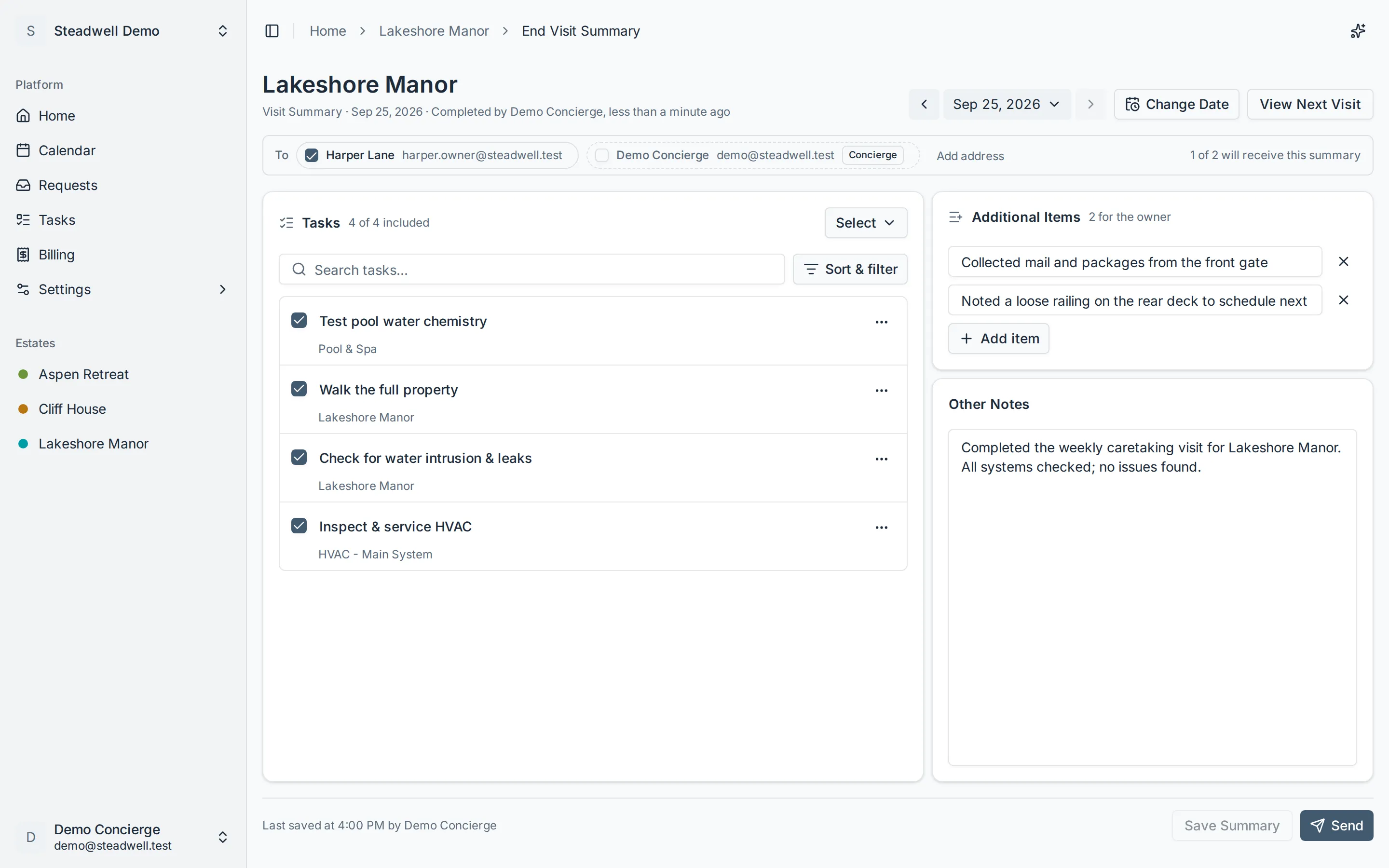
The page opens on that visit: the estate name, Visit Summary with the date, and who completed it. It reads like the email it will become: a To row of recipients, the tasks (with any photos underneath), and the notes beside them.
-
Use the arrows beside the heading to step to the estate’s other completed visits, or View Next Visit to jump to the checklist being worked now.
Curate it
Section titled “Curate it”| Panel | What it does |
|---|---|
| To | Who it goes to, as a row of chips under the heading. The estate’s owners, its assigned concierge and the staff your organization names as maintainers on its assets are always listed; owners start ticked, the others unticked, and you tick a chip to include that person. Anyone else is typed into Add address at the end of the row and added with Enter. The row ends with “N of M will receive this summary”. |
| Tasks | Every completed task, each with a tick and an owner-facing name you can change: click the name, or the pencil beside it, and type. The name wraps, so a long one is always readable in full. The header reads “N of M included” and, when the visit has photos, “N of M photos”. The Select menu ticks or unticks every task, or every photo, in one go; the search box and Sort & filter (priority, size, name or asset; assignee, priority or size) narrow and order long lists; the + beside them adds a task that was done on the visit but never made its checklist; skipped work sits in its own collapsed Skipped section - it cannot be included, but its photos can. Each row ends in a ⋯ menu for notes, photos and corrections to the task’s record. |
| Photos | Under each task, the photos taken while doing it. A completed task’s photos start ticked, so untick any the owner should not see; a skipped task’s start unticked. A photo taken after the draft was saved arrives ticked too, when its task is. A ticked photo on a task that is unticked or skipped is flagged Photos still included, since it would reach the owner with no task line to explain it. The dashed tile at the end of the row attaches another photo (a task with no photos yet gets its first from its ⋯ menu); hover a photo for its trash control to delete it from the visit altogether. |
| Additional Items | Hand-written bullets that are not tasks: an observation, off-checklist work, a heads-up for next time. They join the same list in the email. Calendar events someone selected Add to summary on during the visit start out here, each with its date and time (see Today’s events at the estate); edit or remove them like any other line. |
| Other Notes | Free text, shown to the owner in a shaded box at the end of the email. |
Unticking a recipient does not remove it - a typed address exists nowhere else, so it stays on the row, unticked, for next time. Only an address you typed in has a remove control.
The bar at the foot of the page says where the draft stands: Unsaved changes, or Last saved … with who saved it, alongside Discard changes and Save Summary. Saving is for coming back later; the bar switching to Last saved is the confirmation. You do not have to save before you send. Send is unavailable only when there is nothing to send - no recipient selected, or nothing at all included - and the bar says which.
Send it
Section titled “Send it”-
Select Send. Any unsaved changes are saved as part of the send, so the owner receives exactly what is on screen.
-
The Send Visit Summary dialog lists the recipients and states that the summary can no longer be edited once sent. Each recipient is emailed separately, so nobody sees who else received it.
-
Select Send Summary.
Add notes, photos, or correct a task’s outcome
Section titled “Add notes, photos, or correct a task’s outcome”Reviewing the summary is often when a gap in the visit’s record shows up: a note that never got written, a photo still on the phone, or a task the close-out recorded wrongly. Each row in the Tasks panel - completed or skipped - ends in a ⋯ menu that fixes these on the task itself, without reopening the visit. Nothing in the menu is an edit to the draft you are composing: the bar does not report unsaved changes for it, and your other edits are kept.
| Menu item | What happens |
|---|---|
| Add note / Edit note | Opens the Notes dialog with the task’s current note, the same one the checklist uses. Save, and the row shows the new wording. Notes are for the record; they do not appear in the owner’s summary. |
| Attach photo | Opens Add Photos, up to ten at a time. On a task that already has photos, the dashed tile at the end of its photo row does the same. They appear under the task, ticked when the task is, so untick any the owner should not see and Save Summary. |
| Mark completed (on a skipped task) | The Complete Task dialog asks for notes and photos, as the checklist does. The task then joins the completed list. If the draft has already been saved it arrives unticked, so tick it and Save Summary to include it; on a summary nobody has saved yet it is included straight away. |
| Mark skipped (on a completed task) | The task moves to the Skipped section and comes off the draft if it was included. Its completion notes are cleared; its photos stay and can still be attached. Like any skipped task it carries forward onto the next visit. Undo on the confirmation puts the completion back, notes included. |
The close-out records what the checklist said at the time: whatever was still open when the visit was completed - or when it was closed automatically the next morning - is skipped. Mark completed and Mark skipped exist to fix that record.
- Notes and photos - adding and deleting them - are open to whoever can edit the summary. Only owners and organization admins see Mark completed and Mark skipped; concierges see the rows as they are.
- Corrections work on any completed visit, including ones closed automatically.
- The whole menu, and the trash control on photos, stop once the summary is sent. What the owner received cannot be changed after the fact.
- Marking a request’s task completed emails the request’s owners, as completing it from the checklist would.
Add a task that was done on the visit
Section titled “Add a task that was done on the visit”Work that got done on the day but was never on the checklist - a loose hinge oiled on the way out - can be added to the visit’s record from here, so the owner’s summary can list it. Select the + beside Sort & filter in the Tasks panel. It opens the checklist’s Add completed task dialog: name the task, pick where it was done, and add completion notes and photos with Add Notes & Photos if there are any. There is no When to choose - the visit is closed out, so the task can only be logged as already done on it. Select Add completed task.
The task is created on this visit and completed straight away, and joins the completed list. Like a corrected outcome it is not an edit to the draft: on a summary nobody has saved yet it is included straight away; if the draft has already been saved it arrives unticked, so tick it and Save Summary to include it. Anyone who can edit the summary can add one. The + goes once the summary is sent.
Delete a photo
Section titled “Delete a photo”Unticking a photo only keeps it off the summary; it stays on the task. To get rid of a blurry duplicate or a shot of the wrong thing, hover the photo under its task (on a phone the control is always shown), select the trash icon and confirm Delete. The photo is deleted from the task’s record and disappears everywhere it was shown - the summary, the checklist’s history and the asset. There is no undo. Like the row menu, it is not an edit to the draft: a deleted photo comes off a saved selection on its own, and the bar keeps reading as saved.
Reopen a visit completed by mistake
Section titled “Reopen a visit completed by mistake”If a visit was closed out before its work was done, an owner or organization admin can take it back to open from this page. To fix one task’s record without reopening the whole visit, use correct that task’s outcome instead. Select Reopen Visit in the header, then confirm in the Reopen Visit dialog. You land on the visit’s checklist, ready to carry on.
| What | After reopening |
|---|---|
| Tasks the close-out skipped | Open again, on the same visit |
| Tasks completed during the visit | Still completed |
| Tasks you skipped yourself before closing out | Still skipped; reopen them from the checklist if needed |
| This draft summary | Discarded. A new draft starts when the visit is completed again |
Reopen Visit only appears when all of these are true:
- You are an owner or organization admin. Concierges don’t see it.
- The visit is dated today or later. Past visits stay closed.
- The summary hasn’t been sent. What the owner received can’t be taken back.
- The visit has no invoice. Void the invoice first if one was raised.
Change a completed visit’s date
Section titled “Change a completed visit’s date”Use this when a visit was recorded on the wrong date. Organization owners and organization admins can fix it themselves from the visit’s summary, with no support ticket: the completed visit moves to the day the work really belongs to, and its tasks, notes, photos and summary move with it.
The usual case is working the wrong visit. A scheduled visit was missed, so the nightly sweep closed it automatically after its date passed. The concierge then worked the estate’s next scheduled visit instead, and it was moved back onto a past day and completed there. Changing that visit’s date to the missed scheduled date fixes both ends: the work now sits on the missed visit, and the next visit is back on the schedule as a normal, unprepared visit.
-
Open the visit’s summary and select Change Date in the header.
-
In the Change Visit Date dialog, pick the date the visit happened. Dots mark the estate’s scheduled visits, and days after today can’t be picked.
-
If the visit was moved here from another scheduled date, decide whether that date goes back on the schedule with Put the Oct 13 visit back on the schedule. It starts ticked when the new date is a scheduled one (the visit becomes that visit, so the one it was moved from still has to happen) and unticked otherwise. Tick it whenever the work wasn’t that visit.
-
Select Change date. You land on the visit’s summary on its new date.
| What | After changing the date |
|---|---|
| Tasks, notes and photos | On the new date, exactly as recorded |
| The summary | Moves with the visit. A sent summary is not sent again, and the owner’s copy online shows the new date |
| A visit that was moved here from a scheduled date | With the box ticked, that scheduled date returns to the calendar as a normal visit, ready to be prepared. Unticked, it stays hidden behind the move |
| A scheduled date as the new date | The visit becomes that scheduled visit |
| A visit that was closed automatically with nothing done, on the new date | Replaced by this visit; the tasks it skipped are removed |
| The old date | Empty again. A scheduled date in the past simply no longer shows a visit |
Change Date only appears for organization owners and organization admins (concierges don’t see it), and only while the visit has no live invoice. Void the invoice first if one was raised. When the date you pick can’t take the visit, the dialog says why and nothing changes:
- The date is in the future. The work was done, so it happened on or before today.
- Another completed visit is already on that date. Only a visit that was closed automatically with nothing done can be replaced.
- The date is cancelled, has tasks recorded on it, or another visit overlaps the days this visit runs.
- A homeowner’s change request is waiting on that date. Answer it first.
Put a moved visit’s date back on the schedule
Section titled “Put a moved visit’s date back on the schedule”Moving a visit to another day hides the date it came from. When the moved visit is then completed, Steadwell reads it as that visit, done on another day, and the original date stays hidden. That is usually right. When it isn’t - the concierge worked the wrong visit, so the moved-from visit still has to happen - organization owners and organization admins can put the date back on the schedule themselves, with no support ticket. The completed visit keeps its date, tasks and summary.
You can do this from three places (the labels name the date; Oct 13 here):
- The visit’s summary. Select Put Oct 13 Back on the Schedule in the header (Put Oct 13 Back on a phone), then confirm.
- The calendar. From today on, the hidden date shows a faded, dotted entry for staff, reading Moved to Oct 13 · completed. It isn’t a visit: it never counts as upcoming work, and no visit can be dragged onto that date until it is put back. Select it for a link to the completed visit and Put back on the schedule. Estate admins and estate viewers don’t see it.
- New Visit. Booking a visit on the hidden date explains what happened to it and offers Put Oct 13 back on the schedule instead of an error.
Once it is back, the date is a normal scheduled visit, ready to be prepared. If the schedule has changed since the move and no longer includes that date, the dialog and the calendar entry say so: putting it back then brings no visit there, but frees the date so you can book one on it. If something else has taken the date since - another visit, tasks, or an invoice - the dialog says so and nothing changes.
What the owner receives
Section titled “What the owner receives”An email, one per recipient, whose subject names the estate and the visit date. It carries the organization’s logo, the estate and date, who completed the visit, and a Work completed list with a section for each zone or asset, headed by its name. Each photo you picked sits right under the task it was taken on, so the owner can see which picture goes with which piece of work. Photos are all the same size, three to a row, and keep their own shape. A ticked photo whose task is not in the summary (a skipped task, or one you left unticked) goes under More photos after the list. Your note comes last, in a shaded box. The photos are embedded in the email itself, at a size that stays sharp when the owner taps one to open it full screen, so they are visible without downloading anything. A PDF copy of the same document, laid out the same way, is attached.
When the owner replies, the reply goes to the email set under Organization settings, so it reaches your team. With no organization email set, replies go to Steadwell support instead.
Owners and family members also see it in the app: sent summaries collect in the History panel on their home dashboard, and open on the estate’s History section, laid out like the email - each photo under its task, then More photos and your note. Selecting a photo there opens it full size and the arrows step through the rest (see Estate history). Once QuickBooks has emailed them the visit’s invoice, their copy links to it, and the invoice links back to the summary.
If some addresses fail while others go through, the summary still counts as sent and a warning names the addresses that were missed. Fix the address on the estate’s contacts and let the next summary carry it, or email the owner directly - there is no retry.