

Raise a request
- Owner
- Organization admin
- Concierge
- Estate admin
- Estate viewer
Raising a request puts a card on the estate’s board that everyone involved can follow. Anyone who can see an estate can raise one, including Estate viewers, and you can take your own request back while nobody else has worked on it.
Raise the request
Section titled “Raise the request”-
Open Requests in the sidebar, or select Add request on the estate overview’s Requests panel.
-
Select New Request.
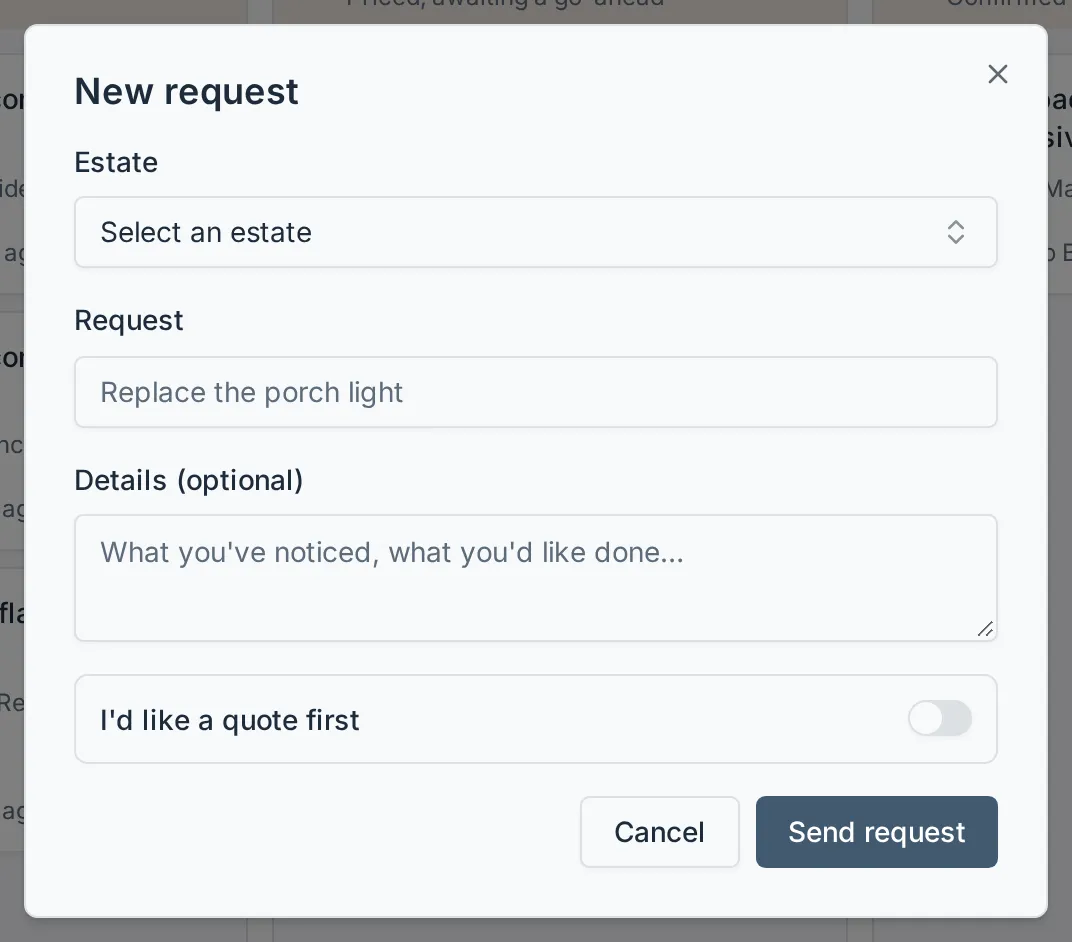
-
Check the Estate. It starts on your first estate; pick another if the request is for a different one. The field is skipped when you only have one.
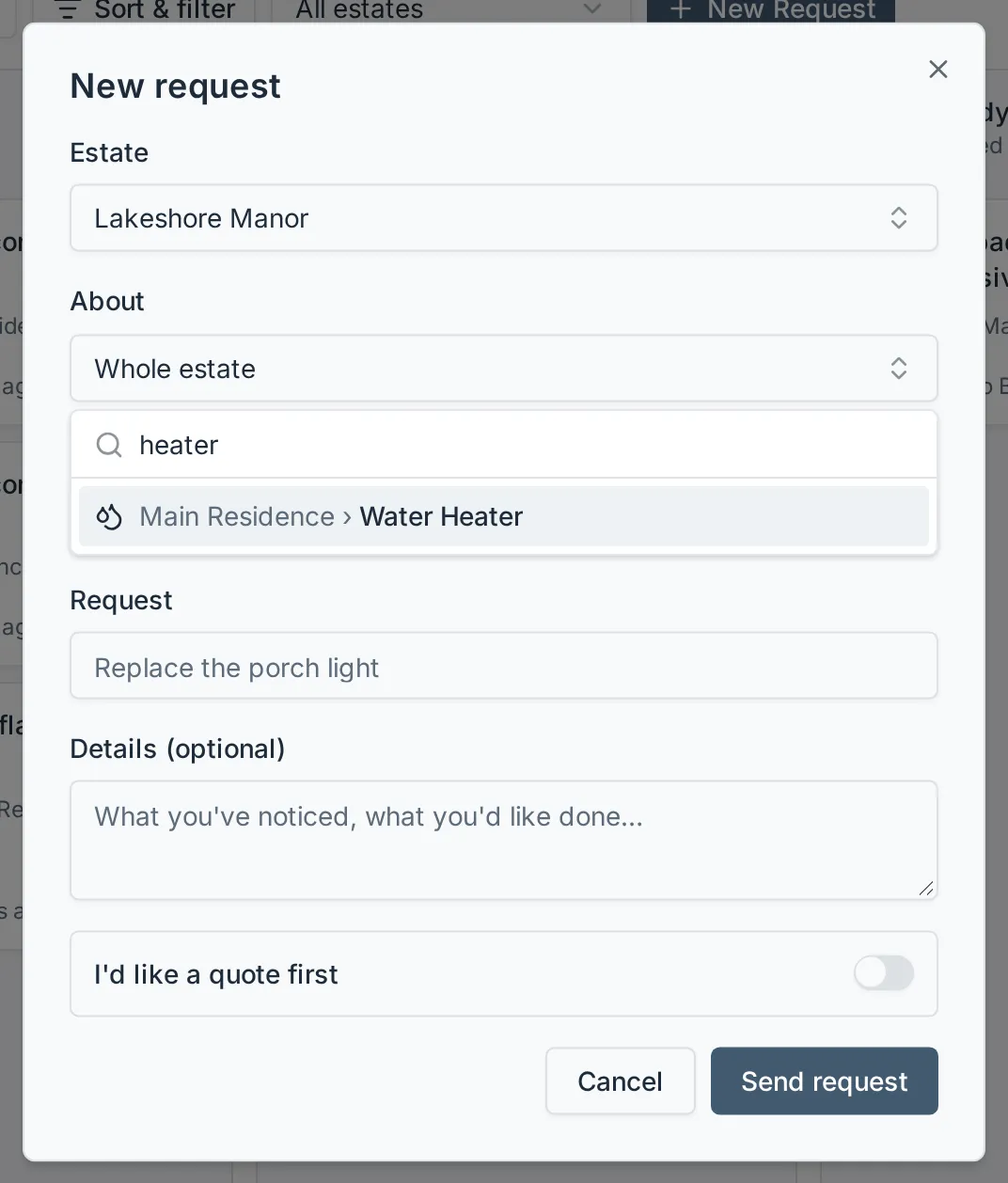
Staff also get an About field, which pins the request to one asset or zone of the estate instead of the whole place. It opens on the estate’s top level: select a row to pick it, or the arrow beside it to look inside, and the path along the top to step back out. To jump straight to something, type part of its name in Search places; each match shows the places above it (Main House › Basement › Water Heater), so two things with the same name are easy to tell apart. Leave it on Whole estate if the request is not about a particular thing.
-
On an estate that two organizations work on, pick who the request goes to under Send to. It starts on the principal organization - the one marked Principal under Organizations on the estate’s settings - so leave it unless the request is for the other organization.
-
Say what you would like done under Request - one line, up to 200 characters, and the only field you must fill in. Add anything else you have noticed under Details (optional).
-
Turn on I’d like a quote first if you want a price before the work is approved. Leave it off and the request goes straight to Ready to Begin for the organization to approve.
-
Select Send request.
What happens next
Section titled “What happens next”The card appears on the board in Ready to Begin, or in Proposed if you asked for a quote first. The estate’s Concierge and the organization’s admins are emailed that a new request has come in, then it moves along the pipeline described in How requests work.
Select the card to open its detail panel, where you can read the quote, the files and the full history at any time.
Change what a request says
Section titled “Change what a request says”If you raised a request, you can change its wording and its details while it is still Proposed or Ready to Begin. Once someone has quoted or approved it, the wording is fixed: the quote prices what the request said, and approval copies it onto the task.
-
Select your card to open its detail panel.
-
Select Edit at the top of the panel.
-
Change Request or Details (optional). Clearing the details removes them.
-
Select Save.
Withdraw a request you raised
Section titled “Withdraw a request you raised”Withdrawing deletes the request. It is offered only to the person who raised it, and only while the request is still Proposed or Ready to Begin - once someone has quoted or approved it, staff decline it or move it back instead.
-
Find your card on the board and open its ⋯ menu.
-
Choose Withdraw.
-
Confirm in the dialog.