

Companies and contacts
- Owner
- Organization admin
- Concierge
A company is an outside business that works on an estate: the plumber, the pool firm, the gate company. Companies are kept once for the whole organization and linked to the assets they look after, so the same plumber is not re-typed on every estate. Owners, organization admins and concierges manage them; everyone who can see an estate can read its contacts.
Add a company
Section titled “Add a company”-
In the sidebar, open Settings and select Companies.
-
Select Add company.
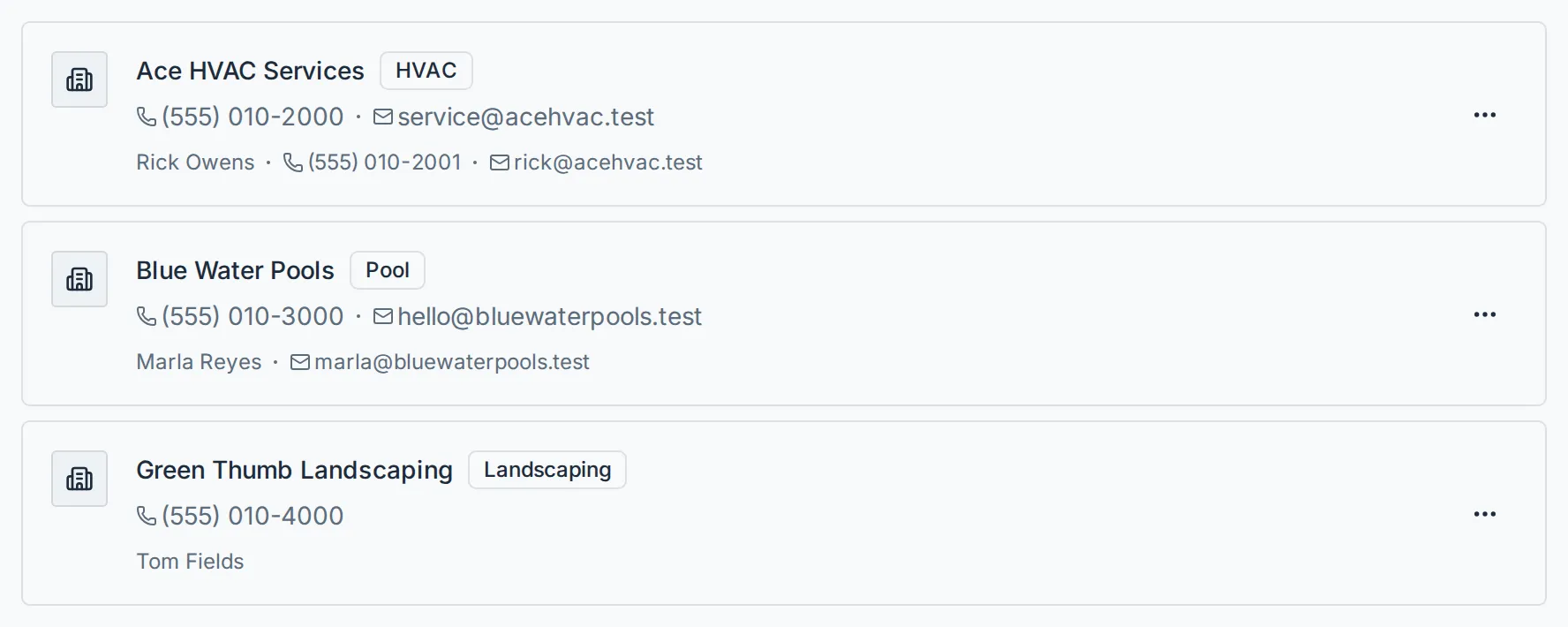
-
Fill in the dialog:
Field Notes Company Required - the business’s name. Trade What they do, chosen from your organization’s asset classes (HVAC, Pool, Landscaping and so on) rather than typed freehand. It becomes the badge on the row and the filter at the top of the page. Phone, Email The main office line. Leave blank if the only useful number is a person’s. Notes Anything staff should know before calling - a gate code, which door to use. Shown on the row. -
Add the people you deal with under Contacts: select Add person and fill in Name, Phone and Email. A row with a phone or email but no name is shown as Main office, which is how you record a dispatch line that is not a particular person.
-
Select Add company.
Use the trade filter to narrow the list, and Show archived to include companies you have retired.
Main office or a named contact
Section titled “Main office or a named contact”Every company has its own phone and email - the main office. Named contacts sit under it, one per person you actually deal with.
Both are used. When you link a company to an asset you may choose a named contact for that link; leaving it unset means “call the main office”, and the company’s own line is what gets shown.
Link a company to an estate
Section titled “Link a company to an estate”Companies are not attached to an estate directly. They are attached to the assets they look after, which is what tells a concierge in the field which piece of the estate a vendor is there for.
-
Open Settings → Estates, select the estate, open the Assets tab and select the asset - the pool, the HVAC unit, the gate. (The Manual on the estate page shows the same tree, but read-only.)
-
In Contacts, select Link company.
-
Choose the Company (archived companies are not offered) and a Role: Installed, Services, Provider, Manufacturer or Warranty. Select Link.
-
If the link should go to one person rather than the office, pick the contact on the linked row.
If the vendor is not on the list yet, New company in the same panel creates it without leaving the asset.
Where contacts appear
Section titled “Where contacts appear”The estate’s Contacts page (a tab for staff; View all on the Contacts panel of the owner estate page for estate admins and estate viewers) gathers everything into three sections:
| Section | What it lists |
|---|---|
| <your organization> | Your organization as a company of its own: its Main office details as filled in under Settings → General, then the team on the estate - the Concierge, and every member of staff set as a maintainer of one of its assets, with what they look after. Each has their own phone and email. |
| Owners | The estate admins and estate viewers listed on the estate. |
| Companies & Trades | Every company linked to any asset on the estate, with its trade, the roles it holds, the assets it is linked to, and the contacts assigned on those links. |
The estate overview’s Contacts card (Companies & contacts on Home) shows the same set, the organization first: its row names the team, and opens a card with the Main office line and everyone on it. View all on that card opens the tab.
On an estate shared with another organization
Section titled “On an estate shared with another organization”When another organization works the estate, each organization links its own companies, and its staff see only those: your plumber never shows to the other organization, nor theirs to you.
The estate’s owners and viewers see every organization’s companies together - on the Contacts page, the Contacts panel, their home and an asset’s Contacts section - each one named via the organization that linked it. They see only the companies linked to an asset on their own estates, never an organization’s whole list: the companies an organization uses on other estates stay with that organization. An organization that turns on Keep vendors private drops out of that list; the other organization’s companies stay.
Retire or delete a company
Section titled “Retire or delete a company”Use the actions menu on the company’s row.
- Archive keeps the record and its history but removes it from the pickers, so it can no longer be linked to anything new. Existing links stay. Turn on Show archived to find it again.
- Delete removes the record permanently. It is refused with Company is linked to assets and cannot be deleted while any asset still points at it - archive it instead, or unlink it everywhere first.