

Step-up verification
- Owner
- Organization admin
- Concierge
- Estate admin
- Estate viewer
Before Steadwell shows you an estate’s secured values - a gate code, an alarm code, a Wi-Fi password - it asks you to confirm it is you. A dialog headed Confirm it’s you appears, you answer it once, and for the next few minutes the app stops asking. Anyone who can reach a secured value sees this prompt.
The reason is simple: a signed-in browser left open on a kitchen counter should not hand someone an alarm code. Your password got you into the app; this confirms you are still the person at the keyboard.
Which actions ask
Section titled “Which actions ask”Steadwell asks before any action that could reveal or destroy a value you cannot see on screen:
| Action | Asks? |
|---|---|
| Reveal a secured value | Yes |
| Open the Secured values list from an estate’s photo band, or Show all on the Codes panel | Yes |
| Edit an existing secured value, including who can see it | Yes |
| Delete a secured value | Yes |
| Add a new secured value | No - typing a value in reveals nothing |
| Seeing that a value exists, by its label | No |
| Set password on your profile, for an account that has none | Yes - it adds a way into your account |
Nothing else in Steadwell prompts. Signing in, running a visit, approving a request and inviting a member are all governed by your role, not by this prompt.
Confirm with a passkey
Section titled “Confirm with a passkey”If you have a passkey registered on this device, the prompt opens on it.
-
Select Use passkey.
-
Complete your device’s own prompt: Face ID, a fingerprint or your device PIN.
-
The dialog closes and the action you started carries on.
No email is sent, and nothing is typed. Email me a code instead is there if you would rather not use the passkey this time.
Confirm with an emailed code
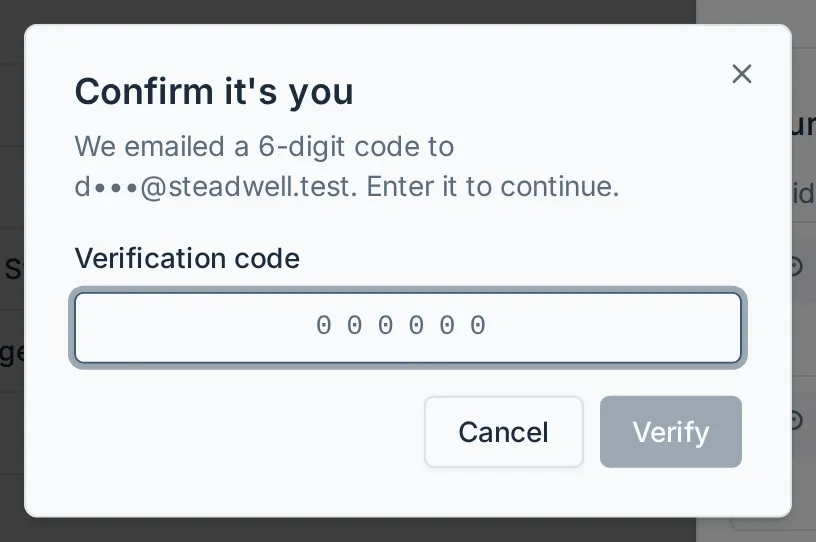
Section titled “Confirm with an emailed code”Without a passkey, Steadwell emails you a six-digit code as soon as the prompt opens.
-
The dialog shows which address the code went to, partly masked, so you can tell which mailbox to open.
-
Open the email titled Your Steadwell verification code and read the six digits.
-
Type them into Verification code and select Verify.
The code is valid for 10 minutes and can be used once. A wrong code can be retried - the dialog counts down the tries you have left, and after five wrong answers that code is dead and you request a new one.
Resend code appears a minute after a code is sent. There is no rush: a slow inbox can take a couple of minutes, and the code it delivers still works for the full 10 minutes. Steadwell also caps how many codes one session can request in a short window, so hammering the button slows you down rather than speeds you up.
What happens next
Section titled “What happens next”A confirmation lasts 10 minutes. Inside that window you can reveal a second or third value without being asked again - useful when you are standing at a gate working through a list.
Two things about the window are deliberate:
- It belongs to one browser on one device, not to your account. Confirming on your laptop does nothing for your phone, and a colleague signed in as themselves is unaffected.
- Logging out discards it immediately. So does letting it lapse; the next reveal just prompts again.
If something goes wrong
Section titled “If something goes wrong”| What you see | What to do |
|---|---|
| “That code isn’t right. n tries left.” | Retype the code from the most recent email. Older codes no longer work. |
| “Too many attempts. Request a new code.” | Select Send a new code and use the one that arrives. |
| “That code has expired. Request a new one.” | The code was older than 10 minutes, or already used. Request a new one. |
| “A code was just sent. Wait a minute before requesting another.” | Check your inbox (and junk folder) - the first code is still valid for 10 minutes. |
| “That passkey prompt has expired. Try again.” | The device prompt sat unanswered too long. Select Use passkey again. |
| “No passkey is registered to your account” | Use Email me a code instead, then add a passkey from your profile. |
If no code arrives at all, check the junk folder, then email support@steadwell.estate.