

Evaluate, quote and approve requests
- Owner
- Organization admin
- Concierge
- Estate admin
The requests board is where a request becomes work: staff price it and confirm it is worth doing, the organization approves it into the queue, and the estate’s Concierge schedules it into a visit and completes it.
The board
Section titled “The board”Open Requests in the sidebar for every request you can see, or the Requests page on an estate for one estate’s. The estate select in the header narrows the org-wide board to a single estate.
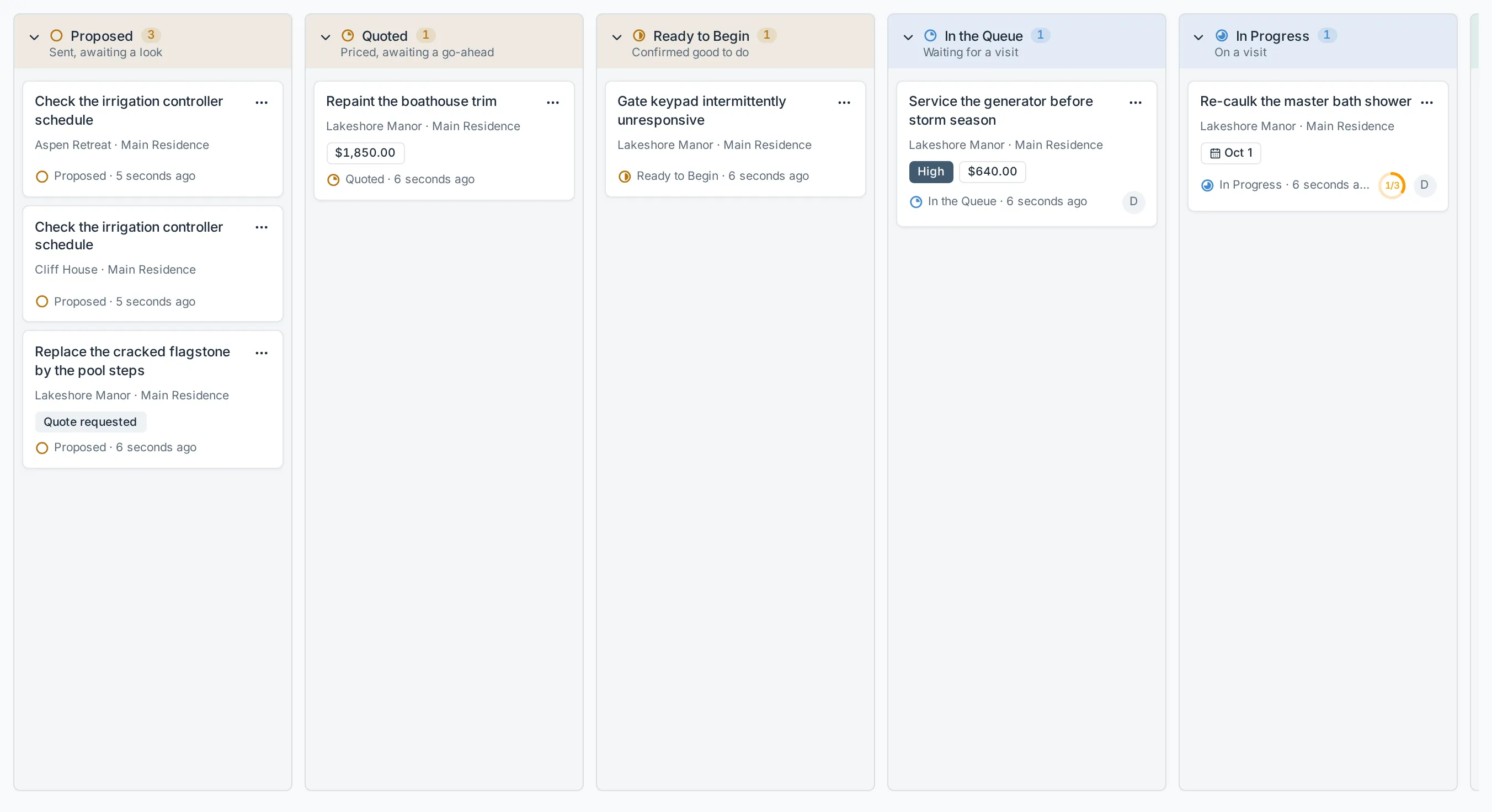
The header carries, from left to right: the density toggle (Detailed or Simplified), the Board / List view toggle, Sort & filter, the estate select and New Request. Density and view are saved per member, so the board looks the way you left it next time.
The board scrolls sideways - seven columns do not fit most screens. Declined starts collapsed to a slim rail; select Expand Declined to read it.
Three ways to move a card
Section titled “Three ways to move a card”| How | What to do |
|---|---|
| Drag | Press anywhere on a card and drag it to another column. Columns that cannot take the card dim while you drag. On a touchscreen, press and hold first. |
| Keyboard | Tab to a card’s drag handle, press Space to lift it, ← / → to jump to the next legal column, Space to drop and Esc to cancel. |
| Menu | Open the card’s ⋯ menu and pick a move from Move to…. Every legal move is listed with the column it lands in. |
A drop never changes anything by itself. It opens the dialog for that move, so you can add a note, a price or a date first - and cancelling snaps the card back.
Quote a request
Section titled “Quote a request”-
Move a Proposed or Quoted card to Quoted, or pick Quote from its menu.
-
Fill in Amount and Currency, attach files under Attachments, or both. An amount or a file is required; a quote can be paperwork with no figure. A quote carries at most five files.
-
Add a Note saying what the price covers, then select Quote.
The quote and its files are emailed to the estate’s owners. To revise it later, pick Revise quote from the same menu.
Mark it ready to begin
Section titled “Mark it ready to begin”Moving a card to Ready to Begin says the request is real and worth doing. Staff on the estate can do it, and so can the Estate admin who owns the estate.
A request that asked for a quote first cannot skip the quote: price it before you mark it ready.
Approve it into the queue
Section titled “Approve it into the queue”Approving commits the organization to the work and creates the task.
-
Move a Ready to Begin card to In the Queue, or pick Add to the queue from its menu.
-
If there is a quote, the dialog says what approving commits to.
-
Under Where, narrow the work to a more specific asset or zone if the request named somewhere broader: step into a place with the arrow beside it, or type in Search places to find it anywhere on the estate. The request moves with it.
Under Who, pick who does the work. Leave it empty to assign the estate’s Concierge. Set an optional Due date: its calendar puts a dot under each day the estate has an upcoming visit.
-
Open More options to set the task’s Priority and Size, and its Instructions. The instructions start as the request’s description; edit them to tell the crew what to do.
-
Optionally break the work into Subtasks: type a step and press Enter. Each step becomes its own task, and the card gains a progress ring showing how many are done. Select Edit on a step to give it its own place, people, due date, priority, size, instructions or billable amount - anything you leave empty follows the task. A step’s due date calendar dots the estate’s upcoming visit days too.
-
Select Add to the queue.
Only an Owner, Organization admin or Concierge can approve. An Estate admin or Estate viewer never can, however much of the estate they own.
Schedule and complete the work
Section titled “Schedule and complete the work”-
Move the In the Queue card to In Progress, or pick Schedule into visit. The estate’s next projected visit is preselected; steps that are not on a visit of their own ride along with the parent.
-
Work the task on the visit like any other - see Run a visit.
-
When it is done, move the card to Complete or pick Mark complete. Add Completion notes if there is anything to flag.
Two things follow the task rather than the card: a task placed on a visit reads In Progress, and a skipped task stays In Progress and carries to the next visit. If the work has not started yet, Take off the visit puts the card back in the queue.
The detail panel
Section titled “The detail panel”Select a card to open its panel: the description, who raised it and when, the priority, the quote and approved spend, the files, the subtasks and the full history. The moves you can make are buttons along the bottom.
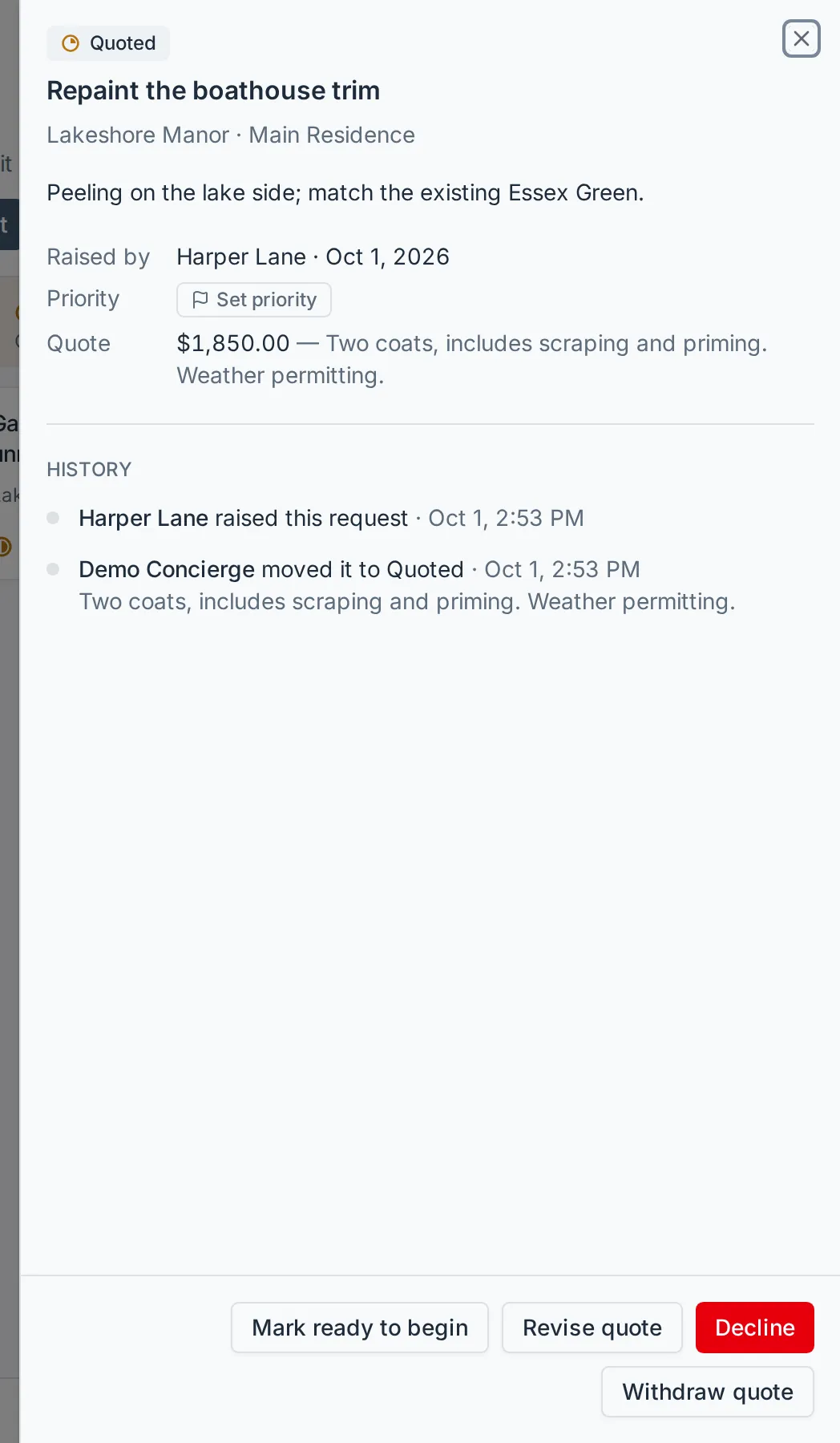
Staff can change the priority, the assignees and the visit date straight from the panel, without moving the card. Each open subtask has an Edit button (the pencil) that opens the same editor as any other task: its name, instructions, people, due date, priority, size and billable amount.
A member of staff who maintains an asset on the estate sees only the requests about what they maintain, and on those they organise the work the same way: the subtasks, the priority and the people are theirs to set, while placing the work on a visit stays with the estate’s concierge.
What happens next
Section titled “What happens next”Each move emails the people it concerns and adds a line to the card’s history. The dialog names them before you confirm, along with anyone it concerns whose Requests switch is off: they won’t be emailed. If you are staff, the dialog carries a Send email switch, off by default, so a tidying-up move need not fill anyone’s inbox. See Request notifications.