

Your home dashboard
- Owner
- Organization admin
- Concierge
- Estate admin
- Estate viewer
Home is the first page you see after signing in. It is a grid of panels, each a small view onto the work that concerns you. Steadwell starts you with a set chosen for your role, and you can change it. An Estate admin or Estate viewer starts from the owner home, one page for every estate they belong to.
What you start with
Section titled “What you start with”| Your role | Your default panels |
|---|---|
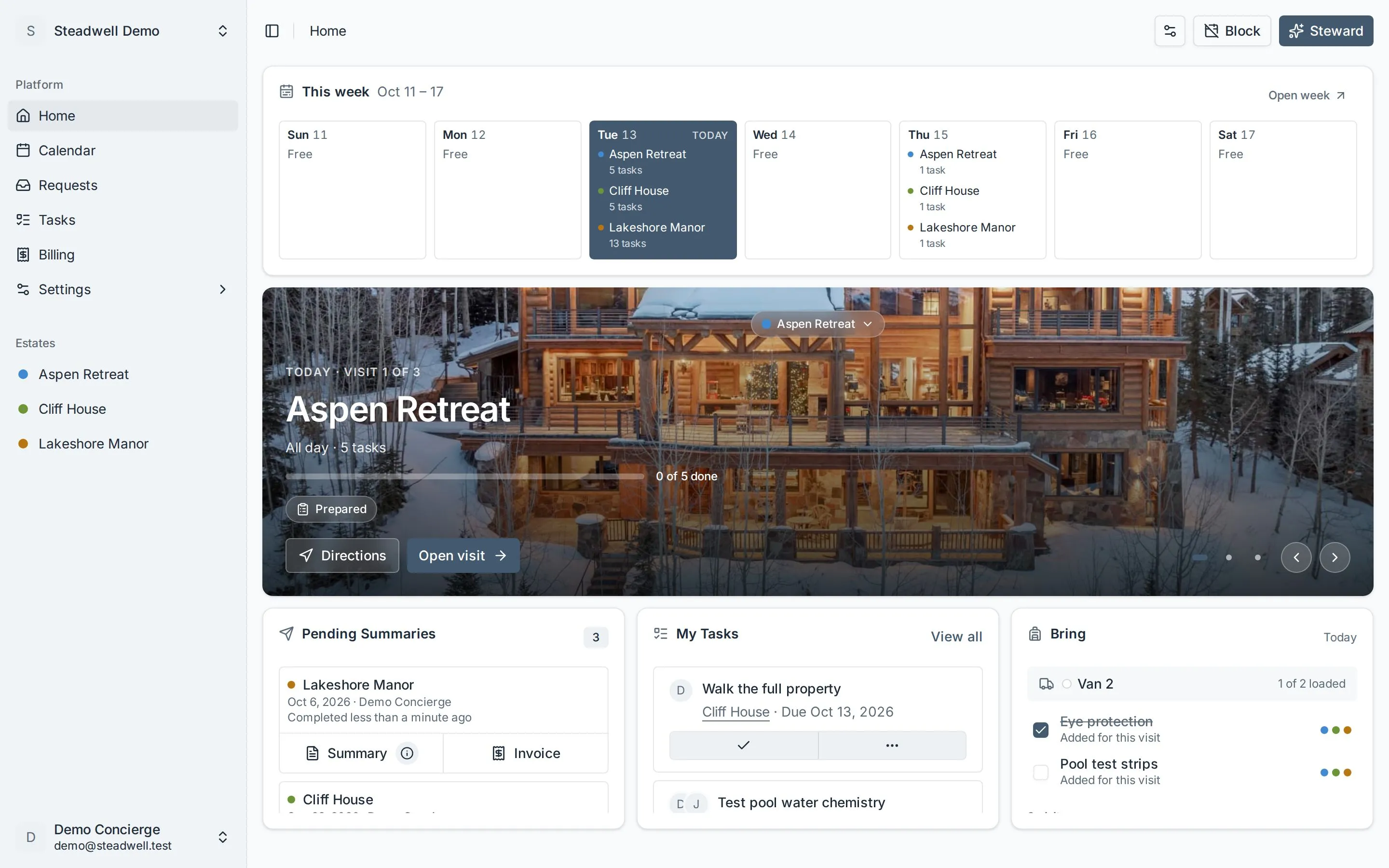
| Owner, Organization admin | This week over the visit band, then My Tasks, Pending Invoices (Pending Summaries until invoicing is set up) and Notifications (see The owner and admin home). Top right, after the Customize gear, Block opens Block out time on any estate, or marks you unavailable. |
| Concierge | This week over the visit band, then Pending Summaries, My Tasks and Bring (see The concierge home). Top right, after the Customize gear, Block opens Block out time on one of the estates assigned to you, or marks you unavailable. |
| Estate admin, Estate viewer | The estate band, then Your estates beside your Requests list, then Companies & contacts, History and Codes - every one across all of your estates (see The owner home). |
The concierge home
Section titled “The concierge home”A Concierge opens on their day. The page is built to get you to the visit in one tap, and to its summary in one tap once the visit is done.
- This week is a cell per day, Sunday to Saturday, naming the visits that touch each day with the estate’s calendar colour, Day 2 of 3 for a visit that spans several days, and how many tasks it has. A day you have marked yourself unavailable reads Off; a day with nothing reads Free. A closed-out visit is struck through. Tap a day and the visit band below switches to it without leaving the page; Open week opens that week on the calendar.
- The visit band shows the selected day’s visits, one photo slide each: the estate, its expected window, Day n of N for a multi-day visit, and a bar of how many of its tasks are done. While the visit is under way the bar turns amber if it is falling behind (the share of tasks done trails the share of the expected window gone by, with one task’s worth of slack). The chip says where it stands: Not prepared until someone prepares it, Prepared, and Completed with the time once it is closed out. Once the visit is prepared, the vehicle picked for it on the prepare page sits beside the chip with its color, so you know which van to take without opening the visit. Directions opens the estate’s address in Maps (only when the estate has a street address; otherwise the button opens the day on the calendar). The other button is the way in: Prepare visit opens the prepare page while your part of the checklist doesn’t exist yet, Open visit the checklist, and once the visit is closed out Send summary opens its visit summary. A visit on an estate where you maintain an asset but are not the concierge counts your own tasks - 2 tasks of yours - and, once the concierge has closed it out, moves you on rather than to a summary that is not yours to send: Prepare next visit opens the prepare page for the estate’s next visit while your part of it is still planned, Open next visit its checklist once it exists. Tapping anywhere else on the photo does the same as that button. A day with no visit shows the estate band instead, marked No visit: one slide per estate assigned to you, each with its next visit and an Open visit button (or Prepare visit); a tap anywhere on the photo does the same. The chip along the top edge still picks any estate by name.
- Also today sits under the band on a day that has estate-less tasks of yours due - the occurrence of a general scheduled task, say - with a tick to complete each. It is not shown when there are none.
- Pending Summaries lists your closed-out visits whose summary has not gone out yet, newest first, with the count in its title. The rows are the ones Pending Invoices has: Summary under a row opens the summary, with an icon beside it once the summary has been reviewed and a green tick once it is sent; the row then leaves the list, and an empty panel reads All caught up. When your organization lets concierges create invoices, Invoice sits beside it with the invoice’s status.
- Bring gathers what to take on the day selected in This week (today until you tap another day; the day is named at the top right). The vehicle comes first, with how many items are loaded. Then comes a checklist of every item across the day’s visits, each naming the tasks that need it; on a day with several visits, coloured dots mark the estates that need it. An item two visits need is listed once. Tick its box to mark it loaded, just as on the visit page. It is ticked on every visit that needs it, and unticking it clears it on all of them. Under the checklist is a row per visit with a ring showing how much of its list is loaded; select a row to open the visit. A visit not prepared yet reads Not prepared yet.
Closing a visit out from the checklist lands on its summary, ready to send.
The owner and admin home
Section titled “The owner and admin home”An Owner or Organization admin opens on the same week as a concierge - This week over the visit band, both described above - then My Tasks, the billing queue and Notifications.
- The billing queue is Pending Invoices once invoicing is set up: QuickBooks connected. Until then it is Pending Summaries - the closed-out visits whose summary has not been sent, with Summary under each row and no Invoice button. It switches to Pending Invoices by itself once QuickBooks is connected.
- Notifications is what other people did that you may want to act on;
your own changes are left out.
- Waiting on you leads the panel when an estate’s owner has asked to move or cancel a visit, oldest first, with the count in the panel’s title. The check approves the ask and the cross denies it, right on the row; the rest of the row opens that day on the calendar.
- Under it, newest first: request updates (a row opens the request on Home), blocked-out time added, changed or removed on an estate, and team members marking themselves unavailable. An estate block that is still to come or under way has Remove beside it, and a team member’s days off have Deny; either removes the block after you confirm, as the calendar’s Remove does, and emails the same people.
- Once you have seen a row, clear it: the cross under its date takes it off the panel, and Clear all in the panel’s header takes everything off at once. Asks under Waiting on you stay until you decide them. Clearing is yours alone - another Owner or admin still sees the rows on their own home - and nothing is lost: the Notifications page keeps every row, cleared or not.
- The panel shows the newest 20. View all opens the Notifications page: the same asks and rows, including the ones you cleared, with Show more at the bottom for older ones.
The owner home
Section titled “The owner home”In My Estates you open on one page for every estate you own or share, so there is nothing to switch between - even when different organizations look after different estates of yours, and a homeowner who is not staff anywhere has no switcher at all. Someone who is also staff somewhere gets this home by choosing My Estates in the switcher (see Work with multiple organizations), including for a house looked after by their own organization. Each estate on the home, and in the sidebar’s Estates list, names the organization that holds it, and opening one takes you straight to it, whichever organization that is. The five panels are all the same height - tall enough to read, so the page scrolls: Companies & contacts, History and Codes sit below the first screen, in a row of three on a desktop.
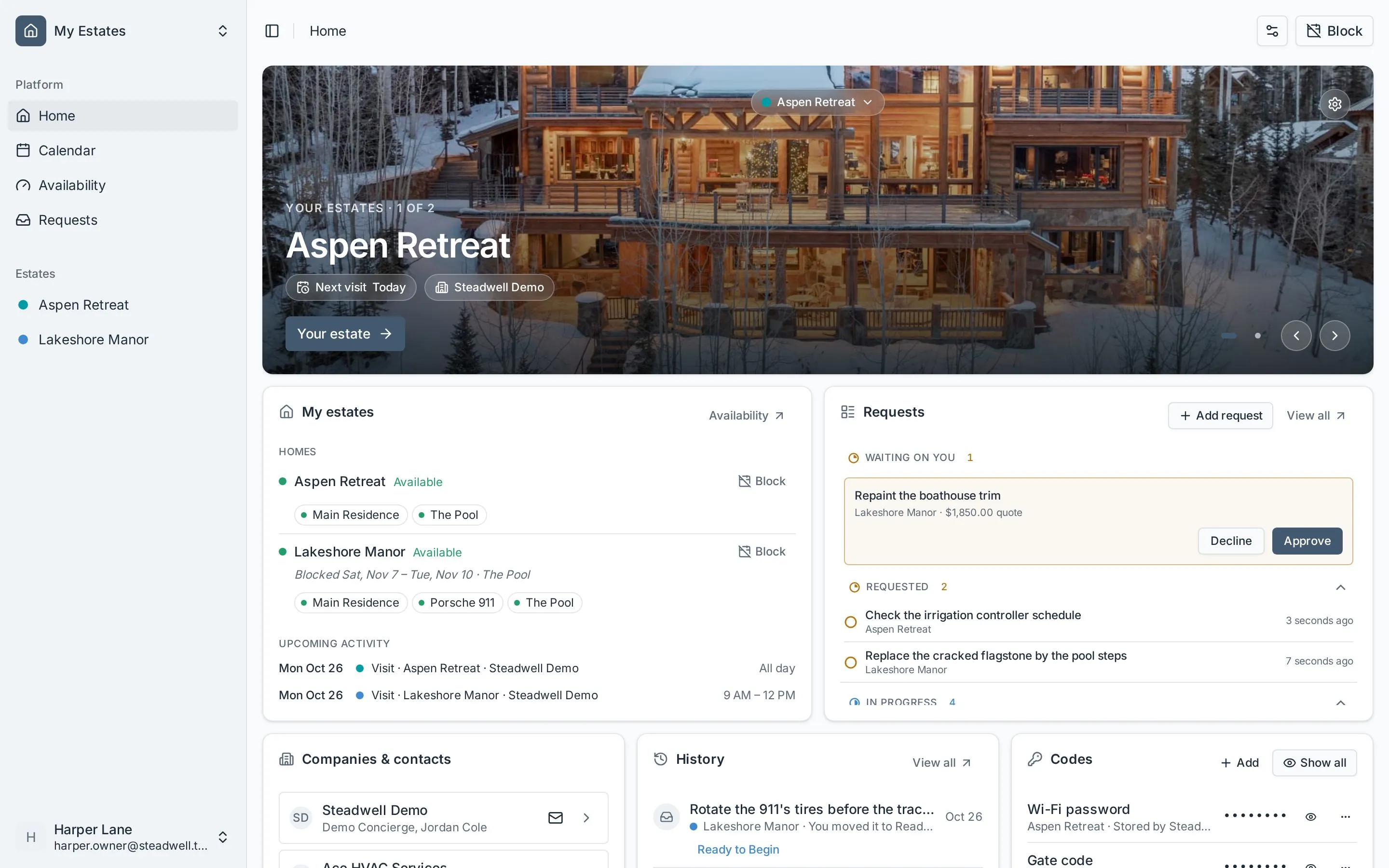
- Top right of the page, after the Customize gear, an Estate admin gets Block, which opens Block out time - on your estate, or with a pick of estates when you have several. Beside it sits Steward, the assistant. Both buttons are in that corner of every page, not just the home. On a phone the two are icons: a crossed-out calendar and a sparkle.
- The estate band keeps a slide per estate, with Your estate as the way into each: the owner estate page, these same panels narrowed to that one house. Tapping anywhere on the photo opens it too. The round Settings cog in the slide’s top-right corner opens your settings for that estate, the same page the cog on the estate page opens.
- Your estates lists each estate with a dot: green and Available, or amber and Unavailable until the day after a block on the whole estate ends, with what is blocked and why beneath - for every estate of yours, whichever organization looks after it, and Next visit is the soonest visit any organization on the estate has booked. The estate’s tracked assets sit under it as chips, amber with the day they are free again while blocked out: select one to open its sheet, or right-click it (press and hold on a phone) to block it out, unblock it or hide it from your home. Block on a row blocks out time on that estate; while a block you set is under way the row shows Unblock instead, which removes that block after you confirm and tells your concierge the estate is available again. Under the rows, Upcoming activity lists the next visits and block-outs across every estate (a cancelled visit is left out); a row opens that day on the calendar.
- Requests is the list described below, with two additions. Add request raises a new request without leaving the page. When your concierge has quoted a request, a Waiting on you section leads the list with the figure (a paperclip means an estimate is attached): Approve marks it ready to begin in one tap - the toast’s Undo puts it back - and Decline asks why, as on the Requests page. A quote waiting on you is not listed again under Requested. Each row names the estate it is on.
- Companies & contacts starts with your management company, naming your concierge and the staff looking after your assets, and then the companies that service any of your estates, each naming the estates it works on - from every organization on your estates, unless one keeps its vendors to itself. Every row has Text, Call and Email buttons for whichever the contact has on file: on your management company they reach your concierge, and on a company the person assigned to your assets - or the company’s office when no one is. The arrow at the end of a company row (or its name) opens the full contact card, where an asset listed under Looks after opens that asset’s sheet.
- History is the last five things that happened on your estates, newest first: visit summaries you were sent, invoices sent, request updates and blocked-out time added, changed or removed - by any organization on them. Each row names what happened, the estate (with its calendar colour) and the date, with the invoice’s amount and status or the request’s stage where there is one. A row opens the summary, invoice or calendar day; a request opens its sheet right on Home. View all at its top right opens your Activity page: visits, invoices, request updates and blocked dates across all your estates.
- Codes lists every secured value on your estates - gate codes, alarm codes, passwords - hidden. The eye on a row shows just that value; Show all shows every one. Either asks you to verify it’s you first. Whatever is showing hides again 30 seconds after the last one you opened, or sooner with the row’s eye or Hide all.
The panels
Section titled “The panels”| Panel | Shows | Available to |
|---|---|---|
| Visit band (Visits) | The selected day’s visits as photo cards, one slide each, across the full width: the estate, its expected window, how many tasks are done, where it stands, Directions and the way in (see The concierge home). Today’s visits unless a This week panel picks another day; a day with no visit shows the estate band instead, one slide per estate assigned to you. The chip along the top edge names the estate on screen with its calendar colour dot, and opens a searchable list of every estate you can see; pick one to open its overview. | Owner, Organization admin, Concierge |
| Estate band (Your estate) | A photo of each estate with its next visit, one slide per estate, across the full width. A visit that spans several days stays the next visit until its last day, reading under way from its second day. The chip along the top edge names the estate on screen and opens the same searchable list; the Settings cog in the corner opens the estate’s settings. | Estate admin, Estate viewer |
| This week | A cell per day of the current week naming its visits; tap one to show it on the visit band and the Bring panel. Open week opens the calendar on that week. | Owner, Organization admin, Concierge |
| Upcoming visits | A timeline of the next visits. | Estate admin, Estate viewer |
| Calendar | The month, with the visits projected from each estate’s service schedule. | Concierge, Estate admin, Estate viewer |
| Estates | The estates assigned to you as a list, one row each. The count badge in its header opens a searchable list of every estate you can see, each with its calendar colour; pick one to open its overview. | Concierge |
| My Tasks | The open tasks assigned to you. | Owner, Organization admin, Concierge |
| Pending Summaries | Completed visits whose visit summary has not been sent, newest first, with Summary under each row (and Invoice once invoicing is set up, for anyone who may bill), each with its status beside it. | Owner, Organization admin, Concierge |
| Bring | What to take for the selected day’s visits (today unless a This week panel picks another day), item by item: the vehicle, a checklist of items to tick loaded, and how much each visit has loaded. | Owner, Organization admin, Concierge |
| Pending Invoices | Completed visits that have not been invoiced yet - the billing queue. Each row has Summary and Invoice buttons underneath, and a green tick beside Summary once the visit’s summary has been sent. A visit whose invoice you skip leaves the panel. Until QuickBooks is connected it is Pending Summaries instead. | Owner, Organization admin |
| Notifications | Visit change requests waiting on you, with approve and deny, then request updates and estate and team blocked-out time, with Remove on an estate block and Deny on a team member’s days off still to come. A cross under each row’s date clears it once seen, and Clear all clears the panel; the Notifications page keeps the history (see The owner and admin home). | Owner, Organization admin |
| Recent invoices | The newest invoices you can see, with their totals and status. Not on anyone’s dashboard to start with - add it if you want it. A row opens the invoice. | Estate admin, Estate viewer |
| Your estates | Every estate you belong to: whether it is available or blocked out and until when, its tracked assets and whether each is blocked out, a Block button (Unblock while a block is under way), and the upcoming visits and block-outs across them all. | Estate admin, Estate viewer |
| Companies & contacts | Your management company and its team, then the companies that service your estates. | Estate admin, Estate viewer |
| History | The last five Activity events of every kind - visit summaries, invoices sent, request updates and blocked-out time - across the estates you can see, the same for every role. View all opens the Activity page. | Owner, Organization admin, Estate admin, Estate viewer |
| Codes | The secured values on your estates, hidden until you ask. | Estate admin, Estate viewer |
| Requests | Your requests, as a simplified board (Requested, In Progress, Done) or a list with a section per status and an Add request button. For an estate member the list leads with Waiting on you: quotes ready for a one-tap Approve or a Decline. | Every role with estates; staff have the list only |
| Requested, In Progress, Done | A single count each: how many requests are waiting, under way or finished. Not on anyone’s dashboard to start with - add them if you want them. | Estate admin, Estate viewer |
| Visit change requests | Estate owners’ asks to move or cancel a visit that are waiting on you, oldest first. Each row shows the date change and who asked; the check and cross answer it on the spot, and the rest of the row opens that day on the calendar. Not on anyone’s dashboard to start with - add it if you want it. (Owners and Organization admins have the same asks in Notifications.) | Concierge |
A panel only ever shows what you are already allowed to see. Adding one cannot widen your access, and if your role changes, a panel your new role cannot read drops off your dashboard by itself.
Customise your dashboard
Section titled “Customise your dashboard”Everyone can change their dashboard, staff and estate members alike.
-
On Home, select the Customize button - the gear icon at the top right of the page.
-
Each panel turns into a placeholder: drag it by the grip handle to reorder, and remove it with the X. A panel’s size is set by what it shows - the visit or estate band and This week run the full width, a count tile is a single line, and the rest are a column each (Your estates takes two) - so there is nothing to resize.
-
Select Add panel to see everything your role can add that is not on the dashboard already, and pick one. It joins the end of the grid.
-
Select Save, or Cancel to drop the changes. Reset to default puts back the starting set for your role.
What happens next
Section titled “What happens next”Saving takes you back to the live dashboard with the new layout, which is what you get from then on. Panels are live views, not copies: each one links through to the full page behind it, so Calendar opens the calendar, a request card opens that request and a completed visit opens its summary.
If your dashboard reads Nothing here yet, you have no estates yet - ask an administrator in your organization to give you access to one. If you removed every panel, Customize is how you add them back.