

Add an event
- Owner
- Organization admin
- Concierge
- Estate admin
- Estate viewer
Add an event for anything that isn’t a visit, a task or blocked-out time, such as a pool cover delivery, a walkthrough with a contractor or a family party at the house. You choose who is invited, and only those people see the event on their calendar. You can also invite a company from your contacts, or one person there. If you want, Steadwell emails them an invitation with a calendar file they can add to Google Calendar, Apple Calendar or Outlook.
Add an event
Section titled “Add an event”-
Select Calendar in the sidebar and go to the day the event starts.
-
As an Estate admin or Estate viewer, select Add event in the toolbar. As staff, select the arrow beside Add visit, then Add event.
-
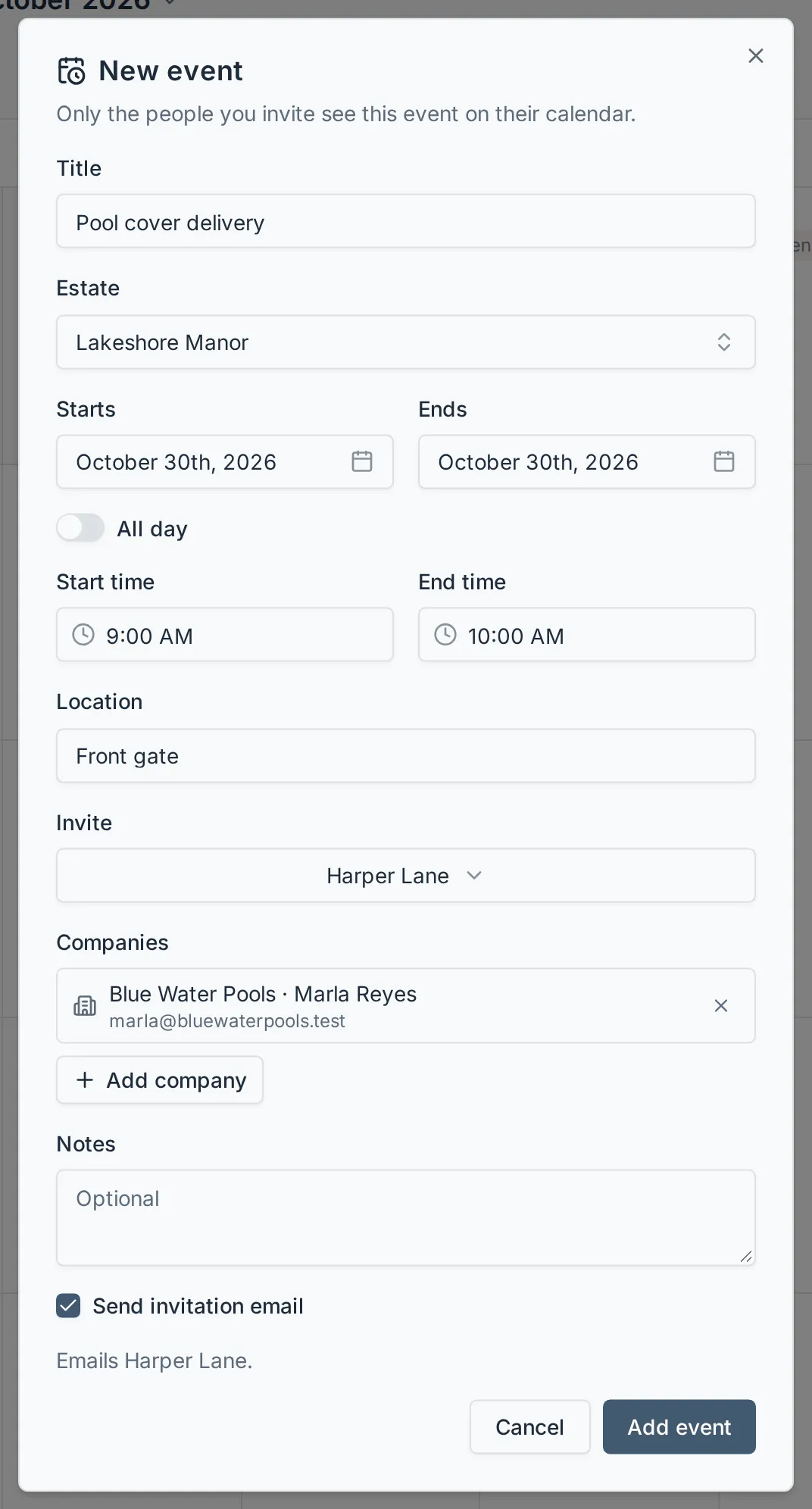
Give the event a Title.
-
Optionally pick the Estate it relates to. Leave it at No estate for anything that isn’t about one property.
-
Set Starts and Ends. Both days are included, so an event can run over several days.
-
Turn off All day to set a Start time and, optionally, an End time. Times are read in the estate’s time zone when you pick an estate, and in yours otherwise.
-
Optionally add a Location and Notes.
-
Under Invite, pick the people to invite. You’re always on your own events, so leave it empty for a private reminder.
-
To invite a company, select Add company under Companies and pick the company. If it has people listed, pick the person to invite, or Anyone at the company to invite the company itself. Each company shows the email its invitation goes to. No email on file means it won’t be emailed. To take a company off, select the × beside it.
-
To email everyone you invited, tick Send invitation email. It is off by default. Once it’s ticked, the window names the people who will be emailed, and anyone invited whose Event invitations switch is off, who won’t be.
-
Select Add event.
What happens next
Section titled “What happens next”The event shows on the calendar of each person you invited, and on yours, on every day it covers. It has a dotted outline and a clock mark, with the estate’s dot when it relates to an estate. On the week and day views, a one-day event with a start time sits on the hour lines beside visits, running from its start to its end (an hour when it has no end time); all-day and multi-day events sit above the hours. Select it to see the details and who is invited. Nobody else in the organization sees it, including staff who weren’t invited.
On the day of an event at an estate, its attendees are reminded of it on the estate’s visit page, and can add it to that visit’s summary; see Today’s events at the estate.
If you ticked Send invitation email, each person you invited gets an email with the time, place and notes, and a calendar file. Opening the file adds the event to their own calendar app. People who have turned Event invitations off on their Notifications page aren’t emailed.
Companies you invite don’t use Steadwell, so they never see the event on a calendar. They only hear about it by email, when you tick the box, at the person’s email or, when that is blank, the company’s. A company with no email on file isn’t emailed.
Change or delete an event
Section titled “Change or delete an event”Only the person who added an event can change it. Select the event on the calendar to open it, make your changes, and select Save. You can also right-click the event (or press and hold it on a touch screen) and choose Edit event or Delete event.
- To tell the attendees, tick Email attendees about this change before saving. People and companies you’ve added get an invitation, people you’ve removed get a cancellation, and everyone else gets the update. The calendar file in each email replaces the copy already in their calendar app.
- To delete the event, select Delete. Tick Email attendees that it’s cancelled in the confirmation to let them know. The event comes off everyone’s calendar either way.
Either box, once ticked, shows who the email will reach and who has turned event invitations off.
Everyone else sees the event’s details but can’t change it. They can ask you to move it instead; see below.
Ask to move an event
Section titled “Ask to move an event”If you’re invited to an event and the time doesn’t work for you, ask its organizer to move it. Nothing changes until they approve.
-
Right-click the event on the calendar (or press and hold it on a touch screen) and choose Request a change. You can also open the event and select Request a change.
-
Set the Starts and Ends days, and the times unless it’s All day, that would work.
-
Optionally add a Note saying why.
-
Select Send request.
The organizer is emailed your request, and a dashed proposed copy of the event shows on your calendar and theirs at the time you asked for. Until they answer, you can open the event to Withdraw request, or choose Change my request to ask for a different time. Your request also waits under Event change requests on your Notifications inbox.
You’re emailed the answer either way. If it’s approved, the event moves to the time you asked for.
Approve or deny a change request
Section titled “Approve or deny a change request”When someone you invited asks to move your event, you’re emailed, and the event shows an hourglass on the calendar with a dashed proposed copy at the time they asked for.
-
Right-click the event and choose Review change request, or open the event. The request shows who asked, for when and why. Requests also wait under Event change requests on your Notifications inbox.
-
Select Approve to move the event to the time they asked for. Tick Email attendees about this change to send everyone the updated invitation, then select Approve and move.
Or select Deny to keep the event where it is, then Decline.
Either way you can add a note, and the person who asked is emailed your answer with it.