

Control who sees an asset
- Owner
- Organization admin
- Concierge
- Estate admin
Everything in an estate’s manual is open to everyone who can open the estate, and who may edit it follows their role. An asset’s Visibility row changes that for one asset or zone, the way sharing a document does: you choose who can see it, and whether each of them can edit it or only view it. A zone’s visibility covers everything inside it.
Only three kinds of people can change an asset’s visibility: the estate’s owners, whoever added the asset, and the staff who maintain it.
| You are | You can hide the asset from | Who always keeps access |
|---|---|---|
| An estate’s owner, on a paid plan | Every organization, and the estate’s managers and viewers | The estate’s owners |
| An Organization admin who added or maintains it | Other staff and other organizations | The owners, the estate’s managers and viewers, and your organization’s admins |
| Other staff who added or maintain it | Other staff and other organizations | The owners, the estate’s managers and viewers, your organization’s admins, and you |
| An estate manager who added it | Other organizations and other estate people | The estate’s owners, and you |
Being an Organization admin or the estate’s Concierge is not enough on its own: if you neither added nor maintain an asset, you see its row but cannot change it. When staff restrict an asset, the estate’s managers and viewers still see it; only the estate’s side can hide an asset from them. The estate itself can never be restricted.
Change who sees an asset
Section titled “Change who sees an asset”-
Open the asset’s sheet from the estate’s Manual (My Assets for estate admins), or from Settings → Estates → Assets.
-
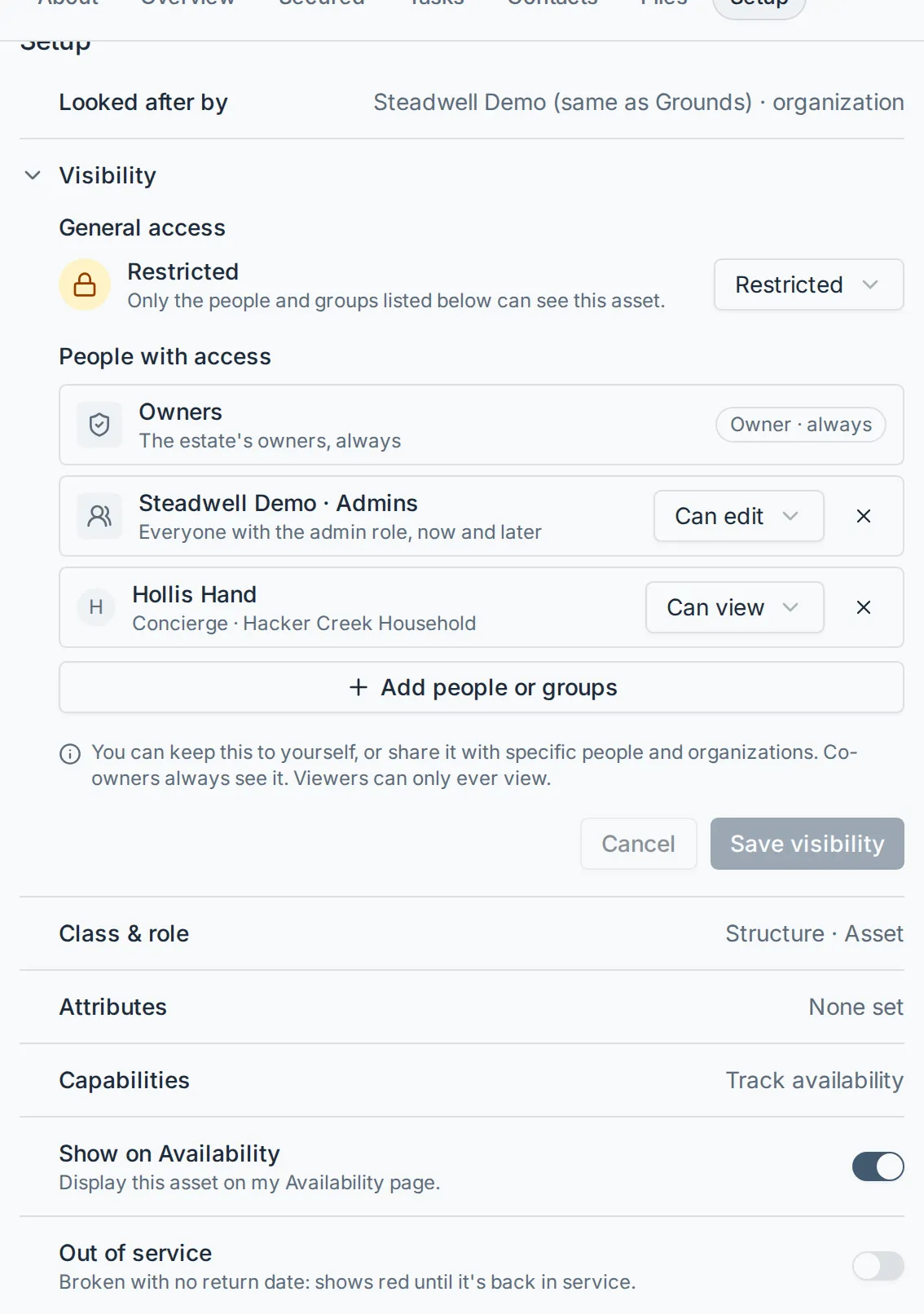
Under Setup, open Visibility. The closed row says how it stands today: Everyone on this estate, Everyone can view · 2 can edit, Restricted · Owners, Seagate admins, Jordan Cole, Only you, or Same as Main House when a zone above it is already restricted.
-
Under General access, choose:
- Everyone on this estate, with Can edit (by role): the default. Anyone who can open the estate sees it, and editing follows roles.
- Everyone on this estate, with Can view: everyone still sees it, but only the people listed below (and the owners) can edit it.
- Restricted: only the people listed below, the owners and whoever added it can see it. Everything inside a restricted zone goes with it.
-
Under People with access, select Add people or groups. You can add an organization’s Admins, its Lead concierge or its Concierges as a group (or the Whole organization), one member of staff by name, or an estate’s managers and viewers. Owners are not offered: they always see everything. Staff are offered the estate’s managers alone, to let them edit: managers and viewers already see what an organization restricts, listed as Managers and viewers · always.
Each row has Can edit or Can view. A viewer is always Can view: viewers can never be given edit access. Remove a row with its ×.
-
Select Save visibility.
Keep a new asset private
Section titled “Keep a new asset private”When you add an asset, the add button is Add public asset or Add private asset. Open the arrow beside it to pick the other: each choice says who will see the asset. A private asset is restricted from the start, to the people your role keeps:
- An Organization admin keeps it to the organization’s admins, the owners and the estate’s managers and viewers.
- Other staff keep it to themselves, the organization’s admins, the owners and the estate’s managers and viewers.
- An owner on a paid plan keeps it to the owners alone, so no organization sees it: it never appears on a visit, a task or a summary.
Your last pick is the button’s default the next time you add an asset on this device. Add more people later from the Visibility row.
What happens next
Section titled “What happens next”- Someone who cannot see an asset does not find it anywhere: not in the manual, on the estate’s map or layout, in search, or on the assistant. Opening a link to it says it was not found.
- Its tasks go with it. A task on an asset someone cannot see is left off their visit checklist, the estate’s Tasks tab, the Tasks page, any Visit Summary they open and the estate’s record, unless the task is assigned to them. An assigned task stays on their lists and names the asset, but the asset itself still cannot be opened.
- Its standing, codes and history go with it too: a hidden asset is not on that person’s Home panel or Availability page, its secured values are not in their Codes roll-up, and a block that covers it leaves it out of their Activity page.
- Someone who can see it but not edit it finds its sheet read-only, with a View only badge. On the Layout tab its region is locked.
- Someone given Can edit can change its details, log its readings, add assets inside it and move it within the estate, but cannot archive it.
- Moving an asset changes who sees it: inside a restricted zone it takes that zone’s visibility, and out of one it is open again unless it is restricted itself.
- Staff who are not admins can never hide an asset from their organization’s admins: that row is kept on every save, even when they remove it.
- When staff save an asset’s visibility, its managers and viewers can see it again, even if an owner had hidden it from them before.
- Restricted assets show a lock on their row in the manual and a Restricted badge on their sheet.