

Set up and use passkeys
- Owner
- Organization admin
- Concierge
- Estate admin
- Estate viewer
A passkey lets you prove it is you with Face ID, a fingerprint, Windows Hello or your device PIN. Anyone with a Steadwell account can add one, and you can add one per device you work from.
Add a passkey
Section titled “Add a passkey”-
Open the user menu at the bottom of the sidebar and select Profile.
-
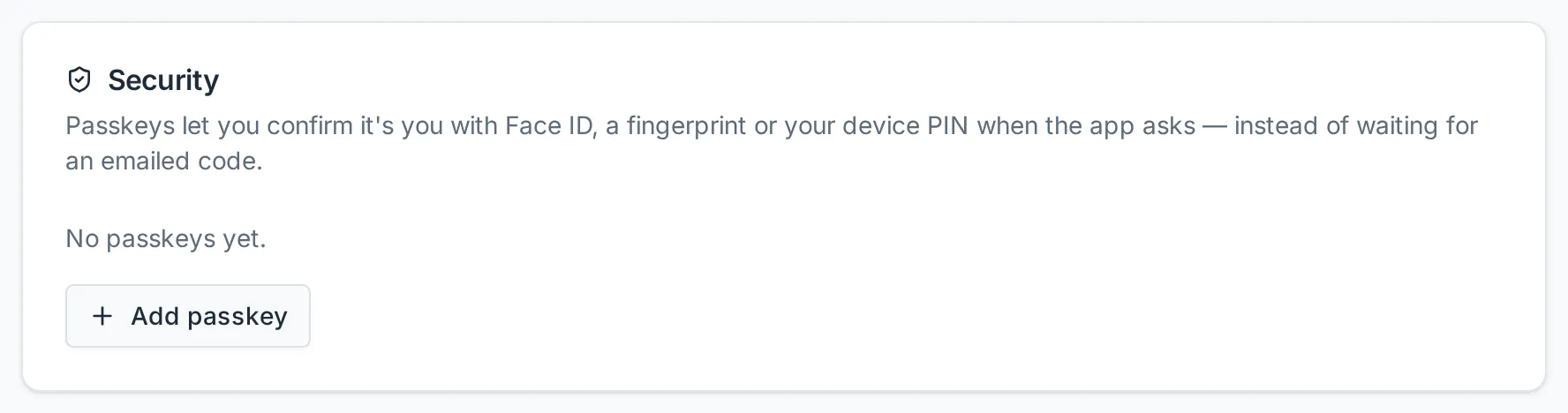
Scroll to the Security card. It lists the passkeys on your account, or No passkeys yet.
-
Select Add passkey.
-
Give it a name that tells your devices apart - “MacBook Touch ID”, “Work phone” - and select Continue.
-
Your browser or device takes over and asks you to confirm with Face ID, a fingerprint or your device PIN. Follow that prompt.
-
Steadwell confirms with Passkey added and the passkey appears in the list with the date you added it.
Rename or remove a passkey
Section titled “Rename or remove a passkey”Each row in the Security card has an actions button at the end.
- Rename changes the label only. The passkey keeps working.
- Remove deletes it from your account. Steadwell asks you to confirm, and once it is gone that device can no longer sign you in or confirm your identity - Steadwell falls back to your password or Google, and to emailing you a code. You can add it again later.
Remove a passkey when you stop using the device it lives on, or when you hand that device on to somebody else.
Use a passkey
Section titled “Use a passkey”- To sign in, select Sign in with a passkey on the login page, or pick your passkey from the suggestions in the Email field. Your device runs its own check and you are in. See Sign in to Steadwell.
- To confirm your identity, there is nothing to do: once a passkey is registered, Steadwell offers it first the next time it asks. The prompt shows Use passkey, and one press runs your device’s own check. Email me a code instead is always there for a device that has no passkey on it.
What happens next
Section titled “What happens next”Your passkey is tied to the device or the password manager that created it. Some platforms sync passkeys across the devices signed in to the same account, so one passkey may follow you; others keep it on the single device. Steadwell cannot tell the difference, so add a passkey on each device you work from and keep your password as the way back in.
Steadwell never sees the passkey itself. What it stores is the public half, which cannot be used to sign in as you and is useless to anyone who obtains it.
If something goes wrong
Section titled “If something goes wrong”| What you see | What it means | What to do |
|---|---|---|
| Add passkey is greyed out, with “This browser doesn’t support passkeys.” | The browser has no WebAuthn support, or it is switched off. | Use a current browser on a device with a screen lock, or keep using the emailed code. |
| “Sign out and back in, then add the passkey - a recent sign-in is required.” | The session is too old to register a new credential. | Log out from the user menu, sign in again, and add the passkey straight away. |
| “This device already has a passkey for your account.” | A passkey from this device is already registered. | Use the one you have, or remove it from the list first and add it again. |
| “The passkey prompt was cancelled.” | The device prompt was dismissed or timed out. | Select Add passkey again and complete your device’s prompt. |
Lost the device a passkey lives on? Remove that passkey from the Security card as soon as you can, and add one on your new device. Your password and the emailed code still work in the meantime.