

Task groups and templates
- Owner
- Organization admin
- Concierge
The Task Library is where an organization writes down the recurring work it does, once, and then points it at the estates that need it. Owners, organization admins and concierges can open it from Settings → Task Library.
Two things live there:
| What it is | Where it is used | |
|---|---|---|
| Task template | One piece of recurring work: a name, optional instructions, a default priority, an optional size and a schedule. | Assigned to an estate on its own, or through a group. |
| Task group | A bundle of templates with a shared purpose and a shared schedule (“Every Visit”, “Seasonal - Winter”). | Assigned to an estate as one unit. |
Neither is a task yet. A template only becomes a task when a visit is prepared: Steadwell then creates one task per target, snapshots its name and instructions onto it, and leaves the template alone. Editing a template later never rewrites work that has already been created.
Build the library
Section titled “Build the library”-
Go to Settings → Task library.
-
Select Add group and give it a Name and, optionally, a Description. Set the group’s Schedule - it defaults to Every visit. See Task schedules for what each option means.
-
Select Add task (from the page header, or from inside a group to pre-select it). The dialog walks through three steps, and Next moves on:
Step Field What it does Task What needs doing? What the concierge sees on the checklist. Task Add instructions Optional detail, shown under the task’s name on the visit. Task Which assets get it? The node it is assigned to creates one task on the estate itself. Pick an asset class instead and Steadwell creates one task for every active asset of that class on the estate. Task Group The group this template belongs to, or No group. Repeats How should it repeat? When the task recurs. A template in a group starts on Same as its group; one whose class tracks readings starts on By readings or dates. Defaults Default priority Low, Normal, High or Urgent. Defaults Default size An estimate of the work, from XS (under an hour) to XL (two days or more), or — for not sized - see task sizes. Every task created from the template starts with it. Defaults Needs What the crew brings for every run: pick from your equipment list, or type a plain item such as “Gloves”. Defaults Active When the schedule starts and ends, and Only when the estate has a. -
Select Create task, or Add with defaults on the second step to skip the defaults.
To change a template later, select it in the library. Each part is a row - Task, Applies to, Repeats, Defaults, Needs, Active - with Edit beside it; open the one you want, then Save task.
Find what you need
Section titled “Find what you need”Each group, and an Ungrouped section for templates that aren’t in one, opens and closes on its own — collapse the ones you’re not working in right now. A section with more than 10 templates shows them 10 at a time, with page numbers under the list. Above the library, the search box matches a template’s own name or its group’s name, and Sort & filter orders the list by name and narrows it by Priority.
Assign the work to an estate
Section titled “Assign the work to an estate”A library entry does nothing until an estate is pointed at it. As you add it, you can choose which of a group’s tasks come and adjust each one for this estate. The library keeps its own version.
-
Go to Settings → Estates and open the estate.
-
Open its Tasks tab. The Recurring Tasks section lists everything that repeats on the estate.
-
Select Add From Library. The dialog is laid out like the library itself — a section per group, 10 templates to a page, with the same search box and Sort & filter — so you can find what you need the same way. A group’s own Add sits on its header.
-
Select Add beside a group or a template. The dialog shows what it brings before anything is added:
What it does Tick box A group’s tasks all start ticked. Untick a task to leave it out of this estate. Name Type a new name for this estate. The library’s name shows as Original under it. Clear the box to keep the library’s name. Customize Opens the task’s Instructions, Priority, Size, Who does it and its Schedule: the Library’s, or Its own for this estate. A task you change is marked Customized. Customize is there for owners, organization admins and the estate’s concierge. A staff maintainer can still tick and untick tasks.
-
Select Add 3 tasks (or Add task for a single template). The dialog goes back to the library list, where the entry has dropped out, so you can add more. Adding a group brings all of its ticked tasks, and any task added to the group later reaches the estate too. If you’d already added one of its templates on its own, that template moves under the group.
See what repeats on an estate
Section titled “See what repeats on an estate”The Recurring Tasks section on the estate’s Tasks tab lists every repeating task on the estate, whether a visit has been prepared or not:
- From the library: tasks from the Task Library. Anything that comes from a group sits under that group’s header, which shows how many tasks it holds. Select the header to collapse or expand it.
- Custom: repeating tasks added on this estate with Add task. These show up here as soon as you add them.
Custom has its own search box and Sort & filter button, the same as on the All tasks view: sort by Priority, Next date or Asset, and filter by assignee or priority. It shows 20 tasks at a time, with page controls underneath once there are more.
Each row shows the task’s schedule and when it next comes up, for example Next: Tue, Nov 4 visit. A task that repeats by readings or dates shows Due now or the day it’s next due. No upcoming visit means its schedule doesn’t land on any of the estate’s coming visits. Paused means its Active switch is off.
The Active switch pauses a task, or a whole group from its header, without removing it. The bin icon on a group’s header removes the group.
Change a task on one estate
Section titled “Change a task on one estate”Select the … menu on a task’s row:
| Menu item | What it does |
|---|---|
| Edit task | Change its name, instructions, priority, size and who does it. Its open tasks on this estate change too. |
| Edit schedule | Change how often it repeats here (see below). For a task that repeats by readings or dates, this is Edit conditions. |
| Use library version | Shown on a Customized library task. Drops this estate’s changes so the library’s version applies again. |
| Add to Task Library… | Shown on the estate’s own tasks. See below. |
| Remove from estate | Stops it repeating here. Tasks already created are kept. For a task from a group, this is Remove from the group. |
Changes to a library task apply on this estate only. The library and other estates keep their version. Owners, organization admins and the estate’s concierge can change tasks.
Leave one task out of a group
Section titled “Leave one task out of a group”To run a group on an estate without one of its tasks, untick it when you add the group. If the group is already on the estate, select Remove from the group in that task’s … menu. Only this estate loses the task. The group stays assigned, and any task added to the group later still reaches the estate. Select Undo on the confirmation to put the task straight back.
If you remove the group’s last task, the whole group comes off the estate. There’s no Undo for this. To get the group back, add it again from Add From Library.
To bring back a task you left out, open Add From Library again. The task is offered under its group, which is marked Added. Select Add and it goes back into the group.
Change a task’s schedule on one estate
Section titled “Change a task’s schedule on one estate”An estate can repeat a library task on its own schedule, for example every three months at one house while the library says every visit.
-
On the estate’s Tasks tab, select Edit schedule from the task’s … menu under Recurring Tasks. You can also select Edit schedule from the … menu of one of its open tasks on the same tab, or on the All tasks view.
-
Under How should it repeat?, pick Every visit, Certain months or Every few weeks or months, and set when it’s active. For a task that repeats by readings or dates, the dialog is called Edit conditions instead: change, add or remove its conditions (see By readings or dates) and set when it’s active.
-
Select Save.
The estate’s own tasks change the same way. Tasks already prepared onto visits stay where they are, and the new schedule decides what later visits bring. New conditions take effect straight away: if they are already met, the task appears on the Tasks page now.
To go back, open Edit schedule again and select Use the library’s schedule. A task keeps the kind of repeat it has here: one that repeats by readings or dates can’t be switched to a time schedule, or the other way round. To switch it, change it in the library, or from its asset if it’s the estate’s own task.
Add an estate’s task to the library
Section titled “Add an estate’s task to the library”A repeating task added on one estate stays on that estate until you choose to share it. To make it a library task that other estates can add:
-
Select Add to Task Library… from its … menu under This estate’s own.
-
Check the Name, and pick a Group if it belongs in one. Estates that already have that group get the task too.
-
Select Add to Library.
The library gets a copy with the task’s instructions, priority, size, schedule and needs. The estate switches to the library’s version: the task moves under From the library and keeps its people, schedule and history on this estate.
Inheritance
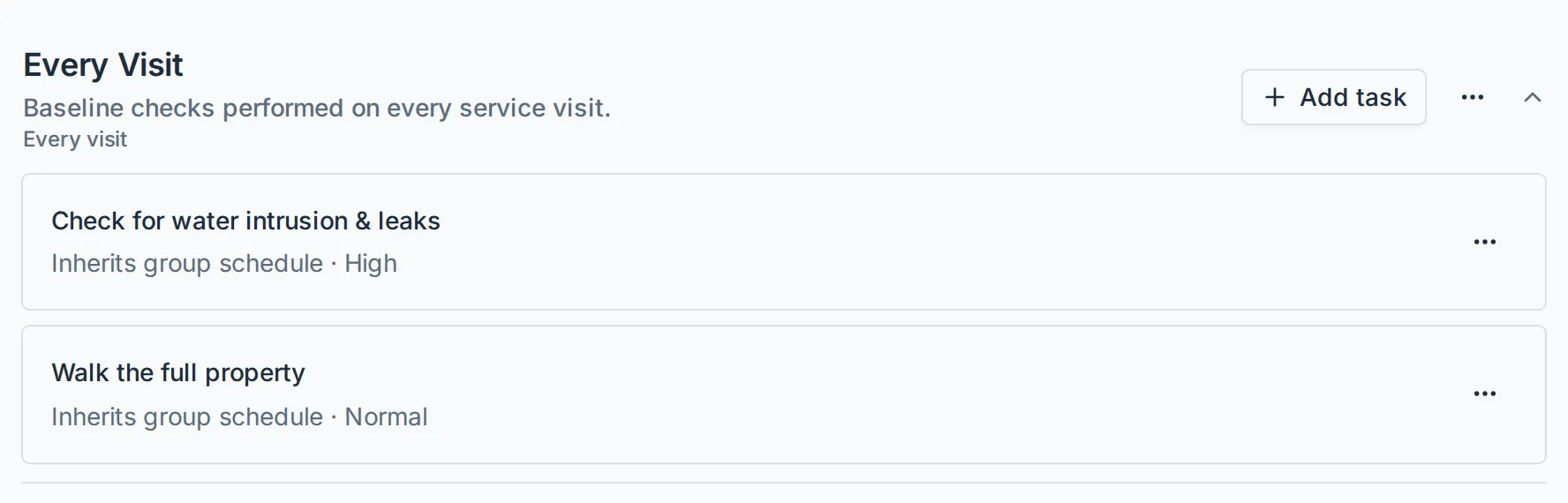
Section titled “Inheritance”A template’s schedule fields can each be empty, and empty means “use the group’s”. The Same as its group card under a template’s How should it repeat? clears all of them at once, which is why a grouped template shows Inherits group schedule in the library list.
That gives you three useful shapes:
- A template in a group, inheriting: it runs whenever the group runs.
- A template in a group with its own schedule: the group is only a label; the template’s own setting wins, field by field.
- A template with No group: it carries its own schedule, and with nothing set it runs on every visit.
What happens next
Section titled “What happens next”Nothing is created until someone prepares a visit. On the estate’s Tasks tab, Prepare Next Visit opens the Prepare Visit page, which lists what the next visit would contain: Firm work that definitely applies, plus any Carryover from an earlier visit. You choose what to keep, and preparing creates those tasks on the visit’s checklist. Preparing twice creates no duplicates.
From then on the work is visible on the visit checklist and in the All tasks view.