

Set the service schedule
- Owner
- Organization admin
- Concierge
The service schedule is the recurring rule that says how often an estate is visited. Everything that shows an upcoming visit - the calendar, the home dashboard, the next-visit chip on the estate page - is projected from it. Owners, organization admins and the estate’s own concierge can set it.
An estate has one service schedule. Ad-hoc visits outside the rule are booked on the calendar instead.
Set the schedule
Section titled “Set the schedule”-
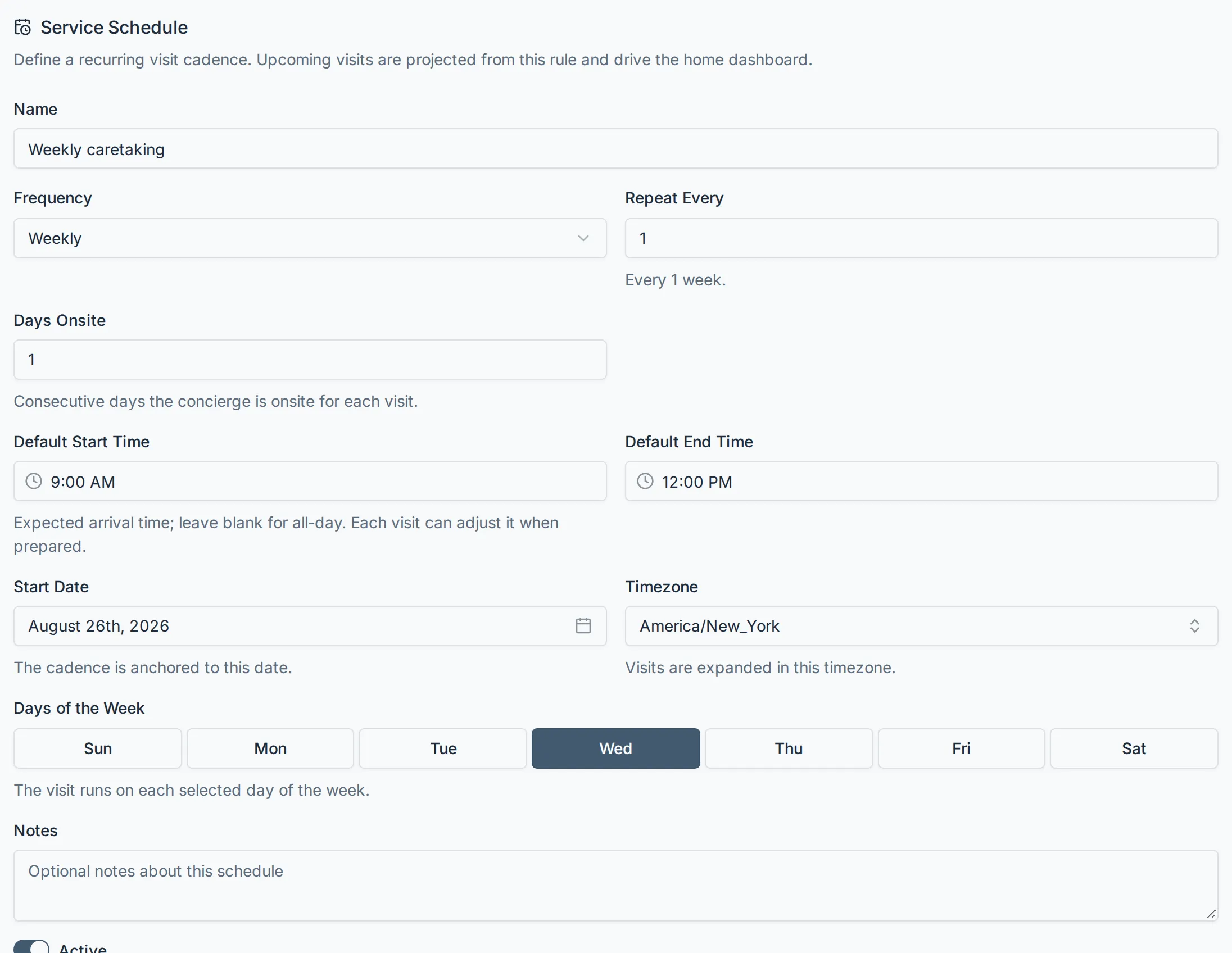
Open Settings → Estates, select the estate, and open the Schedule tab.
-
Give the schedule a Name - what the visit is, in the operator’s words: “Weekly caretaking”, “Monthly maintenance visit”. It is shown with the visit.
-
Choose the Frequency (Daily, Weekly, Monthly or Yearly) and Repeat Every. Repeat Every counts in units of the frequency, so Weekly + 2 is every second week. The line under the field spells out what you picked.
-
Set Days Onsite if a visit spans more than one day. 1 is a single-day visit; the maximum is 31. A three-day visit is still one visit - it simply occupies three consecutive days on the calendar, labelled “Day 2 of 3” and so on. One visit can be made longer or shorter without changing the schedule, from the calendar’s Move visit window.
-
Set Default Start Time and Default End Time, or leave them blank. Blank start means an all-day visit. If you set a start and leave the end blank, the visit is treated as one hour long. The end must be after the start, and can only be set once a start is.
-
Pick the Start Date. This is the anchor: it fixes where the cadence falls and when the series begins. Nothing is ever projected before it.
-
Check the Timezone. It defaults to the timezone of the browser you are using. Visits are worked out as local calendar dates in this zone, so an estate in Aspen keeps its dates however far away the person editing it is.
-
Choose the days, if the frequency has any (see Days within the period below).
-
Add Notes if there is something standing about the visit, and leave Active on.
-
Select Create schedule. Steadwell confirms with Schedule saved.
Days within the period
Section titled “Days within the period”Which day fields you see depends on the frequency.
| Frequency | What you choose | Default |
|---|---|---|
| Daily | Nothing. Every nth day from the start date. | - |
| Weekly | Days of the Week - any combination of Sun to Sat. Weeks run Sunday to Saturday. | The start date’s own weekday. |
| Monthly, On days of the month | Days of the Month - any combination of 1 to 31. | The start date’s day of the month. |
| Monthly, On chosen <weekday>s of the month | Which <weekday>s - first, second, third, fourth or last. The weekday itself comes from the start date. | The start date’s own position in its month. |
| Yearly | Nothing. The same date every nth year. | - |
Switch between the two monthly styles with Monthly Pattern. Because the weekday for “first Tuesday” comes from the start date, changing the start date to a Thursday turns the rule into “first Thursday”.
Picking days replaces the start date’s own day. The start date still decides which week or month the series runs in, and still bounds the beginning: if you anchor on a Wednesday and select Monday and Friday, that first week only produces the Friday.
Examples
Section titled “Examples”Assume the schedule is saved today, with the start date shown.
| Schedule | Resulting visits |
|---|---|
| Weekly, every 1 week, start Wed 3 June, days Wed | Every Wednesday from 3 June. |
| Weekly, every 2 weeks, start Wed 3 June, days Mon + Fri | 5 June, then 15 and 19 June, then 29 June and 3 July - two visits every other week. The Monday of the first week is before the start date, so it is skipped. |
| Monthly, every 1 month, days of the month 1 + 15 | The 1st and the 15th of every month. |
| Monthly, every 1 month, day of the month 31, start 31 January | 31 January, 28 February, 31 March, 30 April. |
| Monthly, every 1 month, On chosen Tuesdays, first + last | The first and last Tuesday of every month. |
| Monthly, every 3 months, start 10 March | 10 March, 10 June, 10 September, 10 December. |
| Daily, every 1 day, Days Onsite 1 | Every day from the start date. |
| Yearly, every 1 year, start 1 May | 1 May each year. |
| Monthly, every 1 month, day 15, Days Onsite 3 | One visit a month, occupying the 15th, 16th and 17th. |
How visits reach the calendar
Section titled “How visits reach the calendar”Steadwell does not create a row for every future visit. It stores the rule and works out the dates when something needs them, which is why editing the schedule changes the calendar immediately and why there is no limit on how far ahead you can look.
- The calendar shows projected visits from today forward. Past dates show the visits that actually happened, not projections of what the rule would have produced.
- The home dashboard and the estate page show the next projected date as “Next visit today”, “Next visit tomorrow” or “Next visit in 5 days”.
- Projected visits carry the estate’s calendar colour and the schedule’s default times.
- A visit’s checklist is built from the task groups assigned to the estate when the visit is prepared.
Changing or removing the schedule
Section titled “Changing or removing the schedule”Editing the schedule and selecting Save schedule re-projects every future visit at once. Visits that have already been completed are history and are not affected.
Turn Active off to keep the schedule but stop projecting from it - useful when an estate is out of service for a season. The estate then reads No service schedule on the home dashboard.
Remove schedule deletes the rule. The estate keeps its assets, its completed visits and its history; it simply has no upcoming visits until a schedule is set again.