

Sign in to Steadwell
- Owner
- Organization admin
- Concierge
- Estate admin
- Estate viewer
Signing in takes you to your home dashboard in whichever organization you last worked in. Anyone with a Steadwell account signs in the same way, whatever their role.
Sign in
Section titled “Sign in”-
Go to your Steadwell address and open /login. If you follow a link into the app while signed out, Steadwell sends you here and returns you to that page afterwards.
-
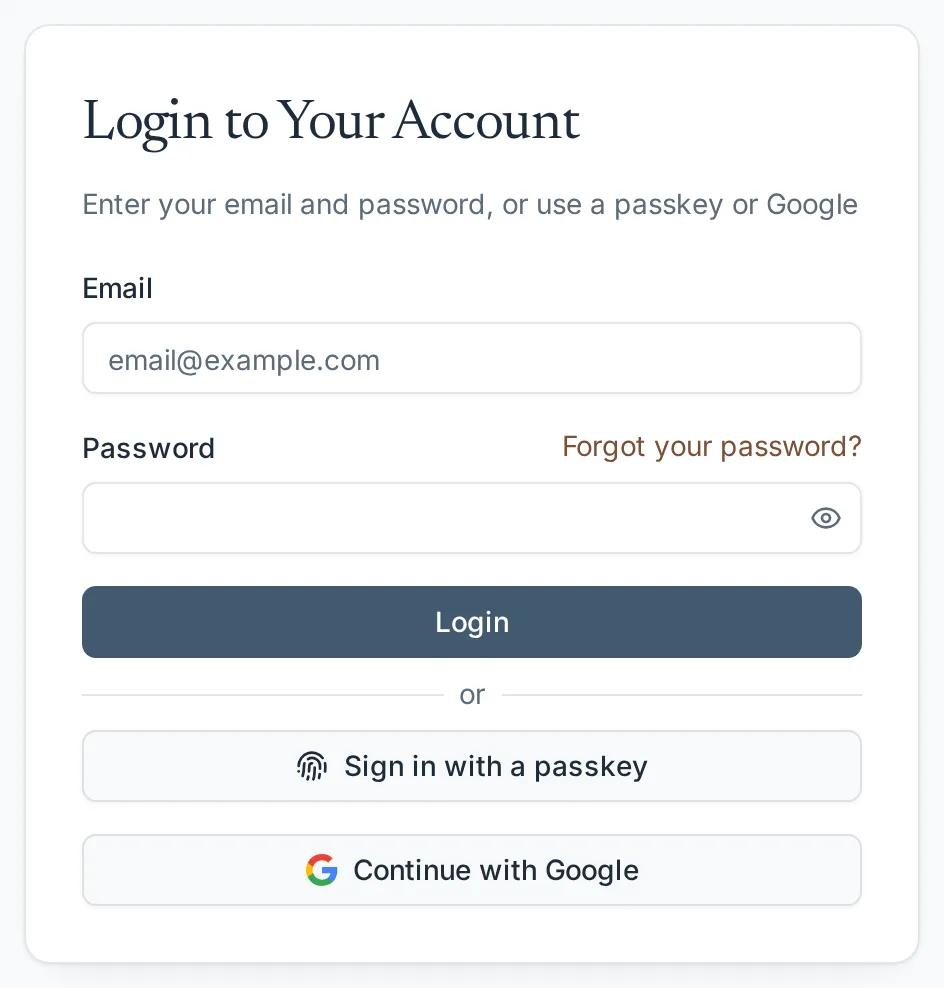
Enter your Email and Password. Use the eye button in the password field to check what you typed.
-
Select Login.
Or sign in with a passkey
Section titled “Or sign in with a passkey”Once you have added a passkey on your profile, it signs you in with Face ID, a fingerprint, Windows Hello or your device PIN - no email address or password to type.
-
On the login page, select Sign in with a passkey.
Or select the Email field: in most current browsers the passkeys saved for Steadwell appear among the suggestions there, and picking one does the same thing.
-
Your browser or device asks you to choose the passkey and unlock it. If the passkey lives on your phone, choose the option to use a phone or another device and follow the prompt.
You land on /home, or on the page you were heading to. Steadwell only accepts a passkey that your device has unlocked with your face, fingerprint or PIN, so a lost phone or security key on its own is not enough to sign in as you.
Or continue with Google
Section titled “Or continue with Google”If your Steadwell offers it, a Continue with Google button sits below Sign in with a passkey. Select it and pick the Google account that uses your Steadwell email address; no password is needed. The first time, Steadwell connects that Google account to yours. See Sign in with Google for the details, including finishing an invitation with Google and disconnecting it later.
The Last used marker
Section titled “The Last used marker”After you sign in, the login page on that browser marks the way you used last with a small Last used label on its button: Login, Sign in with a passkey or Continue with Google. It is only a reminder, kept by the browser for 30 days after each sign-in, and every other way in keeps working. The browser remembers only the method, never your email address or anything else about the account.
What happens next
Section titled “What happens next”Steadwell keeps you signed in on this browser, so you do not have to sign in again each day. You land on /home in your last active organization; if you belong to more than one, switch between them from the organization switcher at the top of the sidebar.
Passkeys
Section titled “Passkeys”A passkey - Face ID, a fingerprint or your device PIN - does two jobs in Steadwell. It signs you in, as above, and it answers step-up verification, the extra confirmation the app asks for before sensitive actions, instead of an emailed code. You add and manage passkeys under Security on your profile once you are signed in; see Set up and use passkeys.
If you cannot sign in
Section titled “If you cannot sign in”| What you see | What it means | What to do |
|---|---|---|
| “Invalid email or password” | The address or the password did not match an account. | Check the address for typos, then reset your password. Steadwell does not say which of the two was wrong. |
| “Sign in failed” | The sign-in request did not complete - usually a dropped connection. | Try again. If it keeps happening, check your network and contact support. |
| Nothing happens and the Login button is greyed out | A sign-in is already in flight, or the page has not finished loading. | Wait a moment. The button re-arms if the attempt fails. |
| Repeated attempts start being refused | Steadwell limits how often sign-in can be retried from one address, to slow down guessing. | Wait a minute and try once more, carefully. |
| “This reset link is no longer valid” | The password link you followed has expired or has already been used. | Request a new one from Forgot your password? |
| “No Steadwell account uses that Google account’s email” | You chose Continue with Google with a Google account Steadwell does not know. Google never creates an account. | Pick the Google account for the address you were invited with, or ask an administrator to invite you. |
| “Google sign-in was cancelled” | You backed out of Google’s account chooser. | Try again, or use your password. |
| Nothing happens after you close the passkey prompt | You cancelled your device’s prompt, or it timed out. Steadwell treats that as a change of mind and shows no error. | Select Sign in with a passkey again, or sign in another way. |
| The browser says it has no passkey for this site, or only offers to use another device | This device has no passkey for your Steadwell account. A passkey stays with the device or password manager that created it. | Use the passkey on your phone through the “use another device” option, or sign in with your password or Google and add a passkey on this device. |
| “That passkey isn’t on your Steadwell account any more” | The passkey was removed from your profile but is still saved on this device. | Sign in another way, then add a new passkey on your profile and delete the old one from the device. |
| “Unlock the passkey with your fingerprint, face, PIN or screen lock to sign in” | The device signed without checking that it was you. | Try again and complete your device’s check. Set up a screen lock on the device if it has none. |
| “This device couldn’t use a passkey” | The browser or device could not run the passkey prompt. | Try again, or sign in with your password or Google. |
| “Sign in with Google - passkey sign-in for platform admins works only for 7 days after a Google sign-in” | Steadwell platform administrator accounts sign in with Google; a passkey works for them only within 7 days of their last Google sign-in. Other accounts never see this. | Select Continue with Google - the page moves you to it. |
Reset your password
Section titled “Reset your password”-
On the login page, select Forgot your password?
-
Enter your email address and select Send reset link.
-
Steadwell shows Check your email. For your privacy it says the same thing whether or not that address has an account, so it never reveals who has one.
-
Open the email and follow the link within 24 hours. Choose a new password of at least 12 characters, confirm it, and select Reset password. You are returned to the login page to sign in with it.
If no email arrives, check the junk folder and confirm you used the address your organization invited. Otherwise email support@steadwell.estate.