

Run a visit
- Owner
- Organization admin
- Concierge
The visit checklist is the field surface: the tasks for an estate’s next visit, worked one at a time and then closed out. You can open it if you can work the estate - its assigned concierge, the concierge assigned to that particular visit, or an organization admin or owner - or if you maintain an asset on it, in which case the page is about your part of the visit; see Your tasks on a visit.
Open the checklist
Section titled “Open the checklist”-
Open the estate from the sidebar and select Visit under its name. From the calendar you can also expand the visit’s card in the day view and select Open visit, and the home page’s visit band offers Open visit for the day’s visits.
With the sidebar open on a wide screen, the estate’s sections - Visit, Overview, Manual, Contacts, Requests, History and Billing - sit under its name in the sidebar. With the sidebar collapsed, or on a phone, the same sections run along the top of the estate page instead.
-
A slim band shows the estate’s photo and name, with the Secured values button in its corner and two buttons beside the name: Directions opens the estate’s address in Maps when the estate has a street address, and Complete visit closes the visit out (see below).
Under the band, the status row names the date with the visit’s expected window beside it - Sat, Mar 14, 2026 9:00 AM – 3:00 PM, or All day. Check the date before you do anything else: once a visit is closed out, this page moves on to the estate’s next occurrence, which may be weeks away.
Under the date, a progress bar counts the tasks done. Once the visit is closed out, a Completed chip shows the time; until then there is no chip, as its tasks and progress bar are on the page.
While today’s visit is under way, the progress bar turns amber when the visit falls behind: the share of tasks done trails the share of the expected window gone by (with one task’s worth of slack). A visit set for 8:00 AM – 12:00 PM with 6 tasks turns amber at 10:00 AM with only 1 done. An all-day visit has no window to measure against, so its bar never turns amber. Only your firm’s staff (Owner, Organization admin, Concierge) see the amber bar; an Estate admin or Estate viewer looking at the visit does not.
On a tablet or a computer the status row, the Assets panel and the Bring panel stack on the left and the Tasks panel takes the whole right side. On a phone they run in one column in that order. Bring lists what to take; see Load what to bring.
A visit that spans several days (Days Onsite above 1, or a visit rescheduled for several days) is headed by its whole span - Sat, Mar 14 – Mon, Mar 16, 2026 - with Day 2 of 3 beside the window and a row of its days under it: All days, then Day 1, Day 2 and so on, with today marked. Each of its tasks was given a day when the visit was prepared, and the row chooses which day’s tasks the page lists; see Work a multi-day visit by day. It stays on this page until its last day is over, and its tasks are not marked overdue until the visit’s last day has passed.
-
A visit whose checklist has not been prepared yet shows a panel in place of the checklist, headed This visit hasn’t been prepared yet. It names the date, says how many tasks the estate’s schedule plans for it, and offers one action: Prepare Visit. Until the visit is prepared there is nothing to work, so the tasks, + Task and Complete visit are not shown.
A visit that is only partly prepared - a maintainer prepared their tasks, or a task group was added to the estate after the visit was prepared - keeps its checklist, and a band over it says how many planned tasks aren’t on the visit yet, with Prepare to add them.
Selecting Prepare Visit opens a page titled with the same date, where you choose which tasks go on the visit and can save a draft to finish later. See Prepare a visit. Preparing ahead is the normal rhythm - the week before the visit is a good time.
-
Once prepared, the Tasks panel lists the work in three sections: Open, Skipped and Completed. Only Open is expanded to start with. A search box sits over the list, with a Sort & filter button beside it (the arrows icon) that orders the tasks by priority, due date, size, billable amount, name or asset, and narrows them by Assignees and Size.
When any of the visit’s tasks are yours, the page opens on them: the My tasks badge under Tasks is outlined, and the progress bar and the Assets panel’s counts are yours too. Select All to see everyone’s tasks, or pick other people under Assignees. On a multi-day visit, All is about people: it leaves the day you are on alone. Complete visit always closes out the whole visit, whatever the list shows.
When some tasks were skipped at the last visit, a Skipped last visit badge sits beside My tasks, with how many. Select it to list only those tasks (the ones whose rows carry the same label), and again to show the rest. An In progress badge works the same way once someone has started a task on the visit; those tasks also sit at the top of Open whatever the sort. All is outlined only while no badge is on; selecting All switches them all off.
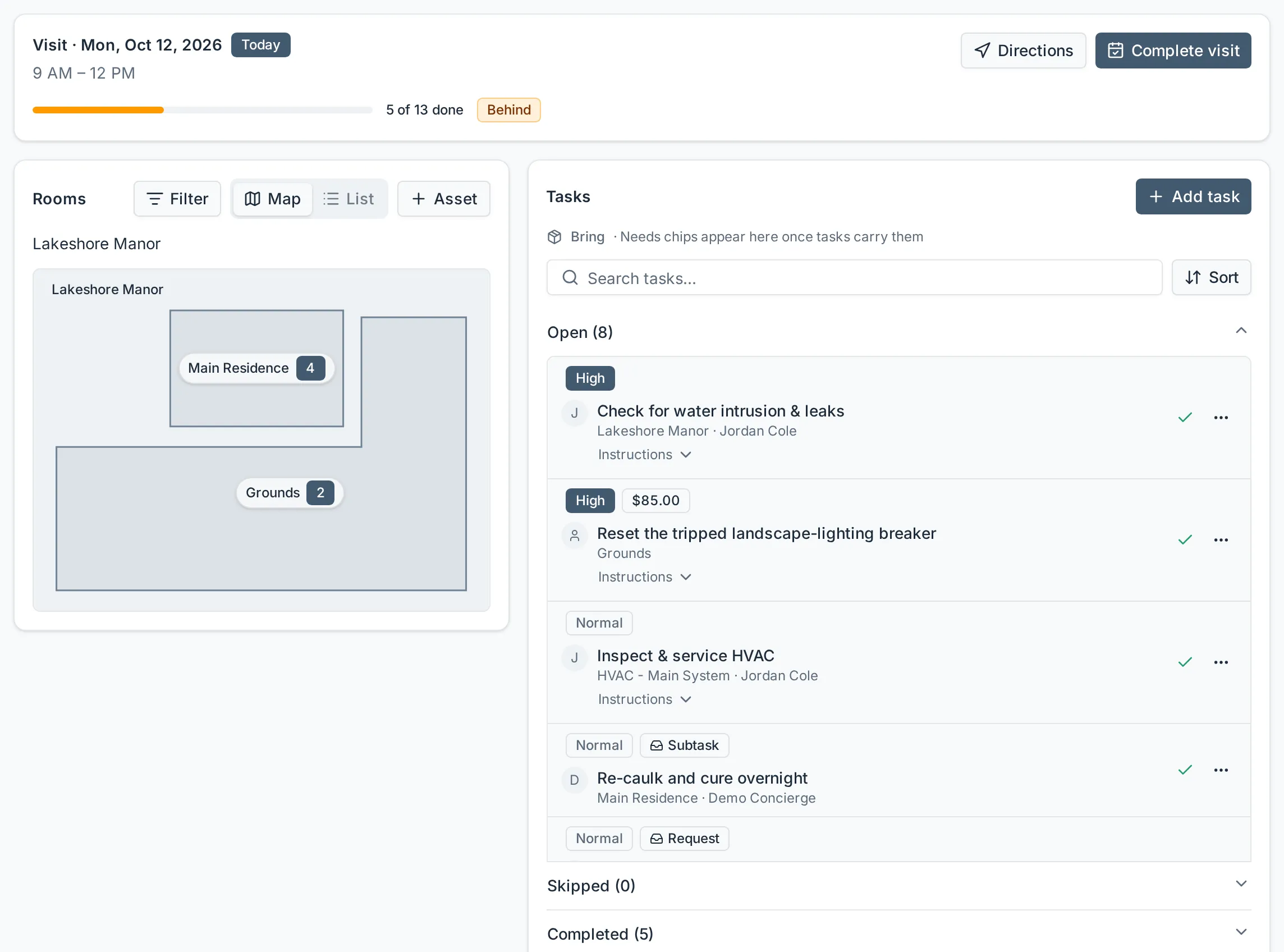
On an estate with assets, the tasks share the page with an Assets panel: a map of the estate, with the path to where you are standing under the panel’s title. Select any zone or asset, on the map or as a card, to narrow the list to its tasks and the tasks of everything inside it. The Map / List toggle switches between the drawn plan and a list of the level you’re viewing; in the list, the level’s zones start opened out one step, showing what’s directly inside them, and anything deeper opens with its chevron, so a piece of equipment two levels down is one tap away. Each hop into a zone or asset is a page of its own, so the browser’s back button walks back out. The toggle is remembered on each device: switch to List and the next visit page you open there starts on the list. Standing in a zone, a row of pills under the map names the other zones on the same level - First floor, Second floor, Grounds - with the one you’re in filled in, so the next floor is one tap away without stepping back up the path first.
Select an asset that tracks attributes - a car, a generator - and a Readings panel above its tasks shows its current values, such as mileage or hours, with Update beside each one, so the reading can be logged before you work the tasks. It also shows how far along each usage-based task is.
Right-click a zone or asset - a card, a map pill, a shape on the map, or a row in the list - or press and hold it on a touch screen, to open its menu where you pressed, without stepping into it:
- View opens the asset sheet - the same one as the estate’s Manual, to read its details, secured values, files and task history, or to edit them, without leaving the visit. Shift+Enter on a focused card, pill or row opens it too.
- Update attributes, on an asset that tracks attributes, logs its readings.
- Block, last and in red, opens Block out time with it already ticked. A maintainer working their part of the visit sees it only on the assets they look after.
In the list, each row shows its count of open tasks right after its name, and a ⋯ button at the end of the row opens the same menu.
+ Asset on the panel adds an asset under the zone you’re viewing and opens its sheet to fill in. To put it somewhere else, select the place name next to Under at the top of the dialog and pick another place, as when adding an asset from the Manual. A maintainer working their part of the visit sees + Asset only while viewing an asset they look after, and can only add inside their part.
Today’s events at the estate
Section titled “Today’s events at the estate”When a calendar event at the estate falls on today - a delivery, a crew on site, a party - and you are one of its attendees, a dotted card over the page reminds you of it. It shows whether or not today is a visit day. People who weren’t invited to the event never see it.
- With one event, the card is one line: Today: Pool resurfacing crew on site · All day · Back terrace. With several, it is headed Happening at Lakeshore Manor today and lists each one with its time, title and place.
- A chip on each event says where it stands: in 3 hrs before it starts, Now while it is on (the card’s border turns solid), Ended once it is over, Today for an all-day event, and Day 2 of 3 on an event that runs over several days.
- Details opens the event. On a phone, tap the event itself.

Add an event to the visit summary
Section titled “Add an event to the visit summary”While the visit is under way - today is one of its days - each event offers Add to summary. Select it and the event is listed in the visit’s summary under Additional Items once the visit is closed out, with its date and time: Pool resurfacing crew on site · Wed, Oct 28. The button then reads In summary; select it again to take the event back out. Nothing is added unless someone selects it, and everyone working the visit sees the same choices.
Once the visit’s summary has been saved, the events are part of it, and each one offers Edit in summary instead: change or remove the line there, like any other Additional Item.
Hide the card
Section titled “Hide the card”Select × on the card to hide it for the rest of the day on this device. A dotted 2 events today chip then sits beside the date in the status row; select it to bring the card back. The next day starts with the card shown.
Work a multi-day visit by day
Section titled “Work a multi-day visit by day”On a visit that spans several days, every task on the checklist belongs to one of its days. The days are given when the visit is prepared, and the page lists one day at a time:
- While the visit is under way, the page opens on today’s day - Day 2 is pressed in the row under the date - and lists that day’s tasks. The progress bar and the Assets panel’s counts are that day’s too. Any task from an earlier day that is still open rolls in with it, flagged Planned for Day 1 · not finished: the day it was planned for stands, so the next visit is prepared the same way, but the work is here to be done. Select a later day to work ahead; it lists that day’s tasks, with the unfinished work of the days already over behind them.
- Before the visit starts, and once it is closed out, the page shows All days: every task of the visit, each row carrying a Day N chip.
- All days is always there to press, and it is what an empty day offers when nothing is planned for it.
A task with no day - one added on the visit page after it was prepared, a scheduled task’s occurrence on a single-day visit, or work carried in from an earlier visit - shows on every day, as does anything overdue from before the visit. Complete visit still closes out the whole visit: every task still open on any of its days is skipped, not only the day’s.
To re-plan a task while the visit is open, select Move to Day… from its … menu and pick the day, or Any day to take it off the days altogether. A task can be moved up to the visit’s last day, and the change shows at once on the day you move it to.
Your tasks on a visit
Section titled “Your tasks on a visit”A member of staff who maintains an asset on the estate, but is neither its concierge nor assigned the visit, opens the same page for their part of it: the tasks assigned to them and any unassigned task on an asset they maintain. The page opens on those - My tasks is outlined, the progress bar and the Assets panel’s counts are theirs - and they complete, skip, note and photograph them as anyone else would. Selecting All shows the whole visit, with everyone else’s tasks there to read but not to act on; the Assignees filter narrows it to anyone. + Task offers every asset their organization looks after under Where, not only their own: work they notice on the way goes to that asset’s maintainers unless they assign it. They can block the assets they look after or add assets inside them from the Assets panel. They cannot close the visit out, price work or change the Bring list - that stays with the concierge - though they can tick what they loaded. Until their tasks are prepared, the panel reads Your part of this visit hasn’t been prepared yet and Prepare Visit opens the prepare page for their tasks. That offer stands even when the schedule plans none of their tasks - the callout says so, and preparing is where they add work of their own - until they have prepared their part, or the concierge or an admin has prepared the whole visit. Their visits show on their Home and calendar like any other.
Load what to bring
Section titled “Load what to bring”The Bring panel is the list made when the visit was prepared: the vehicle at the top, then one row per item with the tasks that need it. Equipment that needs repair or is out of service is flagged.
-
Tick each item as it goes in the vehicle. The panel counts them - 3 of 5 loaded - and anyone working the visit sees the same ticks.
-
To take an item off, select × on its row. To bring something else, select Add equipment or an item and pick a piece of equipment, or type an item and choose Add “…” as an item. Changing the list is for staff who work the whole visit; a maintainer working their part of it reads the list and ticks what they loaded.
The list follows the visit’s tasks: skip a task and what only it needed comes off; add a task with needs and they are added.
Work the tasks
Section titled “Work the tasks”Each open row carries two buttons - a camera to Attach photo and a tick to Complete - and a … menu (right-click the row, or press and hold it on a touch screen, to open the same menu where you pressed) with Add note, Move to Day… on a visit of several days, then Move to visit… on a one-off, Edit task, Start task (Stop task once started), then Skip task, and Delete task at the bottom on a one-off. Edit task works on any open task, one-off or scheduled. A started task carries an In progress chip. On a task whose asset tracks usage the row leads with a Start (play) button in the tick’s place until the task is under way, and its asset reads unavailable until the task is done. A scheduled task is not deleted from a visit: skip it instead. Move to visit… puts the task on another of the estate’s upcoming visits, and on one of its days; see Move a task to another visit. Once a task is completed or skipped, its row offers Reopen in the tick’s place, and keeps the camera, Add note and Billable amount for amending the record.
The open tasks on the estate’s Tasks tab in settings use the same row: the camera, the tick, and the same … menu.
Edit a scheduled task
Section titled “Edit a scheduled task”When you save a change to a scheduled task, Steadwell asks how far it reaches:
- This task only changes the task on this visit. The schedule, and every later visit, stays as it was.
- This and all future tasks also changes the scheduled task itself from here on: later visits plan it with the new name, instructions, priority and size (and the new assignees, when you changed them), and tasks already prepared on later visits are updated too. Earlier and finished tasks keep what they recorded.
The second choice is offered to owners, organization admins and the estate’s concierge. When the task comes from the task library, the change is this estate’s own version of it: the library task, and every other estate it is assigned to, are left as they are.
On an open row, Add note opens a note box under the row. Write what you saw, or select the microphone to dictate it (where voice input is on), then Save note. The note stays on the row, and travels with the task into the visit’s summary.
The camera works on a task at any status. It opens Add Photos: pick up to 10 images, check the list, then select Upload (it reads Upload 3 photos with three picked). The dialog closes once every photo has landed; if one fails, it stays open with that photo marked, and selecting Upload again retries only what failed.
-
Select the tick on a task. The Complete Task dialog collects Notes (“What was done, anything to flag…”) and optional Completion photos - up to 10, of up to 20 MB each. Pick several at once or add them one by one, and remove any you picked by mistake before completing.
-
Select Complete. The task moves to the Completed section, carrying its note, its photos and a “Completed by” line. A toast offers Undo.
-
Select Skip task from the menu on anything you are not doing today. Skipping also toasts with Undo, and a skipped task keeps any note you wrote as the reason; its Reopen button raises it again at any time.
Tasks you spot on the day go on with Add task. It is one short screen: what needs doing, Where, Who, and When. Where opens on the estate’s top level: step into a place with the arrow beside it, or type in Search places to find an asset anywhere on the estate, shown with the places above it. A maintainer picks among the assets their organization looks after on the estate (not another organization’s part of a shared one); the places around them are only steps on the way. Current visit files the task on the checklist you are working; Next visit, shown with its date, defers it, so work you cannot do now is waiting on the right checklist instead of being remembered. The same choices appear in every Add task window that adds a task to an estate: see The All tasks view. Under More options you can add instructions, a priority, a Size (XS, under an hour, to XL, two days or more) if you want to record roughly how much work it is, a due date (the calendar puts a dot under each of the estate’s upcoming visit days), and a Billable amount if the owner is to be charged for it: the figure shows as a chip on the row, and once the task is completed it opens as a line of the visit’s invoice, ready to send. Leave the field blank for work covered by the visit itself.
Any task on the checklist can carry an amount, not only one you added. Open a row’s … menu and select Edit task (or Billable amount, once the task is completed or skipped) to set or change the figure - up until the visit is invoiced, after which the invoice is the place to change it. A scheduled task remembers what its last occurrence billed: the next time the schedule puts it on a checklist, it opens priced the same way, so a recurring chargeable job is priced once and corrected only when the price changes. A task that is a homeowner request’s own work is priced by its quote instead and offers no amount of its own.
For work you have already done, choose Already done under When. Add Notes & Photos opens the Complete Task dialog to collect the note and photos; select Save there, then Add completed task. The task goes straight into the Completed section with its note and photos.
Work that should come back on every visit, or on a cadence, is a scheduled task. In the same dialog, choose Make it repeat under When, pick the asset under Where, and set its schedule the same way as anywhere else (see Task schedules). Start on this visit is on by default and puts the first occurrence on the checklist you are working; turn it off to start the schedule on the next visit it lands on. With no assignees picked, each visit gives the task to the asset’s maintainers, or to the estate’s concierge when nobody is set. Scheduled tasks can be added by an owner, an organization admin, or the estate’s concierge; a concierge working a visit they were handed only sees one-off tasks.
Close the visit out
Section titled “Close the visit out”-
Select Complete visit on the photo band, or Complete visit and send summary at the foot of the tasks.
-
If anything is still open, the dialog lists it and warns that completing the visit marks those tasks skipped. The button reads Skip & Complete; with nothing open it reads Complete Visit.
-
If the visit’s first day is still ahead, the dialog also warns that you are closing it out early and says when the visit was due to start. You can still confirm.
-
Confirm. Steadwell records the visit as completed and opens its visit summary, ready to send.
What happens next
Section titled “What happens next”The completed date is consumed: the estate’s next visit moves on to the following occurrence, on the calendar, on the home dashboard and on this page. Reopening the checklist shows that next date with the Prepare panel in place of the tasks, ready to be prepared ahead of the day.
Anything left open rolls forward onto it. Anything that was skipped stays skipped in that visit’s record - reopening skipped or completed work later raises it afresh on the next open visit rather than editing history, and the new task starts with the photos the old one had (the closed visit keeps its own copy). An owner or organization admin can still correct a task’s outcome from the visit’s summary page until the summary is sent.
The closed-out visit now waits for its visit summary, which is what the estate’s owner actually receives.
Closed a visit too early? An owner or organization admin can reopen it from its summary page, as long as it is dated today or later and its summary hasn’t been sent. Recorded a visit on the wrong date, or worked the wrong visit? Organization owners and organization admins can change its date from the same page, and a visit it was moved away from goes back on the schedule.