

Describe an asset in About
- Owner
- Organization admin
- Concierge
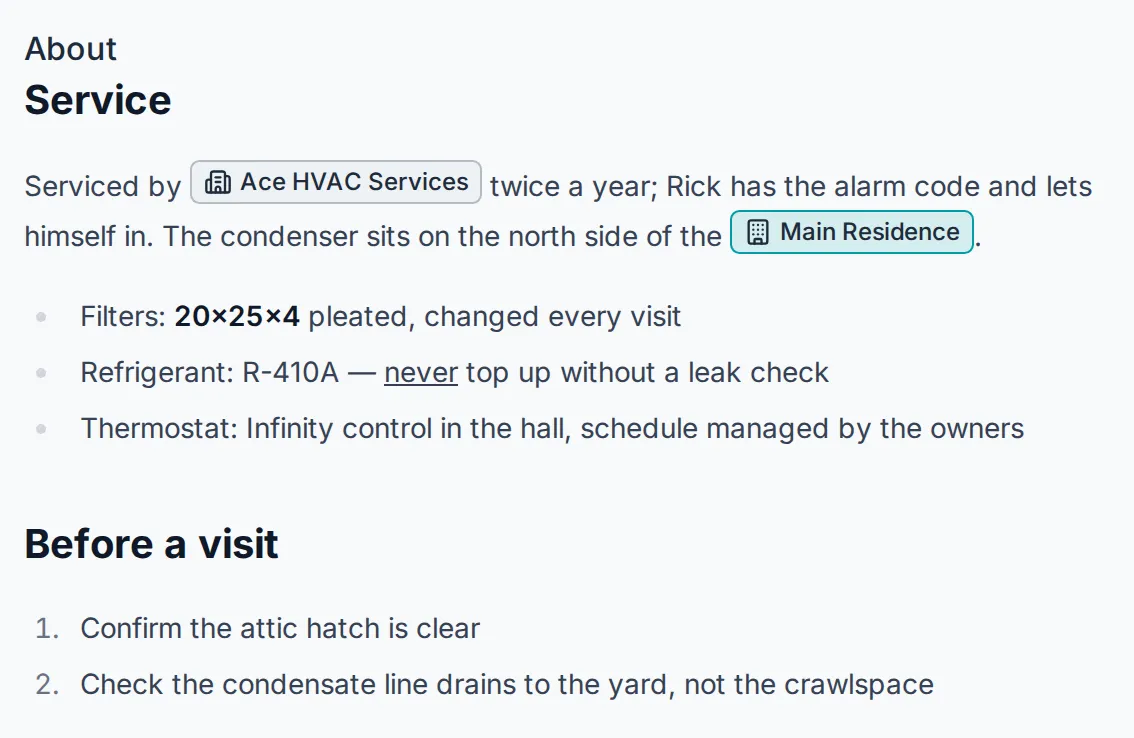
Every asset has an About section at the top of its sheet: the place for the prose that does not fit a field. What a system feeds, how a vendor gets in, what not to touch. It supports headings, lists, bold, italic and underline, links to web pages, and links to other assets and to companies, which open in place when selected.
Write or format the text
Section titled “Write or format the text”-
Open the asset: from the estate page’s Manual, from Settings → Estates → Assets, or from the floorplan.
-
Select Edit at the top of the sheet. The About text becomes editable, with a toolbar above it.
-
Type as you would in a document. Use the toolbar, or the usual shortcuts, to format:
Control What it does Normal / Heading / Subheading The text style of the current line. Two heading levels, since the asset’s name is the title above. B, I, U Bold, italic, underline. Ctrl/⌘ + B, I, U also work. Bulleted list, Numbered list Turn the current lines into a list; press Enter twice to leave it. Link Add a link to a web page. Select some text first and it becomes the link’s text, or type the text and the address in the dialog. Put the cursor in a link and use it again to change the words or the address, or to remove it. Link asset or company Insert a link to something on this estate, or to one of your organization’s companies (see below). 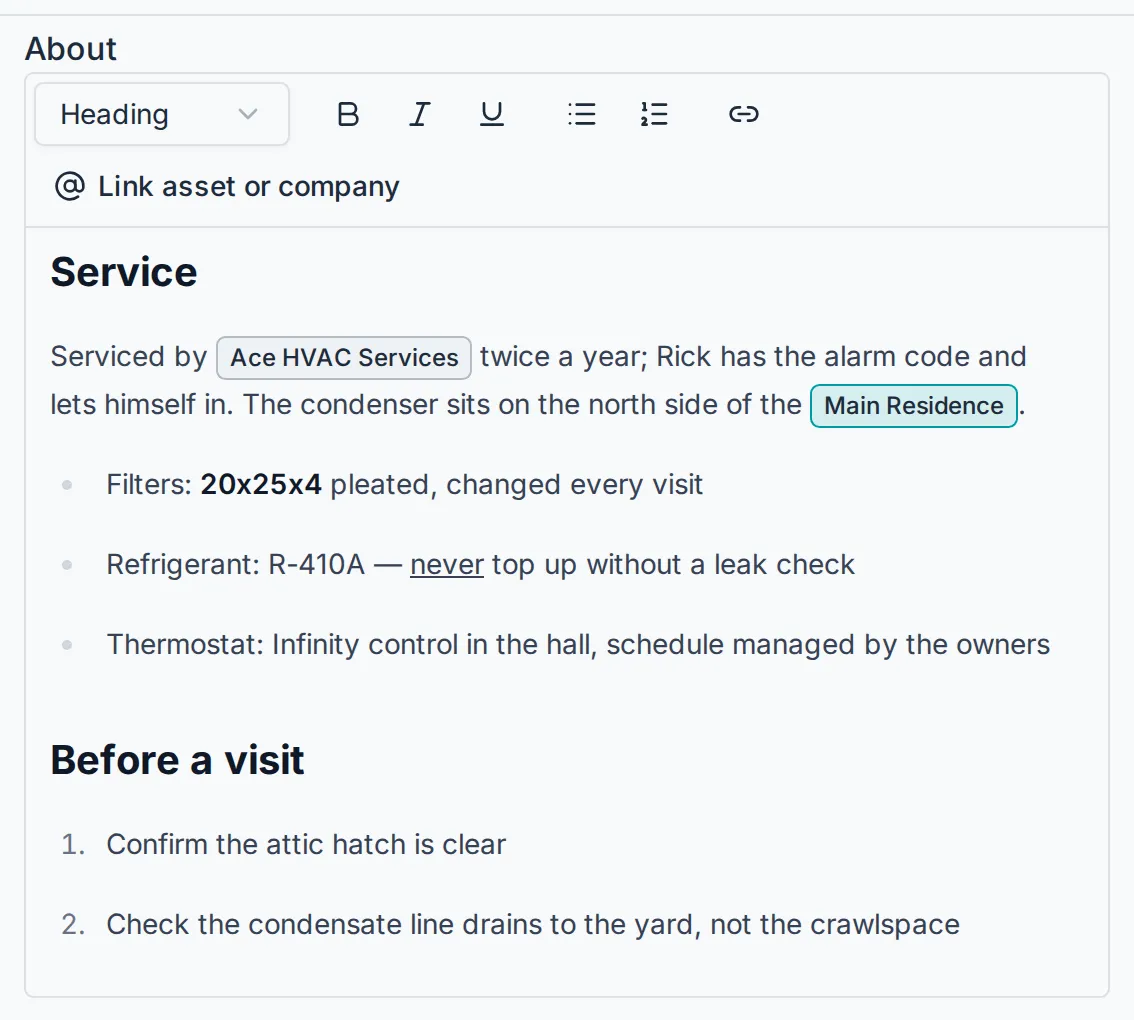
-
Select Save changes in the footer. About saves together with the rest of the sheet, so other edits you made on the way are kept in the same save.
Link an asset or a company
Section titled “Link an asset or a company”A link to another asset or to a company is a chip in the text. An asset chip wears the estate’s calendar color, the same one its visits carry on the Calendar; a company chip stays gray. Reading the sheet, selecting an asset chip opens that asset; selecting a company chip opens the company’s contact card, with its phone and email and the people on it.
-
While editing, type @ where the link should go, or select Link asset or company on the toolbar.
-
Start typing the name. The list narrows to the estate’s assets and your organization’s companies that match; assets are listed first.
-
Select the one you mean, or press Enter for the highlighted row. Press Escape to close the list without linking.
Chips always show the current name. Rename the asset later and every About that mentions it follows; a homeowner who has a nickname for the asset sees the nickname on the chip instead.
What happens next
Section titled “What happens next”- Everyone who can open the asset reads the same About, homeowners included. Homeowners see the section only when it has content.
- Steward reads About when asked about an asset, and can add to it when asked to. Links you placed are kept when it rewrites the text.
- Text written before this section existed is still there, shown as it was typed. Edit it once to pick up the formatting.