

Block out time
- Owner
- Organization admin
- Concierge
- Estate admin
Block out the days something on an estate is unavailable, such as the house while family is staying or a car while it is at the shop. The other side is emailed with what is blocked and for which days: when an owner blocks time, their concierge, so no work is planned on it; when staff block time on an owner’s behalf, the estate’s owners. Everyone who sees the estate’s visits sees the block on the calendar.
Block out time
Section titled “Block out time”-
Select Block at the top right of any page, beside Steward (a crossed-out calendar on a phone).
On the calendar you can also select the arrow beside Add and then Block: the window opens on the day you’re looking at.
As an Estate admin you can also right-click a tracked asset under Your estates on your home (press and hold on a phone) and select Block: the window opens on that estate with the asset ticked.
-
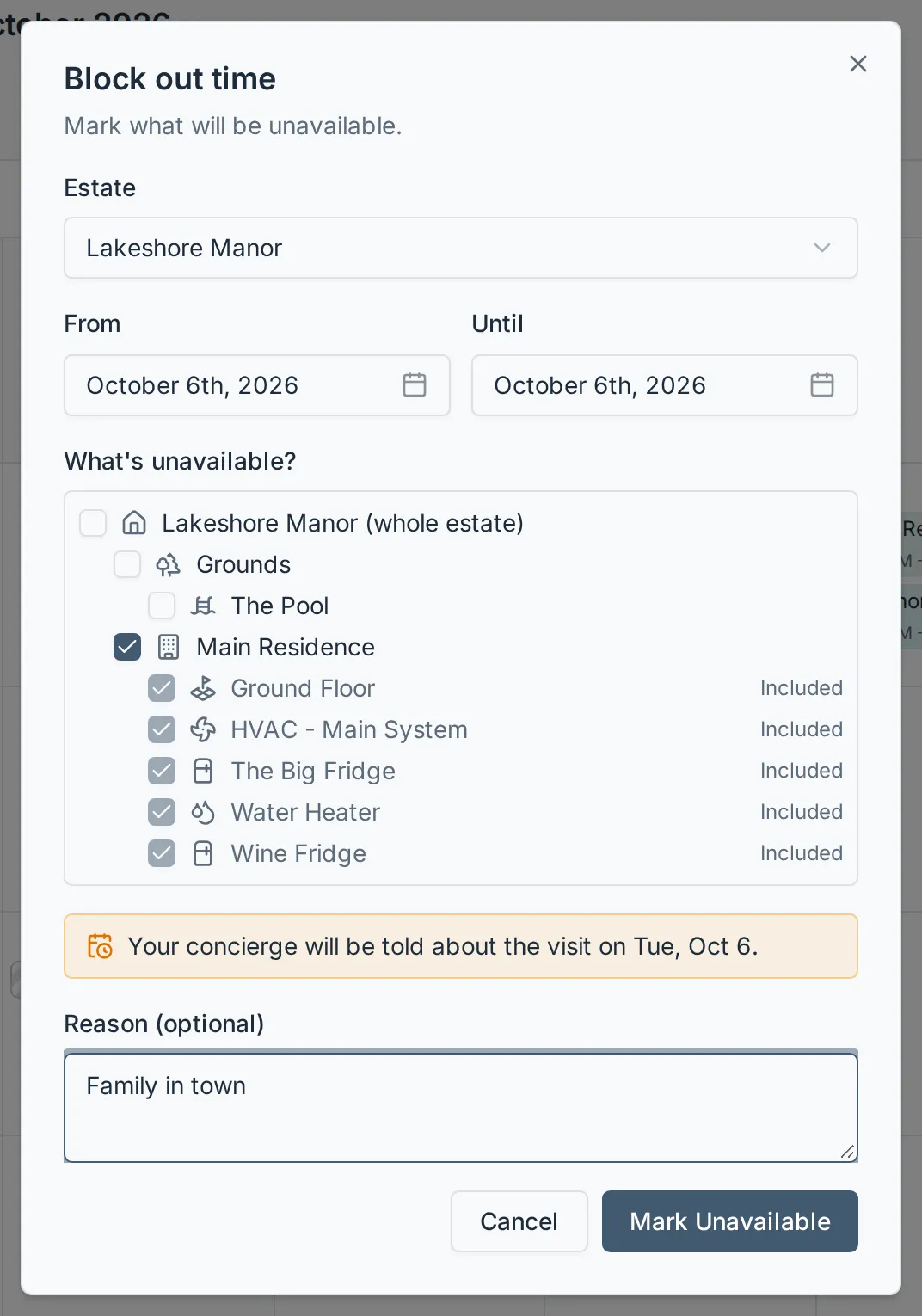
If you own more than one estate, pick the Estate. Staff pick from the estates they work: every estate for an Owner or Organization admin; for a Concierge, the ones assigned to you, any estate where you’ve been assigned a visit you haven’t completed yet, and any estate where you look after an asset.
-
Set From and Until. Both days are included, and the block can start today at the earliest.
-
Under What’s unavailable?, tick what’s blocked. Ticking something covers everything inside it: tick the estate itself for the whole property, or the main house to include every room and system in it. Anything covered this way shows ticked and marked Included. If you look after part of the estate rather than work the whole of it, the list offers only the assets you look after.
-
Optionally add a Reason, such as “Family in town”, for the people who are emailed to read.
-
Select Mark Unavailable.
A block cannot repeat one that is already there. If something you tick is already blocked on any of those days, whether by you or by someone else, the window says what and for which days, and Mark Unavailable stays off until you untick it or change the dates. Change or remove the existing block instead. On an estate shared with another organization that counts that organization’s blocks too, and the message names it. A block that covers more is allowed and sits beside the old one: with the main house blocked for October, you can still block the whole estate for the 16th, and the window notes that it takes the house over that day. The house stays blocked for the rest of the month on its own block.
If a visit is already on the calendar during those days, the window says so before you save, and the email lists it too. The visit is not automatically moved or cancelled. As an Estate admin, to ask for that see Use the calendar; as staff, move or call it off yourself.
Mark yourself unavailable
Section titled “Mark yourself unavailable”As a Concierge, Organization admin or Owner, the same window marks the days you are away, so visits are not planned on you.
-
Select Block at the top right of any page.
-
Under Block out, choose Myself.
-
Set From and Until, and optionally a Reason. If a visit with you as its concierge already falls on those days, the window says so. Days you are already marked unavailable for cannot be marked again; change those instead.
-
Select Mark Unavailable.
Your days show on every staff member’s calendar as a hatched entry with your name. Estate members do not see them. When staff book or move a visit onto those days with you as its concierge, Steadwell warns them you are unavailable; they can still go ahead or pick someone else. You can change or remove your own days from the entry; an Owner or Organization admin can change anyone’s.
Change or remove a block
Section titled “Change or remove a block”Select the block on the calendar, a hatched entry marked with the estate’s dot and what’s blocked, then select Edit or Remove. The estate’s owners and the staff who work it, a Concierge assigned one of its visits included, can change any block their organization or the owners set, whoever set it (another organization’s are theirs; see Blocks on a shared estate). A member of staff who looks after part of the estate can change or remove a block only when everything on it is in their part, and cannot widen it beyond that. A block that has already started keeps its start date unless you move it to today or later. Steward can list blocks and remove one for you, but changing a block’s dates or what it covers happens here.
What happens next
Section titled “What happens next”| When | Who is emailed |
|---|---|
| An Estate admin blocks out time | The estate’s Concierge, or the organization’s Owner and admins if the estate has none |
| Staff block out time | The estate’s Estate admins and viewers, and its Concierge when someone else set the block |
| Anyone changes the dates, assets or reason | The same people, with the old dates shown struck through |
| Anyone removes a block | The same people, telling them it is available again |
| Someone else removes a block you set | You, telling you who removed it |
| A Concierge marks themselves unavailable, changes it or removes it | The organization’s Owner and admins, with the visits assigned to the Concierge during those days |
| An Owner or Organization admin marks themselves unavailable | Nobody |
| Someone else removes the days you marked yourself unavailable | You, telling you who removed them |
You are never emailed about your own changes. Two switches on the Notifications page govern these emails:
- Availability (Asset availability), per estate, covers blocked-out time on an estate’s assets. It starts on for staff and off for estate members, so an owner hears about blocks, including someone removing a block they set, only once they turn it on for that estate.
- Team availability, on the Default row, covers staff unavailable days. Only staff have it, and it starts on.
Before you save a block, or confirm removing one, the window says who it will email. Anyone it concerns whose switch is off is named too: they won’t be emailed. Staff also get a Send email switch there. It starts on, and turning it off saves or removes the block without emailing anyone. Estate admins and viewers don’t get that switch: their changes always email the people listed. Replying to one goes to the organization’s email from Settings → General.
Everyone sees the block on the calendar. When staff book or move a visit onto a blocked day, Steadwell warns them what’s unavailable and why.
A task someone has started on an asset that tracks usage shows on the calendar the same way, from the day it was started through today, and opens to In progress with the task’s name. Nobody blocks it out and nobody removes it: it ends when the task is completed, skipped or stopped. You can still block out time over it.
Blocks on a shared estate
Section titled “Blocks on a shared estate”When two organizations work one estate (see Share an estate with another organization), everyone on the estate sees every block on it: the owner’s, the principal’s and the other organization’s. A block set by an organization other than the one you work in shows Blocked by and its name on the calendar, on the Availability page and on the home, and in the warning when a visit lands on it.
Only the organization that set a block can change or remove it, so another organization’s block has no Edit or Remove. The estate’s owner changes the blocks they and the principal organization set. They can still go ahead, for example to service the pool while the owners are away from it.