

Use the calendar
- Owner
- Organization admin
- Concierge
- Estate admin
- Estate viewer
The calendar lays out the visits Steadwell projects from every service schedule you can see, plus the ones booked by hand. Everyone has it: owners and family members see their own estates, staff see the estates they work. Booking, moving and calling off a visit is staff only. Anyone can add an event for the people they invite.
Almost nothing on this page is stored as a date in a table. A scheduled visit is a projection of its estate’s schedule, which is why moving or cancelling one is recorded as a change to that occurrence rather than as a deleted row - and why a called-off visit keeps its place on the grid, struck through.
Find your way around
Section titled “Find your way around”-
Select Calendar in the sidebar. It opens on the current month.
-
Switch between Day, Week and Month at the top right. Day and Week lay visits out against the hours of the day, so a visit with an expected time sits in its window.
-
Move with the arrows either side of Today, or select the range label (March 2026) to jump to another month or pick a date.
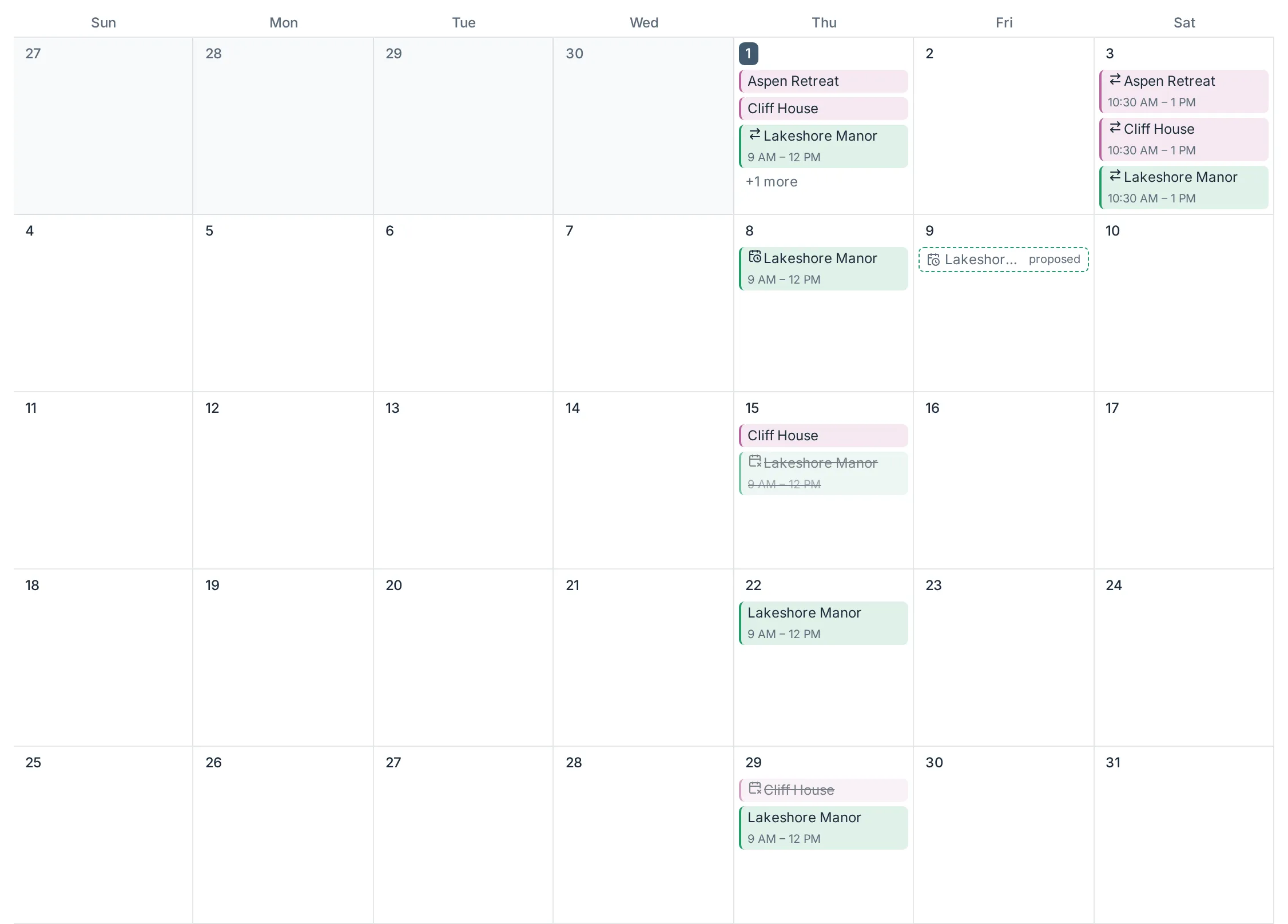
The view and the date live in the page address, so any state of the calendar can be bookmarked or shared, and the browser’s back button walks your steps.
The Add button
Section titled “The Add button”The Add button in the toolbar, also on a day in Day view, adds something on the day you’re looking at. Select its main part for the usual action, or the arrow beside it for the others:
| Item | Who has it |
|---|---|
| Add visit | Staff. The main action for staff: book a one-off visit. |
| Add task | Staff. The same window as on Tasks, with the day already set as the due date. |
| Block | Staff and Estate admins. Block out time, starting on the day. |
| Add event | Everyone. The main action for Estate admins and Estate viewers: add an event. |
Filters
Section titled “Filters”Filter narrows what is drawn:
| Filter | Who sees it |
|---|---|
| Item type: Visits / Tasks / Events / Blocked time | Everyone; Tasks is offered to staff only. Tick one or more kinds to draw only those; with none ticked, everything is drawn. |
| Estate | Everyone. Each row carries that estate’s calendar dot, so the filter doubles as the colour key. |
| Members | Organization admins and owners, and homeowners for their own estates. Pick people to see their calendars: the visits they run as concierge and, for admins and owners, the estate-less and timed tasks assigned to them. A concierge always sees their own work. |
Each estate has its own colour, set when the estate is created. It tints the chip’s background and edge, but the estate’s name is always printed too, so colour is never the only signal.
Timed tasks
Section titled “Timed tasks”A task with a time sits at its hour in Day and Week view, with its estate’s name, on the calendar of the people it is assigned to and of the organization’s owners and organization admins. A concierge sees only their own; homeowners see none. A task with no time stays off the calendar, unless it has no estate and a due date, when it is drawn in the day’s all-day row.
A task on an estate takes that estate’s colour, like its visits. A task with no estate stays grey.
Reading a chip
Section titled “Reading a chip”A chip shows the estate, and the time when one is set. Badges and marks tell you the rest:
- Prepared (a checklist icon in the day view) - someone has prepared the visit. Tasks added to it by hand don’t count.
- Completed - the visit has been closed out.
- Cancelled - called off; the chip stays, struck through, with its reason.
- Reassigned (two crossed arrows) - handed to a concierge other than the estate’s usual one.
- Moved from Mar 7 - this visit was rescheduled here from another date.
- 2/3 - day two of a three-day visit.
When a second organization works your estate beside the principal organization, your calendar shows both organizations’ visits, and each chip names the organization that runs it under the estate. Both wear the estate’s colour, so the name is what tells them apart; in the day view the organization sits as a badge beside the estate’s name. Staff see only their own organization’s visits, with no name to add.
A faded, dotted entry reading Moved to Oct 13 · completed (staff only) is not a visit: that date’s scheduled visit was moved to another day and completed there. Select it to open that visit or, as an organization owner or organization admin, to put the date back on the schedule when the work done wasn’t this visit.
A hatched entry with the estate’s dot and an asset name is not a visit either: the estate’s owner, or its staff on their behalf, has blocked out that time because something is unavailable. Select it to see what is blocked, for how long and why. Staff who book or move a visit onto those days get a warning, but it does not stop them. A hatched entry with a person’s name, which only staff see, is a Concierge or admin who has marked themselves unavailable; booking or moving a visit onto those days with them as its concierge warns too.
An entry with a dotted outline and a clock mark is an event you were invited to, or added yourself. Only the people invited to an event see it. Select it to see the details, or to change it if you added it. An hourglass on an event means someone has asked to move it; a dashed copy marked proposed shows where they asked for it to go.
Selecting a chip opens that day. In the day view each visit expands to show its checklist, with Open visit on the estate’s next visit and View summary on a completed one. A later visit that isn’t prepared yet and is within the next 60 days has Prepare instead, which opens its Prepare Visit page. Once you save a draft there, the button reads Continue draft. On a phone the button shows only its checklist icon.
In the day view:
- Hover over or tap an icon on a visit to see what it means.
- A prepared visit shows a bar in the estate’s colour with how many of its tasks are done, such as 5/14 done.
- Expanding a timed visit makes its hours taller to fit the checklist, and everything later in the day moves down instead of being covered.
- Long task names wrap onto the next line.
- A task with instructions has an Instructions line. Select it to read them.
- When more than three visits, tasks or events overlap, each keeps a readable width and the day scrolls sideways. The hours stay pinned on the left.
Book a one-off visit
Section titled “Book a one-off visit”A one-off is a visit outside the estate’s regular schedule - an owner arrival, a contractor letting in, a storm check. Owners and organization admins book one on any estate; a concierge on the estates they are the concierge of, and on the ones where they maintain an asset (their part of the estate sometimes needs a date of its own). Only the former remove a booking.
-
Select Add visit in the toolbar, or on a day in Day view.
-
Pick the Estate and the Date. Optionally set Duration (days) for a stay of several days, a Time and End Time, and the Concierge who will run it.
-
Choose what rides along: carryover from the previous visit, tasks from the estate’s library, and any one-off tasks you type in.
-
Select Create Visit. Steadwell lands you on that day.
A date the schedule already covers is refused - there is a visit there already, so add the work to it instead. So is a date inside a visit of several days that is already running or booked: the message names the day it falls on, such as “Day 3 of the 5-day visit starting October 26”. Add the tasks to that visit, or move them onto it.
Move or call off a visit
Section titled “Move or call off a visit”In Month and Week view a visit you manage can be dragged. Lift the chip with the mouse, or focus its grip handle and press Space, then the arrow keys.
- Drop it on another day to open Move visit, where you confirm the new date and can adjust the time, the concierge and Days onsite on the way. Nothing moves until you confirm.
- Drop it on the trash pill at the foot of the screen - it appears while a chip is lifted and reads Drop to cancel visit - to open the cancel confirmation.
- Hold it at the calendar’s left or right edge to turn to the previous or next month (in Month view) or week (in Week view). A band appears down each side of the grid while a chip is lifted; rest the chip on one for a moment and the calendar turns, then keeps turning about once a second until you move away. Drop on a day of the new period as usual. With the keyboard, → past the last day of a row turns the page forward and ← past the first day turns it back.
The same actions are on the visit’s card in the day view: Reschedule, Cancel visit, Restore visit on a cancelled one, and Delete visit on a one-off that has no work recorded against it yet.
The visit menu
Section titled “The visit menu”Right-click a visit - a chip in Month or Week view, or its card in Day view - to get a short menu for it. On a phone or tablet, press and hold the visit instead; keep your finger still, since a finger that moves lifts the chip to drag it.
| Item | What opens |
|---|---|
| Open visit | The visit page, on the estate’s next visit only - the same page the day card’s Open visit button opens. |
| Prepare visit | The visit’s Prepare Visit page, when it is within the next 60 days and not prepared yet. Reads Continue draft once you have saved one. |
| Reschedule | Move visit, with a date to pick and the same time, concierge and Days onsite choices as a drop. |
| Reassign | Reassign visit: choose the concierge who runs this one occurrence, or Estate default to hand it back. The visit’s open tasks that follow its concierge move with it. |
| Cancel visit | The cancel confirmation, with its owner-facing reason. |
The menu appears only on visits you manage - the estate’s Concierge, or an Owner or Organization admin - and not on a completed or cancelled visit. Nothing changes until you confirm in the window that opens.
Shorten or extend one visit
Section titled “Shorten or extend one visit”Days onsite in the Move visit window is prefilled with the visit’s current length. Change it to make just this visit longer or shorter - a three-day December visit that becomes two days, say - without touching the estate’s service schedule. You can do that while moving the visit, or on its own: select Reschedule on the visit’s card, pick the same date, change the days and select Save changes. The visit’s tasks stay with it; they belong to the visit, not to a particular day of it.
A visit cannot be made longer when another visit or scheduled tasks already sit on a day it would now cover - move or shorten that one first.
Act on a task from its chip
Section titled “Act on a task from its chip”Click a task’s chip to open its day. In Day view, a task with no time is listed as a card showing its priority, size, billable amount, who it is assigned to, how often it repeats, its instructions, and any note and photos added to it.
The chip in Day view, and in Week view on a phone, and the card carry the same buttons as a task’s row on the visit page: a camera to attach photos, a tick mark to complete an open task (a circular arrow, or Reopen on a skipped one, puts a finished task back to open), and a … button with the rest.
Right-click a chip or card - or press and hold on a phone or tablet - for every action in one menu.
| Item | What happens |
|---|---|
| Complete | The same Complete Task dialog as its row, with notes and optional photos. |
| Reopen | On a completed or skipped task, puts it back to open, keeping any photos attached to it. For an occurrence of a recurring task, the next occurrence its completion created goes back to being a forecast. |
| Add note | Adds or amends the task’s note without completing it. |
| Add photos | Attach several photos at once. |
| Billable amount | On a completed or skipped task, change what it bills for. |
| Move to visit… | An open one-off task on an estate, for Owners and Organization admins: move it onto another of the estate’s visits. |
| Edit task | An open task: the same Edit task window as on the visit page. On an estate’s recurring task, Owners and Organization admins choose this task only or all future ones. |
| Edit schedule / Remove schedule | On a recurring task with no estate, or its forecast drawn further out on the calendar, edit the schedule itself or end it - the occurrence isn’t edited on its own. |
| Skip task | An open task. Undo on the confirmation puts it back. |
| Delete task | An open one-off task only, and only for Owners and Organization admins. |
The menu appears only for staff - the same people the Tasks filter already limits estate-less tasks to.
Ask for a change as an estate admin
Section titled “Ask for a change as an estate admin”An Estate admin cannot move or call off a visit, but can ask. Dragging a chip on your own calendar opens Ask to move this visit, and the trash pill reads Drop to request cancellation. An ask about a visit run by a second organization on your estate goes to that organization’s staff. Add a note saying why and select the submit button. Request a change on the visit’s card in the day view offers the same, plus Change how many days to ask for a longer or shorter visit on the same dates; Days onsite on a move ask lets you ask for both at once.
Nothing moves yet. The visit keeps its place wearing a change requested marker, a ghost sits on the day you asked for (an ask about the days alone has no ghost - it is about the day the visit is already on), and the chip cannot be lifted again until the ask is settled. Until then you can take it back with Withdraw request, on the visit’s card in the day view or on your Notifications page.
Estate viewers do not get this - they follow the calendar without changing it.
To say that the house, a car or anything else is unavailable for a while, without asking about any particular visit, use Block out time: the Block button at the top right of every page, beside Steward. Staff use the same button to block time on an owner’s behalf.
Approve or deny an ask
Section titled “Approve or deny an ask”Owners, Organization admins and the estate’s Concierge answer it, from any of these places:
| Where | What you get |
|---|---|
| The visit’s card in the day view | The ask, its note and who made it, with Approve and Deny |
The Notifications tab of Notifications (/profile/notifications) |
Every ask waiting on you, with the same two buttons |
| Waiting on you in the Notifications panel (Owners and Organization admins), or the Visit change requests panel (Concierges), on your home dashboard | Every ask waiting on you, with a check (Approve) and a cross (Deny) on each row |
| The ghost on the calendar | Right-click it (press and hold on a phone or tablet) for Approve and Deny, without opening the day. A cancellation ask has no ghost - answer one of those from the day view or Notifications instead. |
Approve opens the ordinary Move visit or cancel window, prefilled - including the Days onsite the owner asked for, which you may still change - so the move still goes through the usual confirmation and you choose the time and concierge on the way. Deny takes a note and leaves the visit where it is. Either way the estate’s owners are told: the window names who will be emailed, and any owner whose Visit changes switch is off, who won’t be. Staff also get a Send email switch there. It starts on; turn it off to answer without emailing anyone. When you ask for a change as an Estate admin, the window likewise names the staff your ask will email.
If staff move or cancel the visit themselves while an ask is open, the ask is settled with it: one that asked for the same thing is recorded as approved, and any other is recorded as declined.
What happens next
Section titled “What happens next”A moved or cancelled visit stops counting as upcoming work everywhere else: the estate’s next-visit countdown, the home dashboard and the visit checklist all read from the same projection. A cancellation reason is written for the owner, not as an internal note - they see it on their own calendar.