

Set up your organization
- Owner
- Organization admin
Your organization’s name, logo and contact details are what homeowners see on their estate and in every email Steadwell sends on your behalf. Owners and organization admins can change them; nobody else sees the page.
-
In the sidebar, open Settings and then Organization.
-
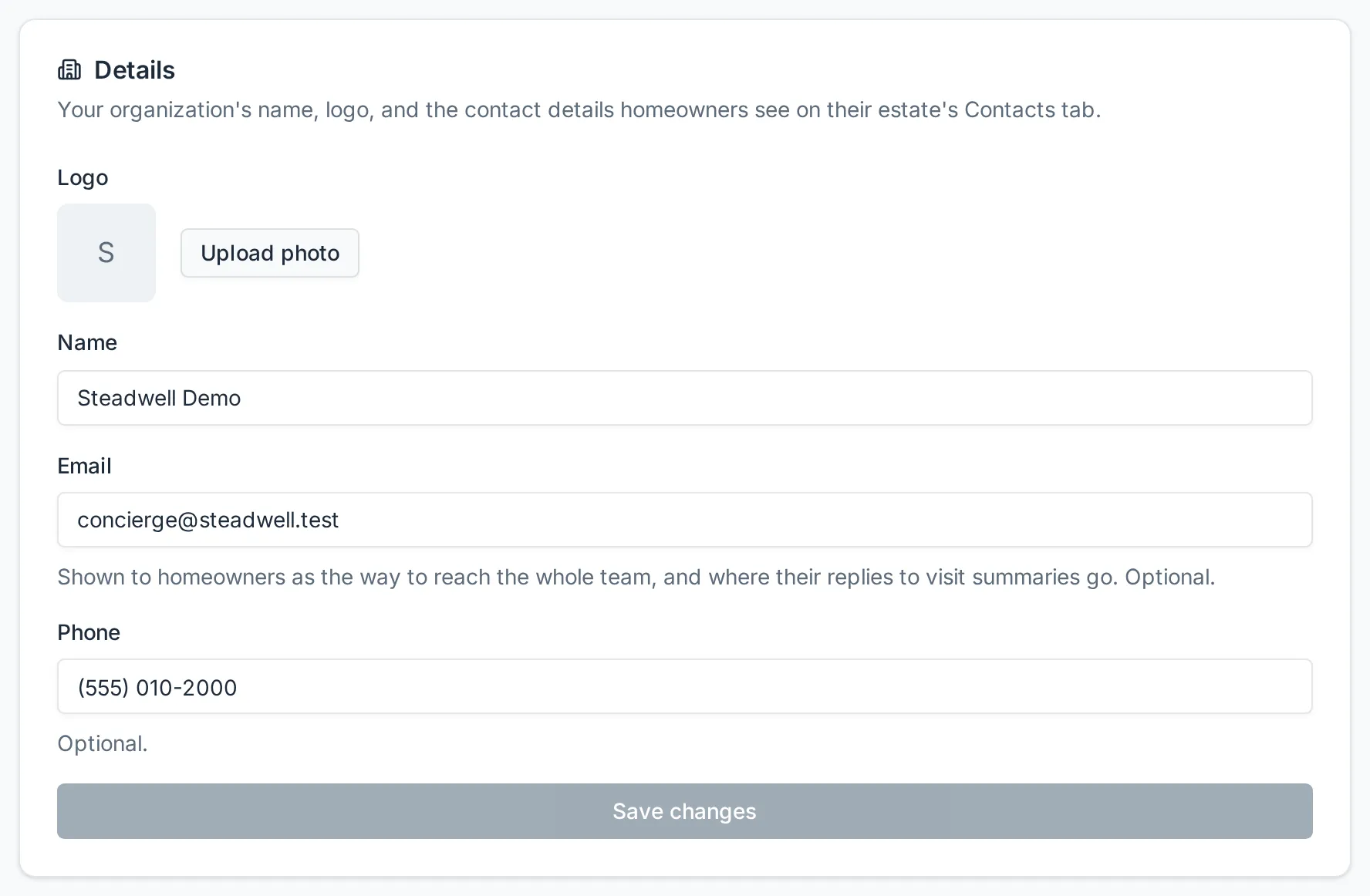
To change the logo, select Upload photo. In the Update Organization Logo dialog, drag an image onto the dropzone or select Browse files. Images only, up to 5 MB.
The logo is saved as soon as the upload finishes - there is no separate save step for it. Remove clears it again.
-
Edit Name. This is the name members see in the organization switcher and the name that appears in the emails Steadwell sends for you.
-
Edit Email. Homeowners see it as the way to reach your whole team, and it is where their replies to visit summaries go. Leave it blank if you would rather they contacted a person - replies then go to Steadwell support. A value that is not a valid email address is rejected when you save.
-
Edit Phone. Optional, and shown in the same place as the email.
-
Select Save changes. The button stays disabled until something on the form has changed.
What happens next
Section titled “What happens next”A confirmation appears and the new details are live immediately:
| What you changed | Where it shows up |
|---|---|
| Name | The organization switcher at the top of the sidebar, the heading on each estate’s Contacts tab, and the subject and body of invitation and “added to organization” emails. |
| Logo | The organization switcher, and the mark at the top of every email Steadwell sends for you - invitations, “added to organization”, password resets, verification codes, visit summaries and request updates. With no logo set, those emails carry the Steadwell mark instead. |
| Email and phone | Each estate’s Contacts page, on the Main office entry beneath the estate’s assigned Concierge. The email is also the reply-to address on visit summaries and blocked-out time notices, so someone who replies to one reaches you. |