

Sign in with Google
- Owner
- Organization admin
- Concierge
- Estate admin
- Estate viewer
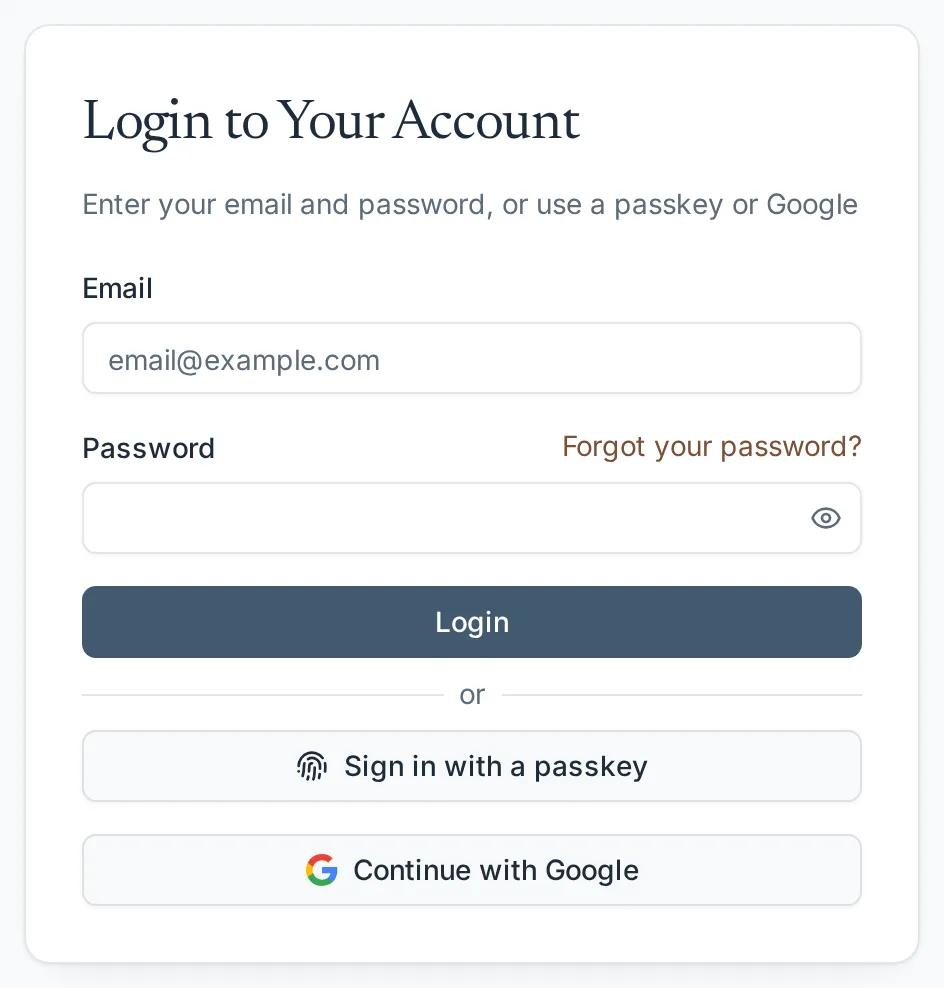
Continue with Google signs you in with the Google account that uses your Steadwell email address, so there is no password to remember or store. Anyone with a Steadwell account can use it, provided the organization that runs your Steadwell has turned it on: when it is off, the button is simply not there and you sign in with your email and password as before.
Sign in with Google
Section titled “Sign in with Google”-
Go to your Steadwell address and open /login.
-
Select Continue with Google, below the Login button.
-
Google asks which account to use. Pick the one with your Steadwell email address, and confirm if Google asks you to.
What happens next
Section titled “What happens next”You land on /home in your last active organization, exactly as after a password sign-in, and Steadwell keeps you signed in on this browser. The first time you use Google, Steadwell connects that Google account to your Steadwell account; from then on either method works, and your profile lists both under Sign-in methods.
Finish an invitation with Google
Section titled “Finish an invitation with Google”An invitation email leads to a page that greets you by name. If Google sign-in is on, that page offers Continue with Google first, then the password fields below a divider. Choosing Google finishes creating your account without ever setting a password: pick the Google account for the invited address and you land straight in the organization that invited you.
You can still add a password later - see Add a password to a Google-only account.
Connect or disconnect Google on your profile
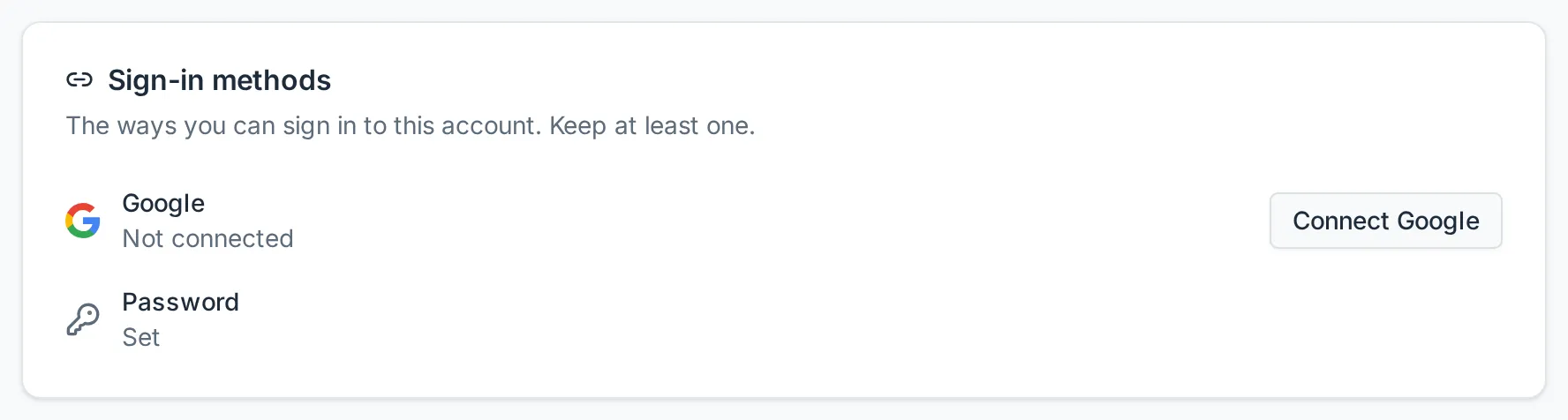
Section titled “Connect or disconnect Google on your profile”The Sign-in methods card on your profile shows whether Google is Connected and whether you have a password Set.
-
Open the user menu at the bottom of the sidebar and select Profile.
-
Scroll to the Sign-in methods card.
-
Select Connect Google and pick the Google account with your Steadwell email address. You return to your profile with Google marked Connected.
-
To stop using Google, select Disconnect and confirm. Your password keeps working.
You must always keep at least one way in. If Google is your only method, Disconnect stays unavailable until you have set a password, and the Google row says so.
Add a password to a Google-only account
Section titled “Add a password to a Google-only account”You do this from the same card, without signing out. The Password row shows Not set with a Set password button beside it.
-
On the Sign-in methods card, select Set password.
-
Enter a New Password of at least 12 characters, repeat it under Confirm Password, and select Continue.
-
The same window then asks you to confirm it is you: enter the code it emails you, or use a passkey if you have one. Back returns to the password fields. Once you have confirmed, the password is saved and Steadwell confirms with Password set.
Your Google connection stays as it was; you now have both methods. The Password row reads Set, Disconnect becomes available, and the Password card appears on your profile so you can change the password later. You stay signed in on every device.
If Google sign-in does not work
Section titled “If Google sign-in does not work”| What you see | What it means | What to do |
|---|---|---|
| “No Steadwell account uses that Google account’s email” | The Google account you picked has an email address Steadwell does not know. Google sign-in never creates an account. | Pick the Google account for the address you were invited with. If you have never been invited, ask an administrator at your organization. |
| “That Google account does not use <address>” (on the invitation page) | You picked a Google account whose email differs from the invited one. | Choose the Google account for that address, or set a password on the same page instead. |
| “Google sign-in was cancelled” | You closed or backed out of Google’s account chooser. | Try again, or sign in with your password. |
| “That Google account uses a different email address than your Steadwell account” (on your profile) | You tried to connect a Google account whose email is not your Steadwell email. | Connect the Google account that uses your Steadwell address. To change your Steadwell address itself, use the Email card first. |
| No Continue with Google button | Google sign-in is not turned on for this Steadwell. | Sign in with your email and password. |