

Estate overview and readiness
The estate page is where an estate is read rather than administered: what is open on the checklist, what the house is made of, who looks after it, what has been asked for and what has been done. Everyone who can see the estate opens it at the same address and sees the same panels: the owner’s home dashboard panels, narrowed to this one estate. What sits above them follows who you are:
- An estate admin or estate viewer gets the masthead, a photo of the house with the estate’s name and concierge beneath it.
- Staff get the photo band and the estate’s sections.
Open it from the Estates section of the sidebar, from your home dashboard, with View estate at the top of the estate’s page in Settings → Estates, or at /estates/<estate>/overview.
The sidebar lists up to five estates, each beside its calendar colour dot: the ones you opened most recently on this device first, then the ones with the soonest visits. With more than five, select Show more at the bottom of the list to see every estate you can see, in alphabetical order, and Show less to fold it back. On the home dashboard, the Estates panel’s count badge opens a searchable list of the same estates, each with its calendar colour dot: type part of a name and pick the estate to open its overview. The estate photo band carries the same list behind the chip centred along its top edge, which names the estate on screen.
The owner estate page
Section titled “The owner estate page”As an estate admin or estate viewer, the estate page is your home dashboard scoped to the house: the same panels, filtered to this estate, so the estate reads the way Home does and nothing has to be learned twice.
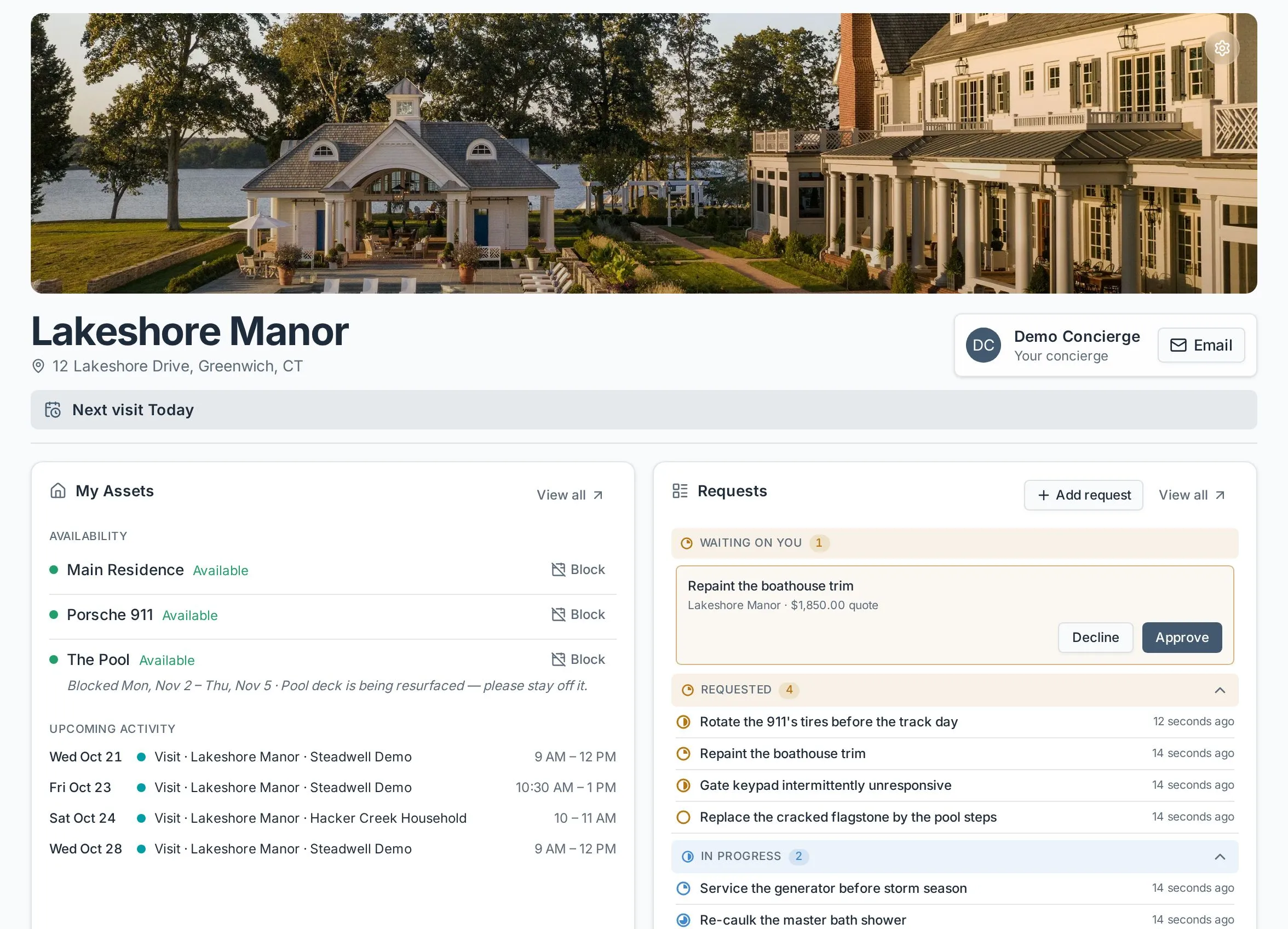
Across the top:
- The photo runs edge to edge, with the round Settings cog in its corner. It opens your settings for the estate: the organizations working on it, the people invited to it, and its record. Your codes are the Codes panel below, not a button on the photo.
- The name and street address sit under the photo, with your concierge beside them - the person who looks after the estate, with Call and Email buttons.
- The next-visit line counts down to the next projected visit, or reads No visit scheduled when the estate has no active service schedule.
Under that, the panels.
The owner estate settings
Section titled “The owner estate settings”The Settings cog on the photo (and at the end of the slim heading on each section, and in the corner of the estate’s slide on your home) opens the estate’s settings page, the owner’s counterpart to the staff’s Settings → Estates page. It holds the estate’s own details and what is yours to decide about who reaches it:
- Details (estate admins) - the estate’s name, address, house facts and preview photo, with Save changes. The concierge, the owner list and the calendar colour are not here: those belong to the principal organization.
- Organizations - the principal organization, marked Principal, and any Operator working on the estate beside it. From here an estate admin can bring another organization on, Limit one to parts of the estate, and from a row’s ⋯ menu Remove it so its people stop seeing the estate at once, or Make principal to hand it the record. The principal organization can be removed as well, by handing its record to another organization on the estate in the same step (see Remove the organization).
- People - everyone on the estate with their role (owner, manager or viewer), the ones who have not signed in yet marked Invited, each with Remove; and Invite someone to add a person by email.
- The record - Export for a copy of the estate as JSON or PDF, and Pass on to someone else for an owner handing the estate to an heir.
Estate viewers open the same page and see the organizations and the Export button; the rest is for estate admins.
The overview panels
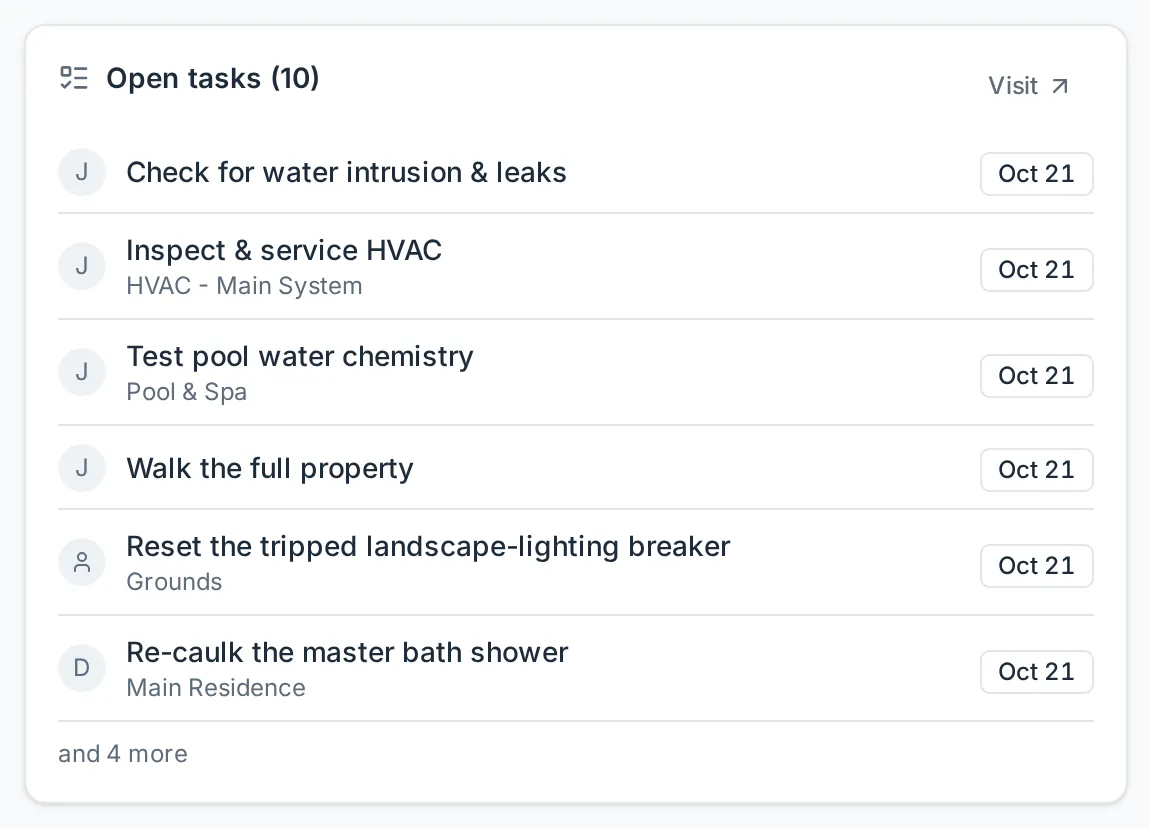
Section titled “The overview panels”Everyone gets five panels; one differs: Codes for estate admins and estate viewers, Open tasks for staff. Estate admins and viewers see My Assets and Requests across the top, then Contacts, Recent activity and Codes. Staff see Open tasks and Assets across the top, then Requests, Contacts and Recent activity. On a narrower screen the panels pair up two to a row, and a panel left on a row of its own takes the full width. Each is the owner Home panel of the same name, so the same rows, buttons and sections apply; the table says what this page narrows them to and where its View all, where it has one, leads.
| Panel | On this page | View all opens |
|---|---|---|
| My Assets (Assets for staff) | Under Availability, a row per tracked asset on this estate, in place of the estate’s own row on Home: red and Out of service, amber and Unavailable until the day after a block on it, or on anything it sits in, ends, with the block’s reason beneath; a Block button (Unblock while a block you set is under way), and the name opens the asset’s sheet. Right-click a name (press and hold on a phone) for the same menu a chip has on Home. What can’t be used comes first - out of service, then unavailable, then available - and the panel lists five; with more tracked, a link beneath (All 15 on Availability, with your count) opens the Availability page on this estate. With nothing tracked yet, a line says so. Then Upcoming activity: this estate’s next visits and block-outs. Staff can block out and unblock assets here too. | The estate’s Manual - its assets, zones, details and files. |
| Requests | The requests raised on this estate: Waiting on you first (quotes ready for a one-tap Approve or a Decline), then Requested, In Progress and Done, which lists only the last 30 days. Add request opens the New request dialog on this estate. A row opens the request here. | The estate’s Requests page. |
| Contacts | Your organization first - its row names your concierge and the staff who look after this estate’s assets, and opens a card with the main office line and everyone on it - then the companies that service this estate. | The estate’s Contacts page. |
| Recent activity | The last five Activity events on this estate - visit summaries, invoices sent, request updates and blocked-out time. A visit summary opens the summary; a request opens here. | The Activity page on this estate alone. |
| Codes (estate admins and viewers) | This estate’s secured values, hidden until you ask: Show all, or a row’s eye, after you confirm it is you. Each opened value has a Copy button and masks itself again after 30 seconds. When the values come from more than one source, each says who stored it. Estate admins also Add a code to the estate here (picking which organizations may see it, when more than one works on the estate) and edit or delete one from its ⋯ menu. | Nothing further: the panel is the whole list. |
| Open tasks (staff) | Everything still open, soonest first, with a count and an Overdue badge on anything past its date. A visit date opens that visit’s checklist. | Visit, for staff who can work the estate. |
A panel that has nothing to show says so rather than disappearing, so the page has the same shape on a brand-new estate as on an established one.
The manual and the estate’s Requests and Contacts pages open from these panels’ View all, not from tabs, and the estate’s name in the breadcrumb at the top of the page brings you back here. Estate admins and estate viewers have no tabs at all: the History of visit summaries opens under the same slimmer heading.
The photo band
Section titled “The photo band”For staff, every page of the estate keeps the same short heading: a strip of the estate’s preview photo with its name and, beneath the name, its street address.

- The Settings chip, beside the address, opens the estate’s page in Settings → Estates, where its details, schedule, assets, layout and tasks are set up. Owners, organization admins and concierges get it on every section.
- The Secured values button, the round button in the photo’s top-right corner, opens every secured value on the estate in one list - the estate’s own gate code or Wi-Fi password first, then each asset’s, under the asset’s name. Selecting it asks you to confirm it is you first, unless you did so in the last 10 minutes. The list opens with every value masked: select Reveal on a row, or Show all at the top, to see the value with a Copy button for 30 seconds before it masks itself again. Hide puts it away sooner, and closing the list drops everything. On a long list, type in the search box to narrow it to values whose name or asset matches - “gate” finds the gate code and everything stored on the gatehouse. Show all then reveals only what the search left on screen. Each asset’s values sit under its name with a count; select the name to fold that asset away, or to open it again. Typing a search opens every asset so no match stays hidden.
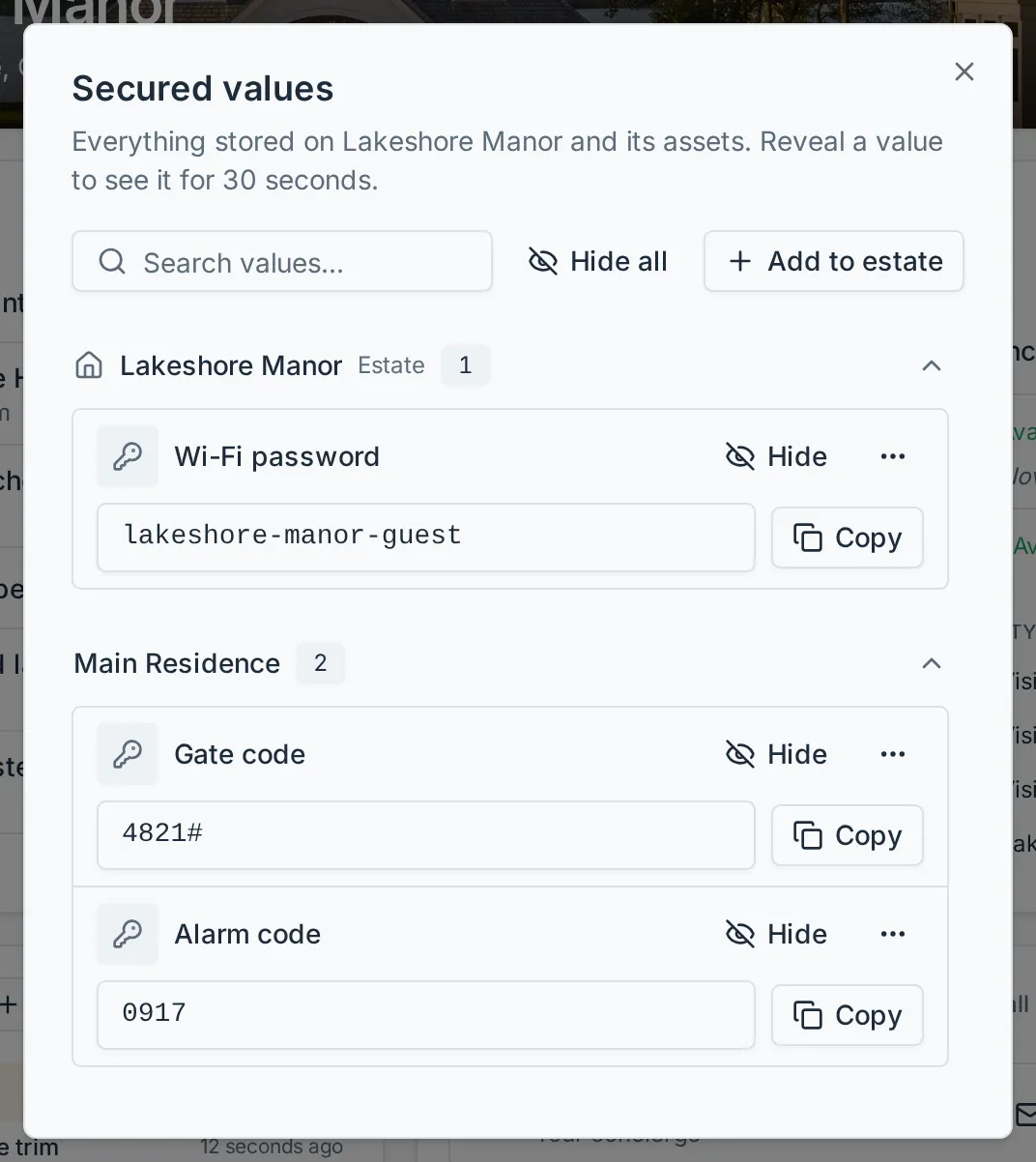
Staff who manage the estate also add values for the estate itself here with Add to estate, and can edit or delete any value in the list. A value that belongs to one asset - the pool’s chemical-room code, say - is still added on that asset, in the Secured section of its page in the Manual.
The sections
Section titled “The sections”Staff move between the estate’s sections from the sidebar or the tabs: with the sidebar open on a wide screen, the sections sit under the estate’s name there; with the sidebar collapsed, or on a phone, they run as tabs under the photo band. Owners, organization admins and concierges get the same sections.
| Section | What it is |
|---|---|
| Overview | This page: the panels, each a door into the fuller page. |
| Visit | The day’s checklist, for staff who can work the estate. |
| History | The visit summaries, newest first. |
| Billing | The estate’s invoices. Concierges see it only when their organization lets them. |
The estate’s Manual, Contacts and Requests pages are not sections: open them with View all on the Assets, Contacts and Requests panels.
Readiness
Section titled “Readiness”Readiness is Steadwell’s one-glance answer to “is this looked after?”. It is derived, never set by hand, and it comes from one thing only: open tasks and their dates.
| Level | Shown as | Means |
|---|---|---|
| Green | Up to date | Nothing is open. |
| Yellow | Open tasks | Something is open, but nothing is past its date. |
| Red | Overdue tasks | At least one open task is past its date. |
Readiness rolls up. Each asset takes the worse of its own state and everything beneath it, so a single overdue task on a pool pump turns the pool red, the grounds red and the estate red. Completing or skipping the task clears it at every level.
The estate’s roll-up appears as a coloured dot beside its name in the Estates panel on your home dashboard. That panel is not shown by default - add it with Customize and then Add panel. Readiness is deliberately not printed over the estate’s photo: the task surfaces say the same thing with the detail to act on.