

Invite and manage members
- Owner
- Organization admin
Your staff join on the Members page: you add them there and pick the roles they hold. Owners and organization admins can do this. The page lists your staff and nobody else. Homeowners and their family are not members of your organization at all: they are invited from each estate’s sharing settings, which is the one place that records who reaches an estate - see Create an estate.
Invite someone
Section titled “Invite someone”-
In the sidebar, open Settings and then Members. People who have signed in are listed under Active, with their roles. Use the search box (Search members, matches name or email) and the Role filter to narrow a long list.
-
Select Invite member.
-
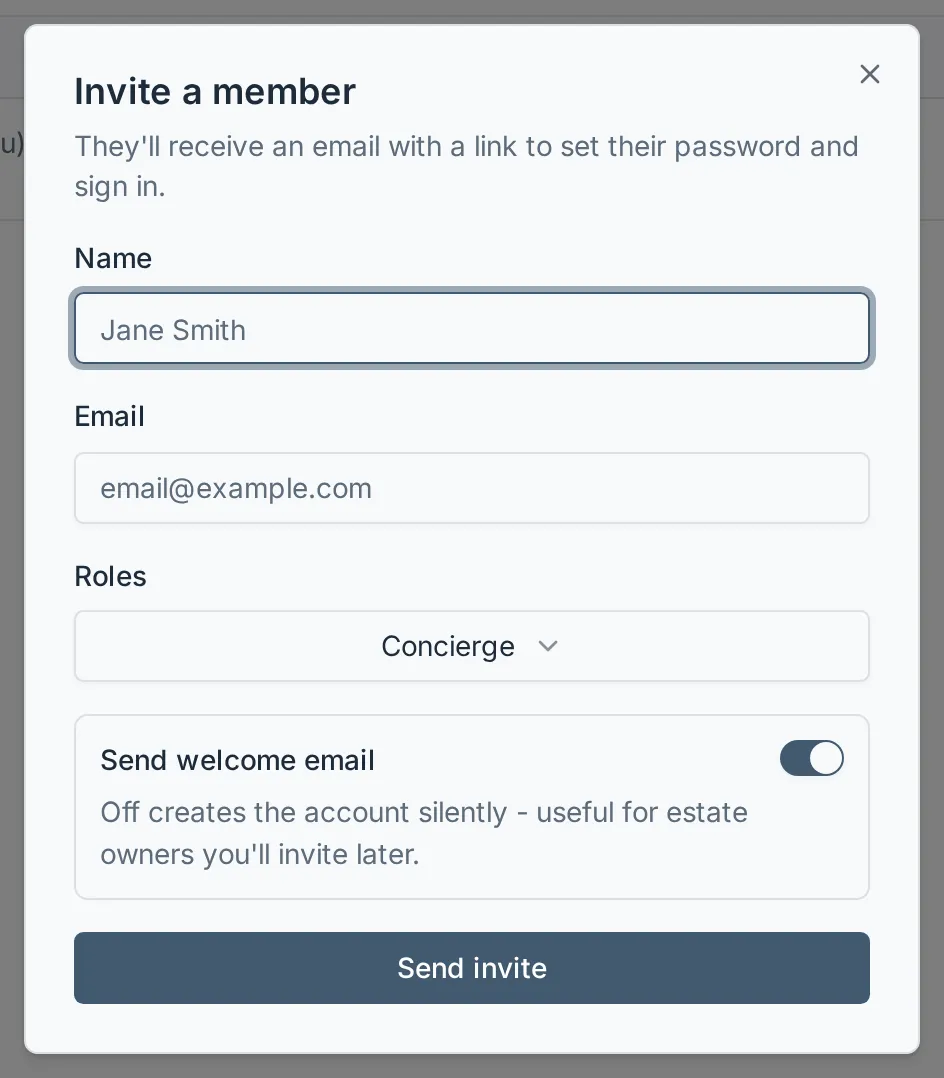
Fill in Name and Email.
-
Under Roles, pick one or more. New people start as Concierge; choose at least one role or the dialog will not submit.
-
Leave Send welcome email on if you want Steadwell to email them now. Turn it off to create the account silently and tell them about it later with Resend invite.
-
Select Send invite (or Add member, if you turned the email off).
Which role to choose
Section titled “Which role to choose”| Role | Use it for |
|---|---|
| Organization admin | Firm principals and office managers. |
| Concierge | Field staff who run visits. |
A person can hold both roles at once, and their roles apply only inside this organization. Owner is not in the picker: there is exactly one owner, and it changes by transferring ownership. The estate roles - Estate admin and Estate viewer - are not in it either: they are not memberships. A homeowner has them on an estate by being named on it, as its owner, manager or viewer, and loses them when that access is taken away there.
Make a homeowner part of your staff
Section titled “Make a homeowner part of your staff”A homeowner on one of your estates can also join your staff - say they manage the house for the family and you want them running visits. Invite their email here like anyone else’s: they get a membership with the roles you pick, beside the estate they already own or share. Nothing about the estate changes. They then have both a switcher entry for your organization and My Estates for their own house - see Work with multiple organizations. Removing them from your staff later leaves the estate theirs.
What the invitee receives
Section titled “What the invitee receives”If they are new to Steadwell, they get an email titled You’ve been invited to <your organization> on Steadwell with an Accept Invitation button. The link is good for 24 hours. Following it lets them finish their account
- with Continue with Google where your Steadwell offers it, or by setting a password - and they land straight in your organization.
If they already have a Steadwell account from another organization, nothing is created and no set-up link is sent. They get You’ve been added to <your organization> on Steadwell with a Sign In button, and your organization is waiting for them in their switcher.
Both emails carry your organization’s logo, if you have set one.
Track and resend invitations
Section titled “Track and resend invitations”The Members page has an Active / Pending toggle, with a count on each side. Active lists members who have signed in at least once. Pending lists members who have never signed in: either they were mailed an invitation (the row shows Invited <date> under their email) or they were added with the welcome email off (the row shows No invitation sent). A person moves from Pending to Active the first time they sign in.
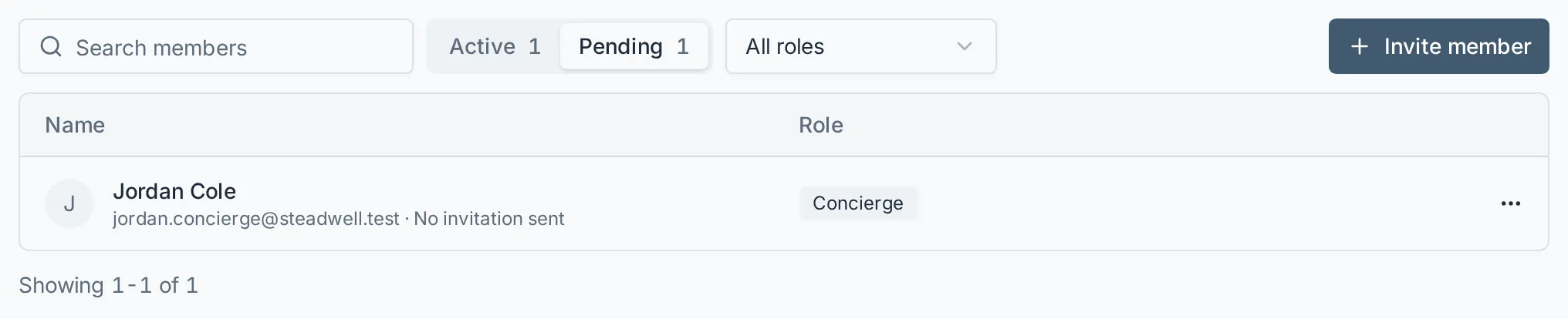
Open the actions menu (⋯) on their row to act on it. Your own row says “(you)” and has no menu.
| Menu item | When it appears | What it does |
|---|---|---|
| Resend invitation | Pending, and they were emailed an invitation | Sends a fresh invitation email. The newest link is the one that works. |
| Send invitation | Pending, and they were added with the welcome email off | Sends their first invitation email and shows Invited <date> on the row. |
| Revoke invitation | Pending | After you confirm “Revoke the invitation for <name>?”, takes them off the list. |
| Edit roles | Any member except the owner and yourself | Opens the Edit roles dialog. |
| Transfer ownership | You are the owner, on any other member’s row | Hands the organization over. |
| Sign out of all devices | Active rows other than the owner’s and your own | For a lost phone or iPad. Asks you to confirm, then signs the person out of every device and every organization they belong to; they stay a member and sign in again. To sign yourself out of your other devices, use the Devices card on your profile. |
| Remove from organization | Active rows other than your own | Asks you to confirm in a dialog. See Offboard a member. The owner cannot be removed, and trying is refused. |
The footer reads, for example, “Showing 1-20 of 23”, and page controls appear only when there is more than one page (20 members per page). Your search, toggle and role filter live in the page address, so you can bookmark or share a filtered list.
Change someone’s roles
Section titled “Change someone’s roles”-
On their row, open the actions menu (⋯) and select Edit roles.
-
In the Edit roles dialog, use the Roles picker to add or remove roles. At least one must stay selected.
-
Select Save roles.
The change takes effect the next time they load a page. You cannot change your own roles, and the owner’s roles cannot be changed by anyone - transfer ownership instead, which makes the other person the Owner and leaves you as an Organization admin.
What happens next
Section titled “What happens next”The Members page refreshes as soon as each action succeeds, so each person always appears under the right toggle. If something fails - an invite to an address that cannot be mailed, for instance - the reason appears in the message at the corner of the screen and nothing is changed.